Microsoft releases MAI-Image-2.6: quality rivals GPT-Image-2, Flash is over twice as fast
Handles multiple reference images, web-assisted generation, precision edits, and variable aspect ratios; the flagship prioritizes quality while Flash cuts wait times and costs for batch work.
- MAI-Image-2.6 both generates and refines images, letting you combine multiple references and web info in one go.
- In Microsoft's editing benchmarks, 2.6 lands close to GPT Image 2's high tier, signaling similar overall quality.
- Under Microsoft's specified workload, Flash hits a median response of 12.2 seconds versus 33.6 seconds for GPT-Image-2-Medium—nearly 2.8 times faster.
- Flash is priced at roughly half of 2.6's typical rate, making it a good fit for large-scale iteration; fine edits can still be compared against the flagship.
Microsoft has released MAI-Image-2.6, an image model that generates pictures from text and performs fine-grained edits on existing images. On September 4, the company followed up with an optimized MAI-Image-2.6-Flash variant. Both models are now available in public preview for developers through Microsoft Foundry. Regular users can experiment with them on the MAI Playground web interface.
The flagship capabilities of this family include: multi-image reference editing, where product shots, people, materials, and scene references can be blended into a single image; web-informed generation, which pulls current information from web pages and documents; and local edits plus aspect-ratio adaptation, allowing adjustments to objects, text, and layout in an existing picture at up to roughly 1.5K resolution output.
The two models are positioned for different jobs: MAI-Image-2.6 emphasizes image quality and precise editing, while the Flash variant targets speed and cost in batch workflows. In Microsoft’s published image-editing evaluations, 2.6 lands close to GPT Image 2 (high) on Elo score. The speed advantage, meanwhile, comes from comparing Flash against GPT-Image-2-Medium: under the stated test conditions, the latter had a median response time about 2.8 times that of Flash.
Quality is close to GPT Image 2, while Flash wins on speed and price
Microsoft’s quality-versus-price chart uses an image-editing Elo score as a measure of relative preference. Evaluators compare images from different models and choose which result they prefer based on alignment with the prompt and visual appeal. A higher score indicates the model was favored more often in these head-to-head comparisons.
| Model | Image editing Elo | Representative price per 1,000 images |
|---|---|---|
| MAI-Image-2.6 | 1324 | $38.9 |
| GPT Image 2 (high) | 1318 | $211 |
| MAI-Image-2.6-Flash | 1311 | $19.5 |
| Nano Banana 2 | 1311 | $67 |
| Muse Image | 1304 | $10 |
MAI-Image-2.6 and GPT Image 2 (high) differ by 6 points on this test, while Flash differs from the latter by 7. Given that the scores for these models carry an uncertainty range of roughly 9–10 points, describing the performance as “comparable” really means the editing-quality scores are close. It would be a mistake to assume every generation or editing task will deliver identical results.

Data as shown by Microsoft at launch; chart caption references Artificial Analysis Arena. Higher on the chart indicates a stronger preference in evaluations, while further left indicates a lower price. Prices refer to representative call costs shown in the chart; actual fees will depend on your configuration and usage.
According to Microsoft’s records from the September 4 launch, MAI-Image-2.6 ranked second in both the Arena text-to-image and image-editing leaderboards, and placed second and first, respectively, in the two corresponding lists on the independent evaluation platform Artificial Analysis. These rankings belong to the flagship 2.6 model. See the original Arena text-to-image leaderboard image here.

Speed tests were run internally by Microsoft at 1024×1024 resolution with 100 requests per minute. The chart provides both median response time and P90: the former is the time by which half of all requests complete, the latter the time by which roughly nine-tenths complete.
Microsoft internal test · 1024×1024 · 100 requests per minute

Flash’s median response time is 12.2 seconds, while GPT-Image-2-Medium comes in at 33.6 seconds, a ratio of about 2.8. The flagship 2.6 model lands at 25.6 seconds. For speed comparisons Microsoft used GPT-Image-2-Medium; for quality-versus-price comparisons it used GPT Image 2 (high).
Flash costs about half the representative price of MAI-Image-2.6 per image, with a 13-point gap in editing Elo. For teams that need to generate many draft variations cheaply, Flash offers lower latency and cost per call. When the job demands fine control over a hero visual, it’s worth comparing results from 2.6 side by side.
Multi-image reference: combining products, materials, and scenes
The MAI-Image-2.6 family accepts up to five visual references, letting you merge text instructions with brand assets and product photos. Reference images can separately provide product shape, texture, person, environment, or style cues, so you don’t have to cram everything into one long prompt.
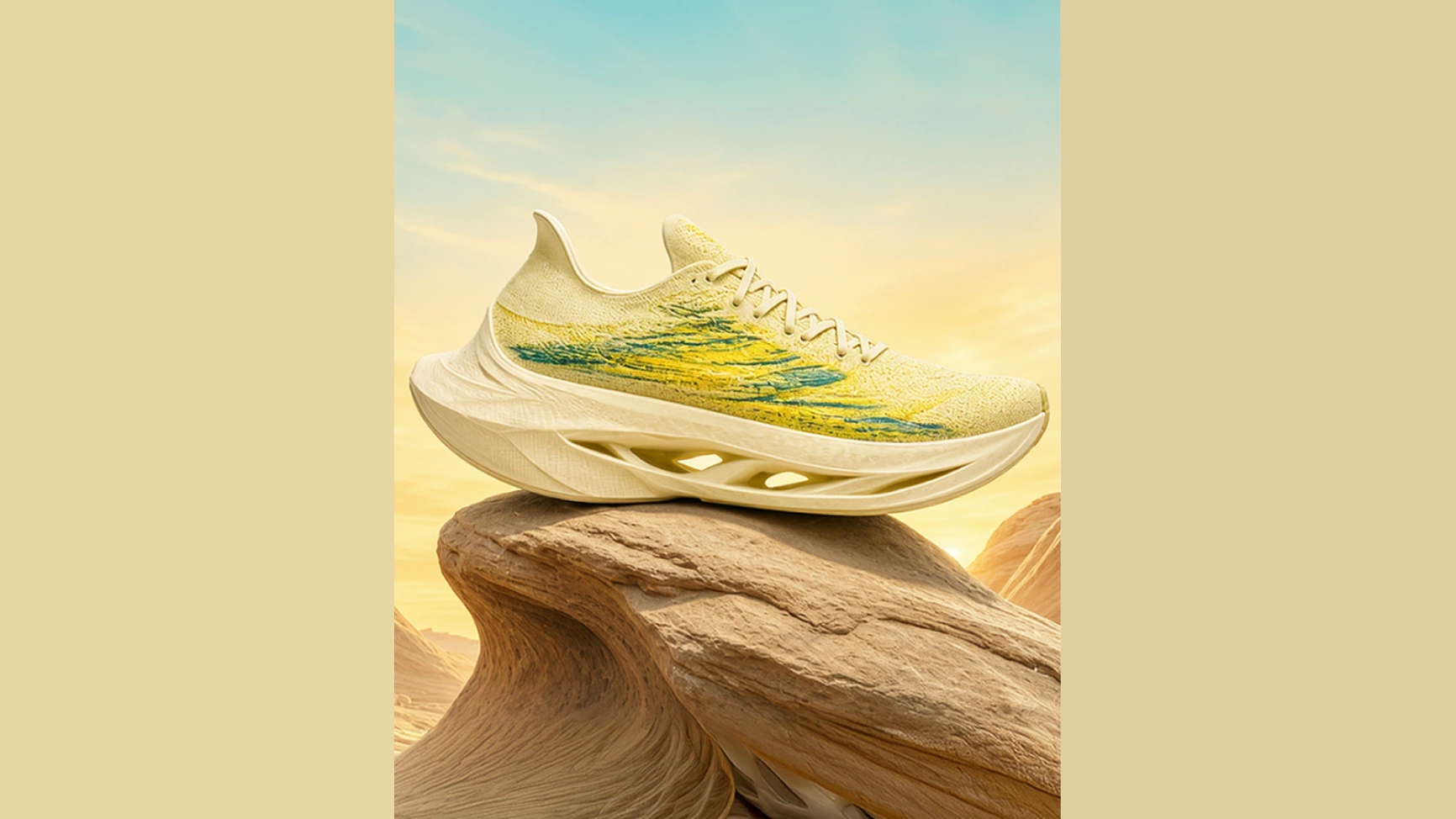
Microsoft’s sneaker example uses four reference images plus a color palette: a shoe in motion, an orange-red canyon, a close-up of a pink upper, and a white-background product shot in pink and orange. The generated image places the shoe on rock, using warm background tones and lighting.
References: four images plus a color palette

Action shot: pose cues

Canyon: scene cues

Close-up: texture cues

Studio shot: product silhouette
Output: one final image


The white-background image supplies the overall shape and colorway, the close-up provides material detail, the canyon sets the environmental direction, and the action shot shows how the shoe behaves in a dynamic pose. The creator then describes in text which features ought to be preserved and how the various sources should be combined. These are official sample results, so you’ll want to verify with your own assets whether all of the requirements can be satisfied simultaneously.
Web grounding: adding concrete detail for real-world subjects
Both models support web grounding, meaning they can draw on web content and documents to bring current information into an image-creation task. That capability is useful whenever the visual needs to involve a real object, place, or reference material.
Microsoft demonstrates this with Madrid’s Metrópolis building. The prompt identifies the street where the structure sits, its dome, the statue on top, and the sculpted figures along the colonnade, and asks for winter morning light, wet pavement after rain, and long-exposure traffic trails. Architectural details and photographic instructions together inform the final picture.

Official sample generated by Microsoft. The building details stem from a real-world subject named in the creative brief; the season, weather, and photographic effects are specified visual conditions rather than a record of what the scene actually looked like.
Web information supplies context for this particular generation. Per Microsoft’s data notes, the model is not continuously retrained on new data after deployment.
Fine editing and output quality
The model card for MAI-Image-2.6 lists object removal, replacement, attribute adjustment, localized inpainting, text updates, and image enhancement. You can start from an existing image, specify in natural language what should change, and ask that the original composition and layout stay intact.
That suite of capabilities suits product-photo fixes, poster text swaps, and cleanup of defects like motion blur. The model also emphasizes visual consistency throughout multiple rounds of editing, though it can’t guarantee that every change will leave pixels in other regions untouched.
Text rendering is another highlight of this release. Microsoft supplies a typographic sample with multiple lines of English, italics, and small-print footers; a separate interior shot demonstrates how tree shadows fall across walls and floor.

English typography: consecutive lines, italics, and footer hierarchy

Light and shadow: tree shadows cross wall and floor, space stays continuous

These samples show off text layout and light-and-shadow handling respectively. Microsoft’s data summary notes that the text training data is in English. If you need Chinese headlines or exact product copy, check glyph shapes, missing characters, and layout quality separately.
More generation examples: products, people, and creative scenes
Product packaging and accessories: text should follow materials and shape
A potato-chip bag sample arranges a large brand name, flavor label, and small-print details across the front of the same package, with the crimped top edge, folds, and reflective highlights taking part in the image. Chips scattered in the foreground echo the food pictured on the packaging. That makes the sample useful for assessing text hierarchy, material realism, and lighting in a hero product shot.

The cap sample sets curved English lettering on a white hat surface, with black headphones, a cable, and a silver music player arranged in a top-down still life. Compared with flat graphic design, product shots like this must also handle how text follows a curved surface and how fabric, plastic, and metal each render differently.

People in scenes: coordinating action, environment, and light
In a countryside group portrait, several older people sit beside a red car. Seated poses, clothing folds, and foreground grass form the near plane, while stone walls and pasture stretch into the distance. The image carries a soft, slightly grainy photographic look, useful for judging how well people blend into a lived-in environment.

A children’s playground scene shifts to a high-angle view: pink ground dominates the frame, with running kids, balls, and a scooter spread across it. Long shadows emphasize the direction of light. The image demonstrates composition for a busy, multi-person scene; compared with a close-range group portrait, the emphasis moves to the spacing between people, body motion, and negative space.

Still life and creative scenes: from macro texture to water reflections
A cut-apple image sits against a simple blue background, directing attention to the flesh texture, core, and stem. The close crop makes fine surface detail the subject of the image, which makes it a reasonable check for food photography and macro material rendering.

A swan-shaped inflatable float takes the opposite approach, shrinking the subject and leaving broad expanses of blue water around it. Wrinkles and highlights on the plastic surface, water ripples, and the reflection together sell how the object meets the water. This kind of composition also leaves room for advertising headlines or layout elements.

A white horse in a flower field moves further into creative territory: pink and yellow bands of flowers intersect with blue water, the horse itself carries motion blur, and the reflection extends the subject’s position. It offers a different visual direction from crisp product photography and invites discussion of color, motion, and atmospheric tone.

All of these are official Microsoft generation samples intended to show final output. The product page does not provide full prompts or step-by-step editing logs for these images, so they should not be read as before-and-after comparisons or reproducible tutorials.
Dynamic aspect ratios: recomposing for landscape and portrait
The models support multiple aspect ratios. In Microsoft’s sports-themed image set, the same pink-and-orange sneaker appears both in a horizontal rock-scene composition and in a vertical canyon-wall arrangement, with the subject’s position, angle, and surroundings changing to fit the frame.

Landscape: shoe and environment extend horizontally

Portrait: angled subject with extended canyon surface

The product page describes a maximum output resolution of roughly 1.5K. More precisely, the model card limits total pixels to 2,359,296, which equals 1536×1536; as long as width times height stays under that cap, one side may exceed 1536. The exact sizes you can submit will still depend on the parameter rules of whatever front end you use.
For banners, product thumbnails, and portrait content, adapting the frame means working with subject size, environment, and negative space at the same time. The images above show finished output in different ratios; after adaptation, check that product identity and the intended visual direction still come through.
Where to try it
Individual creators can experiment in the MAI Playground. Developers can review deployment details and pricing through Microsoft’s model platform, Microsoft Foundry, where the models are currently in public preview.
When comparing the two models for the first time, a practical approach is to reuse the same product image and scene references: generate an initial version, then modify a single object or piece of text, and finally adjust the aspect ratio. Keep track of output quality, wait time, and how many reworks you need. That record will make it much easier to decide which factor matters more for your specific work: the fine-editing finesse of the flagship 2.6 or the speed and cost of Flash.
Members can copy or download the full Markdown, and let their AI subscribe and ask.
Found this useful? Leave your email — every new explainer, the moment it's out. Unsubscribe anytime.