Complete Guide to Claude Motion and Dashboards: Turning Any Data and Content into Animated Videos
With business metrics collected and analytical reports drafted, the real-world scenario teams most frequently face next is how to swiftly build an initial data dashboard to spot fluctuations at any time, and how to translate key takeaways into an animated narrative that explains context clearly. Previously, building dashboards often meant repeated back-and-forth requests with data warehouse teams to pull tables, while producing dynamic presentations easily became bogged down between complex professional editing software or stacks of static presentation slides.
Artifacts are dedicated, editable, saveable, and shareable workspaces in Claude that open alongside conversations upon generation and can also be retrieved from the Artifacts tab in the sidebar. Dashboards and Motion are the respective templates for data dashboards and animations.
This guide focuses on concrete operational steps and final deliverables: leading you systematically through plan eligibility verification, admin console configuration, data warehouse and enterprise application connections, generating your first dashboard via structured prompts, cross-checking underlying query criteria and refresh timestamps, and extracting core business findings to generate phased animated walk-throughs, complete local on-canvas copy tweaks, export local videos, and share with teams under controlled permissions. Without writing complex SQL or animation code by hand, readers can follow clear verification workflows to validate data accuracy and produce dynamic presentations.
Permission Prerequisites and Prior Controls: Clearing Obstacles Before You Start
Before creating anything, confirm whether your account tier is eligible and ensure essential admin console controls are properly enabled.
1. Plan Feature Matrix and Default States
The availability of Claude's dedicated artifact tools across plans is clearly structured:
| Feature / Module | Free | Pro / Max | Team | Enterprise |
|---|---|---|---|---|
| Foundational Creation (Docs / Slides / Design) | ✅ Fully supported | ✅ Fully supported | ✅ Fully supported | ✅ Available (per organization settings) |
| Real-time Data Dashboards (Claude Dashboards, Beta) | ❌ Not supported | ✅ Data connection supported | ✅ Team collaboration supported | ✅ Enterprise governance supported (Disabled by default) |
| Animated Narrative Walkthroughs (Claude Motion, Beta) | ❌ Not supported | ❌ Not supported | ✅ Enabled by default | ✅ Disabled by default (Admin enablement required) |
- Foundational creation templates (Docs / Slides / Design): Supported across all plans, though governed in Enterprise plans by global organizational and template-level controls configured by administrators as needed.
- Team-centric availability of Motion: Currently in beta testing exclusively for Team and Enterprise plans; individual tiers (Pro/Max) do not currently have access. It is enabled by default on Team plans and disabled by default on Enterprise plans.
- Paid coverage of Dashboards: Accessible to all paid users (Pro, Max, Team, Enterprise), though Enterprise plans similarly have it disabled by default, requiring manual administrator activation.
2. Foundational Controls Administrators Must Enable
For Team and Enterprise users unable to locate these entry points in their interface, key administrative toggles are usually unconfigured:
- Core Foundation Dependency: All Artifact features rely fundamentally on cloud code execution and file generation. Administrators must first navigate to
Organization settings > Capabilities(orSettings > Capabilitiesfor individual plans) and ensure Cloud code execution and file creation is enabled. If this feature is disabled, subsequent Artifact templates and dashboards cannot run. - Global Artifacts Organization Toggle and Per-Template Approvals: After enabling cloud code execution, organization owners (Owner or Primary Owner) must visit
Organization settings > Artifactsand turn on the main Artifacts organizational toggle. Subsequently, in the Templates list below, toggle Dashboards and Motion to enabled as needed. In Enterprise plans, the global organization toggle is a strict prerequisite for all permissions: When the Enterprise global toggle is disabled, custom roles cannot grant permissions downstream; only when the global toggle is active can admins delegate specific templates to designated departments or groups via custom roles. - Connector Permission Approvals: To connect dashboards to external systems such as corporate data warehouses or CRM platforms, owners must also visit
Organization settings > Capabilitiesand enable Enable artifact connectors under the Visuals section.
Claude Dashboards Hands-On Guide: From Direct Data Connections to Auditable Dashboards
At its core, Claude Dashboards works by having Claude draft corresponding database queries (SQL) in the background addressing your specific business question, pulling data automatically from your source, and rendering structured, auditable interactive dashboards.
Step 1: Connect your data
Before asking questions, Claude must be securely permitted to read your data.
- Supported Data Foundations:
- Cloud Data Warehouses: Amazon Redshift, Google BigQuery, ClickHouse, Databricks, Snowflake.
- Business Application Systems: Connected applications such as Salesforce CRM.
- Access Points and Complete Connection Steps:
- Locating Entry Points: Click the
+icon (or type/) in the lower-left corner of the input box, hover over Connectors, select Manage connectors, and click+to open the connector directory; alternatively, accessCustomize > Connectorsfrom the sidebar and click+. - Connecting and Authenticating: Click the target service within the directory, review its read/write permission scopes, click Connect or Install to initiate setup, and follow the identity authentication prompts for that system (Authentication mechanisms vary across platforms, involving OAuth authorization, API keys, or static credentials; not all platforms use identical OAuth flows).
- Enabling Within Conversations: After authenticating an account, confirm active services before submitting prompts: click
+(or type/) in the input box, hover over Connectors, and manually toggle the service to enabled so Claude can reference it in the active session. - Enterprise Self-Hosted Remote MCP Entry: When leveraging self-hosted private data services, the exact access path is
Customize > Connectors > Add > Custom > Web, specifying service name, remote MCP server URL, and authentication configurations. Because remote MCP requests originate from Anthropic cloud infrastructure rather than local environments, services must be publicly accessible or configured with proper firewall whitelisting; consult official documentation Get started with custom connectors using remote MCP for network specifications. Routine everyday workflows can utilize official directory connectors directly without deploying custom MCPs.
- Locating Entry Points: Click the
- Confirming What Data the Connection Can Read:
- Permission Inheritance and Shared Credential Exceptions: Claude generally inherits each individual user's specific account permissions within the connected third-party system; if you lack access to a specific table or sensitive field in your company's data warehouse or CRM, you cannot retrieve it through Claude. A notable exception exists: when utilizing a custom connector configured with shared credentials, the accessible data scope is determined by the permissions of that shared credential rather than the individual operator's routine account access.
- Organizational Enablement Does Not Mean User Password Exemption: When an administrator adds a connector for an organization, team members must still complete independent authentication using individual accounts before use (unless the company has centrally configured Enterprise-managed auth).
Step 2: Dashboard Creation Entry Points and Prompt Principles
Once connected, you can initiate dashboard creation via two paths:
- Method A (Direct via Conversation Box): Directly describe requirements in Chinese natural language within any chat session, or click the
Outputoption to the left of the input field and choose Dashboards. - Method B (Artifacts Tab): Click Artifacts in the left navigation sidebar, select the Dashboards template, and input your analytical topic.
Core Prompt Principle: Clearly define the business question you want to explore, rather than merely requesting specific chart types. Official guidance suggests stating concrete questions (such as comparing new user signups by channel between this month and last month), which provides clearer direction than simply asking to "draw a signup chart." If you wish to investigate specific funnel drop-offs or churn drivers, state them explicitly in your prompt as original business questions. If you know the exact tables or application systems containing the data (such as
salesforce_opportunitiesorusers_table), specifying table names directly helps guide Claude toward accurate field selections.
Original Instructional Prompt Template: Channel Breakdown of New Signups for the Last Two Full Months
This template offers instructional guidance and does not reflect a mandatory official format. Note: The template itself does not automatically discover or connect business tables; data sources must be connected and enabled within the conversation prior to use. Placeholders below are for replacement and contain no fabricated actual business data.
Please connect to my enabled [Data Source Name, e.g., corresponding BigQuery / Snowflake database and schema], and build a Dashboards artifact titled "Two-Month New Signup Channel Comparison" based on table [Table Name Placeholder, e.g., users / user_signups]:

1. Core Exploratory Question:
   - Compare new signup volume and channel distribution shifts across the last two full calendar months (e.g., previous full month vs. the month before that; do not compare incomplete current-month data directly with the prior full month; calendar months vary in day count, provide daily averages where necessary).
2. Field and Criteria Specifications:
   - Date/Time Field: Based on [Date/Time Field Placeholder, e.g., created_at / registration_time], uniformly converted to calendar days and months under business timezone [Business Timezone Placeholder, e.g., Asia/Shanghai or UTC].
   - Counting Unit: Deduplicate by unique user identifier [User ID Field Placeholder, e.g., user_id] via COUNT(DISTINCT user_id) to calculate actual distinct registered individuals, rather than counting raw event log rows.
   - Filter Conditions: Exclude internal test data (using confirmed [Test Flag Field Placeholder] = true records; do not filter test accounts solely by checking if emails contain "test").
   - Channel Null Handling: Group by confirmed initial registration attribution channel [Channel Field Placeholder, e.g., channel / traffic_source]; if channel values are NULL or empty strings, categorize and display as "Unknown / Unknown channel" rather than discarding them silently.
3. Visualization Recommendations:
   - Place metric summary cards at the top displaying distinct new signup totals and month-over-month changes for each of the two full months.
   - Below, display a comparative bar chart across channels between the two months, along with a weekly trend chart breaking down new signups.
4. Schema Confirmation Guardrail:
   - If specific column names or enum values within the schema are unconfirmed, list them for my confirmation prior to executing the query; do not guess or write unverified field names.
Step 3: Interpreting the Dashboard — SQL Auditing and Data Refresh Timestamps
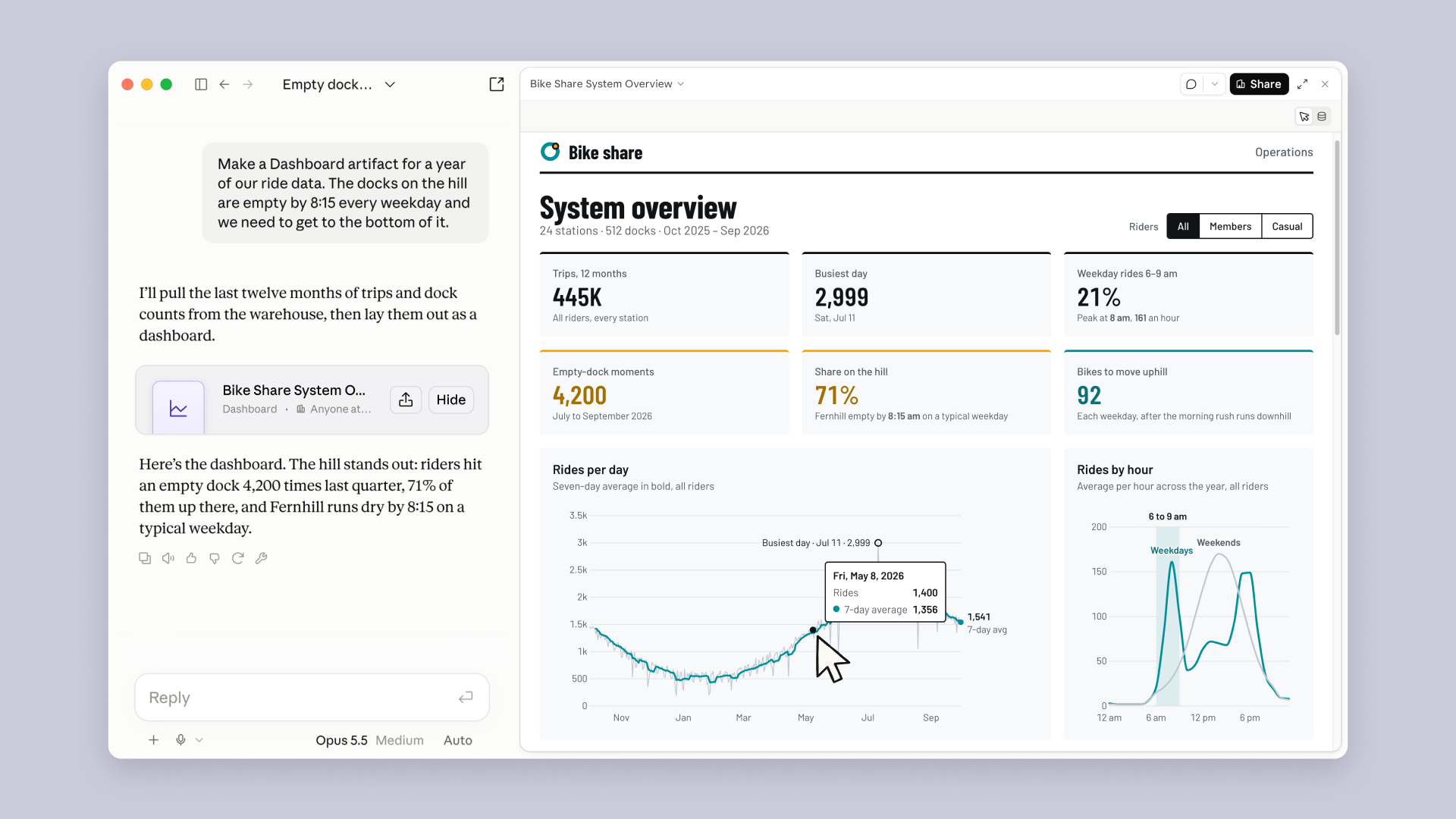
Once generated, the dashboard expands as a dedicated Artifact card to the right of the conversation. Using the official bike-share operational walkthrough as an example, here is how to interpret a dashboard:

Interpreting a Dashboard relies less on visual color complexity and more on auditing two critical pieces of information:
- Check the query and verify criteria:
- Open the query provided alongside the chart, or click numbers to inspect the underlying query; alternatively, ask Claude directly within the conversation to explain the calculation logic. Official documentation notes that each chart displays its underlying query to clarify statistical calculations, though this does not imply every metric and graph on the canvas corresponds to an entirely separate SQL statement.
- Practical Criteria Checks for Business Users: Even without SQL expertise, you can verify a query against six universal criteria dimensions:
- Time Range and Timezone: Review the
WHEREclause filter boundaries to verify complete calendar cycles and ensure timezones align with business reporting standards. - Counting Units and Deduplication: Verify whether queries compute raw row counts (
COUNT(*)) or deduplicate by distinct users (COUNT(DISTINCT user_id)). - Filter Conditions: Confirm that internal test accounts, canceled orders, or invalid entries are accurately excluded.
- Grouping Dimensions (GROUP BY): When grouping by channel or region, check whether NULL or empty values are omitted silently.
- Multi-Table Join Duplication (JOIN): When joining related tables, ensure one-to-many relationships have not inadvertently multiplied row counts.
- Ratio Denominators: Confirm whether percentage denominators represent the entire global population or specific sub-event totals within a particular timeframe.
- Time Range and Timezone: Review the
- Clear Instructional Example (The following is an internally consistent instructional scenario, not data generated by Claude):
Suppose a channel logs 6 registration event entries:
- User A logs 2 entries (duplicate submissions due to network latency);
- User B logs 1 entry;
- User C logs 1 entry;
- User test_01 logs 1 entry (internal testing);
- User test_02 logs 1 entry (internal testing). Counting raw event records yields 6 registration events; applying filters to exclude the 2 test entries yields 4 valid registration events; deduplicating by distinct user ID reveals exactly 3 new registered users (A, B, C). Auditing underlying queries confirms whether the dashboard computes "3 distinct users" or "4 event occurrences." Even without SQL background, users can request Claude to explain this calculation or fetch sample rows for cross-verification.
- In Figure 1's official hypothetical example, metric cards clearly separate distinct calculation scopes: total rides
445Kspans 12 months of cumulative data, whereasShare on the hill: 71%calculates the proportion of 4,200 empty dock events occurring at hill stations during Q3, which must not be misread as 71% of annual rides taking place on hills.
- Read the Last Refreshed Timestamp:
- Every chart explicitly displays a timestamp indicating when its data was last pulled from the underlying source.
- Data Freshness: Official documentation publishes no fixed refresh schedules or latency guarantees. As underlying databases or CRMs update, charts display when they were most recently refreshed.
- Troubleshooting Tip: If metrics change unexpectedly or diverge from projections, check the last refreshed timestamp and query criteria first to determine whether natural source-level shifts or differing measurement intervals occurred, rather than assuming broken system caches.
Step 4: Iteration and Drill-Downs Across Multi-Turn Chat
Once your initial dashboard is generated, there is no need to rebuild from scratch; submit conversational follow-up instructions directly:
- Add Filtering Controls: "Add a filter control at the top to toggle by rider membership type (All / Members / Casual)."
- Adjust Time Granularity: "Update the ride trend chart below to aggregate weekly, showing total weekly volume and comparing percentage change from the preceding week; alternatively, preserve the original daily trend line independently without smoothing the weekly aggregation via 7-day moving averages."
- Focus on Specific Outliers: "For Fernhill station, where docks emptied out at 8:15 AM during morning peak, pull a standalone dock inflow/outflow rate comparison between 6:00 AM and 9:00 AM."
Step 5: Sharing Dashboards and Permission Pitfalls (Critical Troubleshooting)
When sharing completed dashboards with colleagues or leadership, observe these security mechanisms:
The "Viewers use their own access" Principle Users frequently ask: "Why do charts throw data loading errors when my colleague opens the dashboard I shared?" The reason: Sharing a dashboard never shares or delegates your database credentials. When recipients open a dashboard, it attempts to fetch data using the viewer's own connector credentials. If that colleague lacks access permissions for that specific table in the company's data warehouse, the dashboard will error out. This is a core enterprise data security safeguard.
- Sharing with External Parties: Artifacts connected to internal enterprise data sources or business applications cannot use the "Anyone with the link" option. Furthermore, do not assume switching to external email invitations allows external recipients to view live-connected dashboards. Official rules specify that certain Artifact types do not support email invitations at all; whether email invites are supported depends on the options available in the artifact's Share menu. More critically, even if an external invitee accesses the artifact, interactive portions relying on connected applications (Connectors) to pull data or calling Claude are non-functional for external users. If external clients or partners require complete data conclusions, compile verified static reports, chart screenshots, or exported video walkthroughs instead.
- Handing Off to In-Depth BI Tools: If exploratory findings require deeper cross-sectional modeling, push dashboard findings directly to dedicated analytics platforms: current support includes Amplitude, Grafana, Hex, Mixpanel, Omni, Perplexity, PostHog, and Sigma, with upcoming support planned for Looker, monday.com, and Tableau.
Claude Motion Hands-On Guide: Programmatic Animation You Can Continue Editing
Once you identify operational bottlenecks in a dashboard (such as recognizing recurring morning bike shortages at hill stations), the next step is presenting findings to teams, executives, or external stakeholders. Static charts often lack narrative tension, and Claude Motion bridges this gap by transforming analytical conclusions into dynamic animated walkthroughs.
Conceptual Breakdown: Programmatic Animation, Not a Generative AI Video Model
Clarifying Claude Motion's foundational technology sets realistic expectations for its output:
- Code-Driven Animation: Motion produces standalone, code-driven artifacts powered by the Motion template. Claude drafts code based on prompts to dynamically animate typography, charts, geometric shapes, and imagery, producing an experience akin to short video playback.
- Non-Generative Video: It does not rely on generative photorealistic video models and will not synthesize live-action realism, human actors, or photorealistic environments out of thin air.
- Targeted Local Editing and Adjacency Review: Because animations are programmatically structured, users can modify specific text strings, data points, or pacing durations in isolation while leaving the remainder untouched. However, after modifying local content or scene durations, always replay the full animation to audit transition continuity and visual pacing across adjacent frames.
- Durations and Post-Production Needs: Official tutorials have not published complete configurations regarding automatic voiceovers, burned-in subtitles, export resolutions, frame rates, or maximum durations; the "30 seconds" reference noted in Help Center guidance serves as a common illustrative instructional example rather than a rigid system limit.
Step 1: Input Materials and Conceptual Planning
Official guidance highlights core planning factors to include in prompts (Tips for better results):
- Who (Target Audience): Specify who the animation is designed for (e.g., all-hands cross-functional meeting, executive readout, or customer onboarding).
- Where (Presentation Context): Specify display environments (e.g., live stage projection, asynchronous document embedding, or team chat channels).
- Roughly how long (Target Duration): Provide an approximate duration target (e.g., roughly 30 seconds, serving as an animation pacing reference).
- Attach content (Reference Materials): Attach reports, chart screenshots, or structured data so Claude builds animations grounded in verified assets.
Practical Material Preparation Tips (Instructional Summary):
- Retain Only Verified Data: Eliminate unverified draft metrics so visuals align with confirmed business conclusions;
- Extract Relevant Excerpts and Visuals: Upload only relevant text excerpts or charts directly tied to the narrative theme, avoiding unrelated clutter;
- State Timeframes and Units Clearly: Clarify metric calculation periods (e.g., quarterly, weekly) and counting units (distinct users vs. event counts) in source material;
- Distill a Single Takeaway: Prepare one central conclusion you want viewers to remember when playback finishes;
- Standalone Use Without Prior Dashboards: Even without building a Claude Dashboard, users can upload existing reports, slide imagery, or spreadsheets directly into chat to generate standalone Motion walkthroughs.
Step 2: Animation Creation Entry Points and Prompt Workflows

/motion into the conversation input box to summon the template; in practice, requests can also be initiated via the Output menu or standard chat prompts.Access animation creation through these official entry points:
- Direct Request in Any Chat: Express requirements in natural language within any conversation (e.g., "Transform this quarterly summary into a 30-second animated explainer for our all-hands meeting");
- Input Box Output Menu: Select Output in the message input options, then choose Motion;
- Artifacts Tab Entry: Navigate to the Artifacts tab in the sidebar, choose the Motion template, and describe your animation;
- Slash Command Format: As shown in Figure 2, certain official walkthroughs illustrate typing
/motionto summon the template. Interface layouts may vary slightly across client versions, so button placements should not be assumed identical everywhere.
Original Instructional Prompts: Recommended "Storyboard-First Two-Step Workflow"
To audit narrative sequence, numerical accuracy, and key takeaways per scene beforehand, we recommend an original Storyboard-First Two-Step Workflow (an instructional methodology recommendation, not a native system approval button inside Claude): have Claude generate storyboard concepts for human review first, and only dispatch a second prompt to generate animation code once approved.
Step 1: Storyboard Confirmation Prompt (Bike-Share Dashboard Finding Example)
Based on the business conclusions I just derived in my data dashboard, please plan a storyboard design outline for a Claude Motion code animation:

[Basic Information]
- Target Audience: Company-wide cross-functional monthly meeting (operations, customer support, dispatch staff)
- Desired Duration: Around 30 seconds, brisk and accessible pacing
- Visual Style: Clean, modern informational infographic highlighting core friction and operational recommendations

[Narrative Storyboard Outline]
- Scene 1 (approx. 0-8s): Morning city waking up. Display a schematic layout of all 24 stations across the city, showing natural morning peak bike flows downhill from hill stations toward downtown.
- Scene 2 (approx. 8-18s): Focus on friction. Zoom in on Fernhill station on the hill, showing an empty dock alert at 8:15 AM on weekdays (Context: 71% of 4,200 empty dock events in Q3 concentrated in hill stations). Hold on the empty dock freeze-frame long enough for the audience to digest the issue.
- Scene 3 (approx. 18-30s): Proposed solution. Present the dashboard's recommended rebalancing target under evaluation—suggesting operations rebalance 92 bikes uphill after the morning peak subsides, framing this as a proposal for discussion rather than an established outcome.

Please output the 3-scene storyboard outline for my review first. Do not generate Motion animation code until I confirm.
Once the timing breakdown and copy are manually verified, send the second instruction: "Storyboard approved. Please proceed with writing and generating the Motion animation code."
Standalone Template: Converting Business Reports Directly into a 30-Second Chinese-Language Animated Explainer (Without Dashboards)
When working directly from PDF reports or Word summaries without prior dashboards, attach materials and use this instructional template:
Based on my uploaded [business analysis report / document / image], extract key takeaways and generate a Claude Motion Chinese-language animated explainer of approximately 30 seconds:

[Basic Settings]
- Target Audience: [Insert audience, e.g., Monthly Executive Review / Cross-Functional Alignment Meeting]
- Expected Duration: Approximately 30 seconds (serving as a pacing target)
- Factual Constraints: All metrics, conclusions, and facts displayed must strictly derive from the attached material; never fabricate unmentioned numbers.

[3-Scene Narrative Structure and Visual Layout]
- Scene 1 (approx. 0-8s, Establish Context & Baseline): Introduce operational baseline and routine trajectory for the period; keep on-screen text minimal (1 core qualitative phrase and 1 overview metric) to anchor viewer context quickly.
- Scene 2 (approx. 8-20s, Spotlight Core Conflict & Anomalies): Transition to significant fluctuations or operational bottlenecks, displaying core comparison charts (e.g., period-over-period differences), holding on key figures long enough for the audience to absorb disparities.
- Scene 3 (approx. 20-30s, Propose Actionable Next Steps): Transition from issues to concrete recommended actions, showing concise action statements to frame meeting discussions.

[Copy and Presentation Standards]
- Keep on-screen copy concise, avoiding extended paragraphs; reserve comprehensive background explanations and derivations for spoken remarks rather than crowding the visual canvas.
Why structure scene durations this way?
- Scene 1 (0-8s) establishes baseline context first, preventing viewers from facing negative metrics without orientation;
- Scene 2 (8-20s) receives the longest dwell time because core anomalies and figures serve as the evidential core of the presentation, requiring sufficient visual pause;
- Scene 3 (20-30s) closes with actionable operational steps, ensuring presentations do not stop at identifying problems but land on next steps.
Writing Prompts: From One-Line Requests to Deliverable Outputs
Official guidance recommends specifying audience, presentation context, target duration, and source materials for Motion animations, and articulating business questions while identifying data locations for Dashboards. The structural scaffolding, comparisons, and follow-up prompts below represent our compiled instructional patterns. Bracketed text indicates areas to replace with your materials and confirmed criteria; they do not represent rigid official syntax.
Facing an empty chat prompt, many wonder whether a brief sentence suffices or if comprehensive paragraphs are required upfront. In practice, both serve distinct stages.
Brief vs. Comprehensive Prompts: Choosing Efficiently Without Wasting Time
Prompt detail depends on whether you are exploring or delivering; lengthy prompts are never a mandatory barrier:
- One-line briefs suit rapid exploration: When exploring new data or testing an initial animation concept, start with a concise prompt to test direction. For example, entering "Build a comparison dashboard of new signups by channel over the past six months" works provided your data source is already connected and enabled. Observe whether Claude identifies available fields and renders basic charts—submitting prompts does not authenticate data connections for you. Note that initial dashboards and animations generated from briefs serve as preliminary scaffolding; default calculations (deduplication logic, date boundaries, filtering rules) may diverge from internal standards and require metric verification.
- Comprehensive prompts suit aligned delivery: When dashboards must be presented to leadership or animations projected at all-hands meetings, use comprehensive prompts. Articulating data criteria, chart formats, scene pacing, text density, and visual aesthetics upfront eliminates ambiguity and minimizes rework caused by unclear requirements.
For animations, one can similarly test with: "Turn the attached report into an approximately 30-second Chinese-language Motion animation for our team weekly." Once an initial draft renders, add specific takeaways and layout constraints.
An approachable sequence is: "Explore direction with a brief prompt first, then apply structural scaffolding to add requirements."
Vague vs. Explicit Prompts: What Ambiguities Are Eliminated
To illustrate the impact of critical context, here are side-by-side comparisons of ambiguous versus explicit prompts across typical scenarios.
Dashboards Comparison
- Vague: "Make a registered user growth dashboard."
- Explicit: "Based on the connected [User Registration Table], calculate daily new signups across the last 30 full calendar days (excluding today). Group days by [Business Timezone], determine timing via confirmed [Initial Registration Timestamp Field], deduplicate by [User ID Field], and break down by [First Registration Attribution Channel Field]. Exclude test accounts using confirmed [Test Flag Filter Criteria]; display unknown channels separately. Present daily trends, total users, and channel breakdowns, displaying underlying queries. If fields or filter rules are unclear, ask me first."
What ambiguities do these additions resolve?
- Data Provenance: Designating tables reduces the risk of selecting irrelevant data; verify that the resulting query actually references that table.
- What Is Being Counted: First registration timestamps and user deduplication determine whether the metric counts distinct individuals rather than repeated log events.
- Calendar Boundaries: Full calendar days and business timezones clarify whether incomplete current-day records are excluded from comparisons.
- Categorical Breakdowns: Defining attribution and null handling prevents unidentified channels from being discarded silently.
- Pre-execution Confirmations: Instructing Claude to confirm ambiguous filters, table names, or fields ensures assumptions are clarified before generation; verify queries after execution.
Motion Comparison
- Vague: "Make a nice-looking animation."
- Explicit: "Based on the attached quarterly report, produce an approximately 30-second Chinese-language Motion animation for all company employees, displayed on meeting room screens during our weekly all-hands. Highlight only [One Confirmed Takeaway From Report], providing a storyboard for review first. Scene 1 sets context, Scene 2 shows data comparisons supporting the takeaway, and Scene 3 outlines next steps from the report. Use a blue-gray color palette and clean infographics, limiting each scene to one concise title and essential figures; reserve detailed explanations for spoken presentation notes. If data is missing, ask me first; do not invent figures or frame recommendations as completed outcomes."
This specifies audience, presentation venue, core takeaway, narrative order, and visual constraints, providing Claude with clear organizational guardrails. It also establishes criteria for evaluating the first draft: legibility on large screens, alignment with source figures, and accurate phrasing of recommendations.
Two Universal Scaffolding Frameworks: Adapting to Your Tasks
The walkthrough scenarios above illustrate specific topics. When adapting workflows to revenue tracking, sales pipelines, or product walkthroughs, copy the frameworks below and replace bracketed placeholders with your details.
1. Motion Universal Scaffolding
Durations, scene breakdowns, and character counts serve as creative guidelines; review animations via playback upon generation. If your organization maintains brand palettes or preferred layout references, attach them and specify which stylistic aspects to mirror.
[Target Context] Designed for [Display Venue, e.g., Weekly Team All-Hands / Prospective Client Pitch / Official Website New-Feature Guide], targeting [Audience, e.g., Executive Leadership / Enterprise Buyers].
[Production Goal] Produce a short animation of approximately [Target Duration, e.g., 25 seconds], with an overall pace that is [Brisk and Punchy / Measured and Professional / Steady and Clear].
[Core Takeaway] The entire piece must center around one primary takeaway: [Insert One Confirmed Conclusion From Source].
[Visuals and Style] Visually reference [Style Description, e.g., Modern Flat Corporate / Minimalist Diagrammatic / Attached Reference Palette & Composition], keeping only one concise headline and necessary figures per scene (targeting approximately [Character Count, e.g., 15] characters per scene), focusing visual emphasis on dynamic metric progression and key conclusions.
[Scene Breakdown]
- Scene 1 (Baseline / Friction): Display [Context Data or Operational Challenge, e.g., Legacy Process Latency].
- Scene 2 (Highlight / Shift): Dynamically showcase [Core Feature or Data Comparison], enlarging and spotlighting [Key Milestone Figure].
- Scene 3 (Impact / Next Steps): Summarize [Business Impact or Recommended Action].
[Input Material] Extract details from attached [Operating Report / Product Documentation / Spreadsheet]. Distinguish between facts, recommendations, and forward-looking projections; if data is incomplete, ask first without inventing numbers or product workflows. Provide visuals, copy, and estimated timings per scene for confirmation before generating the animation.
2. Dashboards Universal Scaffolding
Beyond user signups, dashboards can track revenue and pipeline health, provided connected sources contain the required data. Define the specific business question, naming tables and criteria clearly. If columns are missing or permissions insufficient, instruct Claude to request clarification rather than guessing.
[Business Question] I want to analyze [Specific Business Query, e.g., Opportunity Conversion Efficiency and Average Deal Size Across Sales Teams Over the Past Two Quarters].
[Data Source and Tables] Connected to [Data Source Name, e.g., Enterprise Data Warehouse / Salesforce], with primary table [Known Table Name, e.g., sales_dw.opportunities].
[Scope and Timezone] Timeframe covers [Full Cycle, e.g., Last Two Full Calendar Quarters], utilizing confirmed [Date Field], partitioned uniformly under [Business Timezone].
[Metric Criteria]
- Core Metric 1: [Metric Name, Calculation Method, Units; e.g., Closed-Won Deal Value, specifying currency handling and refund deductions].
- Core Metric 2: [Metric Name, Numerator and Denominator; e.g., Closed-Won Opportunities in Period / Total Closed Opportunities in Period, deduplicated by Opportunity ID].
[Segmentation and Filtering] Group and compare by [Segmentation Dimension, e.g., Sales Team / Industry Vertical]; filter out [Exclusion Criteria, e.g., Internal Test Deals and Leads Not Yet Recorded].
[Display and Verification Requirements] Generate top-level metric overview cards, conversion funnels, and team comparison bar charts; display underlying queries, calculation criteria, and last refreshed timestamps. If fields or permissions are lacking, explain what is missing and ask me first; do not guess columns or fabricate data.
Short Scenario Examples: Plan Comparisons, Product Onboarding, and Sales Opportunities
These three practice templates adapt scenarios highlighted in official documentation. Specific wording is instructional; actual entitlements, pricing, and operational steps must derive from your attached materials, confirming gaps where necessary.
Scenario 1: Subscription Tier Comparison Animation (Motion Short Example)
Official documentation suggests generating "Pricing Plan Comparison" animations for sales kickoffs. When drafting such prompts, anchor directly to verified feature tables in your attachments and emphasize package distinctions:
Based on the attached product tier comparison sheet, create an approximately 25-second Chinese-language Motion plan comparison animation for sales training.
Select two tiers and three impactful differentiators from the sheet; list your selected differences for my confirmation first.
Scene 1 outlines positioning for both tiers, Scene 2 highlights entitlement differences, and Scene 3 explains target customer profiles based on the sheet.
Keep on-screen text brief; use only confirmed pricing, limits, and billing intervals from the table. Ask first if details are missing, without projecting unstated ROI. Provide a storyboard outline before producing the animation.
Scenario 2: New Customer Setup Guide (Motion Short Example)
Designed to guide new users through initial onboarding workflows. Prompts must emphasize adherence to actual product steps:
Based on the attached onboarding documentation, produce an approximately 30-second Chinese-language Motion operational walkthrough for new customer welcome pages.
Extract actual steps from the documentation first, listing actions, button labels, and completion indicators for each step for my confirmation.
Once approved, arrange steps into a numbered animation where each scene highlights one core action with brief text, incorporating actual screenshots from the attachments.
Do not omit necessary steps simply to fit a three-step structure; ask first if documentation lacks specific steps or button labels, avoiding fictional UI elements that could mislead users.
Scenario 3: Sales Opportunity Funnel Dashboard (Dashboards Short Example)
Illustrates applying the Dashboards template beyond signup metrics to enterprise sales pipeline management:
Based on connected Salesforce data, build an "Open Opportunities" dashboard for sales leadership.
Confirm first which Stage values represent open deals, Opportunity ID and Amount fields, and currency denominations.
Calculate deduplicated opportunity counts and amounts by stage, comparing active pipeline volume across sales reps; present distinct currencies separately.
Display open opportunity counts and pipeline value by currency on the initial screen, showing underlying queries and data refresh timestamps across all charts.
If a reliable last-activity timestamp exists, add an untouched-deal filter once I confirm threshold parameters; ask first if columns are missing, without assuming forecasting models or quota targets.
Common Revision Directives: Refining Prompts with Precision
Initial drafts often require iteration. The key to revision directives is "specifying what to alter and clearly stating what to keep," followed by prompt verification. Do not assume requests like "make it faster" or "update a number" require no follow-up checks; pacing modifications affect reading dwell times, while criteria adjustments can introduce new filtering discrepancies.
When addressing the four most common revision scenarios, use these structured directive formats:
| Discrepancy Type | Revision Approach | Recommended Directive Format |
|---|---|---|
| Incorrect Metric or Criteria | Identify chart, verify timeframe, numerator, and denominator, then re-audit | "Recalculate the second conversion rate chart using my confirmed criteria: distinct activated visitors / total eligible visitors within the same period and target segment. Explain join logic first, excluding duplicate and test entries; ask if fields are insufficient. Preserve the original chart layout." |
| Unfocused Visual Emphasis | Identify the single key point, subordinate secondary info, retain data | "In Scene 2, emphasize [Core Conclusion From Source] using larger text and contrasting color; subordinate other metrics as supporting data. Preserve original numbers and units, verifying smaller text remains legible after updates." |
| Text Density Overloading Visuals | Convert full sentences to concise actions, shifting detail to speaker notes | "Scene 1 cannot be read comfortably in time. Retain [Confirmed Key Action], condense the heading into a brief statement, and move detailed explanations to speaker notes without dropping essential conditions or units." |
| Pacing Moving Too Quickly | Specify scene and target dwell time, replaying after changes | "Extend the display duration of the core chart in Scene 2 by approximately 2 seconds, keeping other scenes unchanged. Note any increase in total runtime; I will replay adjacent frames after generation to inspect reading comfort and transitions." |
Starting with a brief prompt to check direction, applying scaffolding to add requirements, and refining specific issues via structured revisions allows you to apply this workflow across tasks. If you need complete reference templates, consult the full registration dashboard and operating report animation prompts provided earlier; the closing reference kit also provides reusable structures for ongoing use.
Complete Recreation of the Official Bike-Share Demo: From Dashboard Annotation to Frame-by-Frame Tweaks
To understand the continuous workflow linking data dashboards to animated narratives, review the official 81-second demonstration below. The video below features burned-in bilingual Chinese-English subtitles and original audio; click to play directly:
Through a hypothetical bike-share operations scenario, the presenter executes four key steps:
Action 1: Initiating Requests Directly via Dashboard Annotations
After completing ride data analysis, the presenter does not open a separate blank chat session. Instead, they trigger an @Claude annotation directly on the interactive station map:

@Claude annotation on the bike station map dashboard to request turning analytical findings into an animation for an all-hands meeting, specifying to "keep it simple" and emphasizing two core facts: the 8:15 AM hill station shortages and the 92-bike rebalancing recommendation.Action 2: Automatic Narrative Unfolding
Upon receiving the annotation, Claude translates static dashboard metrics into a timed dynamic narrative:

Action 3: Requesting Pacing Adjustments on the Timeline
Once an initial animation renders, fine-tuning visual pacing is often necessary. The presenter pauses playback at a specific frame along the progress bar to annotate the empty dock scene:

Action 4: Editing Selectable Text Directly on Canvas
In addition to dispatching instructions to Claude, the editor supports direct inline modifications of selectable on-screen text:

Animation Revision, Export, and Format Distinctions
When polishing Motion animations, two parallel modification workflows are available:
1. Conversational Revisions (Ask Claude) vs. Direct Canvas Editing (Edit directly)
- Conversational Revision Syntax (Specifying Scene / Timestamp / What to Change / What to Keep):
- Adjusting dwell times and pacing: "Locate Scene 2 (approx. 10s to 16s): Extend the dwell time of the empty dock alert card by 2 seconds, keeping core metrics and surrounding station layouts unchanged."
- Updating copy phrasing: "Locate the closing frame of Scene 3: Update 'Recommended Dispatch Plan' to 'Recommend operations team rebalance 92 bikes uphill after morning peak,' maintaining centered alignment while preserving preceding scene pacing and charts."
- Fine-tuning chart highlights: "Locate the Scene 1 station overview: Halve the blinking frequency of hill station indicator dots, keeping animation effects across other stations unchanged."
- Direct Canvas Editing: In the right-hand editor pane, users can modify visual elements using available on-canvas controls (such as selecting text boxes to type copy or adjust formatting directly) without routing every typographical tweak through chat prompts.
2. Differences Between Exporting MP4 Videos and Retaining Source Artifacts
Once animation production concludes, click Export and select MP4 to download the video file. When distributing and archiving, consider these practical differences between rendered video and source artifacts:
| Attribute Dimension | Exported MP4 Video File | Motion Source Artifact in Claude |
|---|---|---|
| File Nature | Rendered, fixed video media file | Code-driven source artifact editable at any time |
| Subsequent Editing | Visuals are permanently fixed; copy and numbers cannot be modified within the video | Reopen the conversation anytime to submit new instructions or adjust canvas details and re-export |
| Distribution Methods | Ideal for embedding into slide decks, posting to team chats, or playing in local video players | Accessed within the Claude platform, secured by team account and organization permissions |
| Data Synchronization | Does not update automatically with database or source data changes; if report data changes, update the source artifact and re-export | Fine-tune code and copy in the source artifact based on new metrics to generate updated animations |
| External Tool Handoff | Ready for import into video editors (e.g., Premiere, CapCut) for voiceovers and audio tracks | Can be pushed to ecosystem tools like Adobe, Descript, HeyGen, and Runway for further production |
Team Collaboration, External Sharing, and Enterprise Governance
Both Dashboards and Motion, as part of Artifacts, integrate deep team collaboration capabilities.
1. Standard Sharing Workflows and Access Levels
The workflow for sharing dashboards or animations in Claude is as follows:
- Open the target Artifact and click the Share button on the interface;
- In Team and Enterprise plans, type colleagues' names in the member/group field (Enterprise supports adding Groups), and designate an Access level for each individual or group;
- In the Who has access section, configure broader scope permissions as needed (e.g., invitees only, organization-wide, or anyone with link);
- Click to copy the link and distribute it to recipients.
Definitions of the Three Access Levels:
- Can view: Can open and inspect the artifact, reading existing comments and annotations;
- Commenter: Includes all Can view permissions, plus the ability to add new comments/annotations and download available export files;
- Can edit: Includes all Commenter permissions, plus direct editing and modification rights on the artifact canvas.
2. Differences Between Internal Collaboration and External Email Invitations
- Internal Team Collaboration and Artifact Presence:
- Organization members collaborate directly through team accounts. When Artifact presence is enabled by administrators, members can view in real time who within the organization is currently accessing the artifact alongside active presence indicators; editing and commenting permissions depend on assigned access levels.
- External Link Sharing:
- When enabled under
Organization settings > Artifacts, eligible artifacts can select Anyone with the link. Link recipients must still log into Claude; artifacts connected to applications or calling Claude cannot use this option. - Disabling this toggle deactivates previously issued external links, unless owners have granted explicit individual exemptions. This operates independently from email invitations below.
- When enabled under
- External Email Invitations (Email invitations outside your organization, Beta):
- Requires administrators to enable an independent toggle in the admin console; invitees must log into Claude using the designated email address;
- Expiration Rules: Pending invitations expire 30 days after being issued; once accepted and accessed, accepted invitations do not expire automatically due to this 30-day window, though access can be revoked by the owner at any time;
- External Invitee Capabilities: External invitees cannot invite other users or modify artifact sharing permissions; interactive features that call Claude chat or use Connectors are non-functional for external invitees; external users granted "Can edit" access can modify artifact content but cannot delete the artifact, and file uploads within the artifact are restricted strictly to image and video files.
Plan Usage Limits and Troubleshooting
1. Usage Limit Rules
Both Dashboards and Motion consume standard account Usage limits, sharing allowances with routine conversation turns and Claude Code; the system provides no separate unlimited allocation.
- Motion Usage Patterns: Because animation involves generating front-end animation code and ongoing visual orchestration, generating longer animations or complex multi-scene storyboards typically consumes more usage quota than standard conversational exchanges.
- Instructional Practice Tip: Begin by generating a short 10-to-15-second draft using a brief prompt to validate narrative logic and visual structure; once the direction is confirmed, expand scene count and complexity incrementally to avoid exhausting usage limits on overambitious initial drafts.
2. Common Operational and Configuration Troubleshooting
[ ] Why can't I find the Motion or Dashboards template entry points?
    1. Verify account tier: Motion is supported exclusively on Team and Enterprise plans; Dashboards is supported across all paid plans (Pro, Max, Team, Enterprise).
    2. Enterprise plan verification: Confirm whether administrators enabled both the main Artifacts toggle and corresponding template toggles under Organization settings > Artifacts; if the main toggle is disabled, custom roles cannot grant permissions downstream.

[ ] Why do I see errors stating code cannot run during creation or revision?
    1. Core dependency check: Verify whether administrators enabled "Cloud code execution and file creation" under Organization settings > Capabilities.
    2. Try automated remediation: If errors occur during Artifact generation, click "Try fixing with Claude" adjacent to the error message to pass diagnostics back into chat for automated troubleshooting.

[ ] Why does a dashboard throw errors or show empty data? How do I tell them apart?
    1. Query/Connection Errors: Typically appear as red error notices or execution failures. Navigate to Customize > Connectors to confirm authentication tokens have not expired, attempting disconnection and re-authorization; simultaneously verify SQL table and column names.
    2. Empty Results: Charts render normally but display zeros or "no data." Here, the query has usually executed successfully; issues typically stem from overly restrictive WHERE clauses (incorrect date ranges, accidental test filter exclusions, or zero records logged for that channel during the window). Inspect the query to relax filters step by step.

[ ] Why can't colleagues or external parties view a shared dashboard?
    1. Internal Colleagues: Dashboards strictly enforce the "Viewers use their own access" principle; colleagues must hold corresponding data access rights within the underlying data warehouse and complete personal connector authentication; admins must also enable "Enable artifact connectors."
    2. External Invitees: Dashboards connected directly to external data applications cannot use public links; even when invited via email, interactive components relying on connectors to pull data or calling Claude are unavailable to external users. If clients need to inspect complete data findings, provide verified static reports, chart exports, or exported video walkthroughs instead.
Pre-Delivery Hands-On Checklist for Beginners
Before officially delivering dashboards or animations to teams or leadership, verify your work against these four operational steps:
- Audit Data Metrics and Criteria: Inspect core figures referenced across dashboards or animations, verifying time boundaries (ensuring complete calendar periods), business timezones, counting units (distinct deduplicated users rather than raw event rows), and percentage denominators, confirming test data is excluded per guidelines.
- Replay Full Playback and Review Copy: Replay animations at full speed from start to finish at least once. Ensure on-screen text in every scene can be read comfortably within the allotted playback window, check that figures remain consistent across frames, and confirm transitions between adjacent scenes feel natural; prepare spoken voiceover notes or audio tracks beforehand if presenting live.
- Save Source Artifacts and Test Local Playback: Confirm the source Artifact in Claude is saved in its latest state before clicking Export to download MP4 files; after downloading, open and play the MP4 in a local video player to verify complete rendering without playback stutters.
- Verify Access Using Recipient-Level Permissions: Copy the sharing link and open it using an account with unprivileged recipient permissions (or a dedicated test account), confirming charts and access configurations behave as expected to prevent authentication blocks during formal meetings or presentations.
Reusing This Workflow for Subsequent Reporting Cycles
By combining the exploratory querying of Claude Dashboards with the programmatic animation of Claude Motion, business teams establish an integrated reporting loop: identifying core trends and anomalies in business data through natural language, auditing underlying query criteria, orchestrating key conclusions into structured animated walkthroughs, and exporting standardized video files for cross-platform distribution as needed.
Across ongoing reporting cycles, this workflow offers reusable utility: when preparing recurring weekly updates, monthly business reviews, or project post-mortems, teams can reuse established prompt scaffolding and connector configurations directly—or return to saved source Artifacts to update figures for new cycles and re-export—producing high-quality data presentations efficiently.
The prompts and checklists in this guide represent instructional recommendations and can be adapted to your data schema, audience, and presentation settings.
Official Reference Documentation and Further Resources:
Practical takeaway
Scroll through the Markdown, then copy and adapt it to your team.
Loading Markdown…
Members can copy or download the full Markdown, and let their AI subscribe and ask.
Found this useful? Leave your email — every new explainer, the moment it's out. Unsubscribe anytime.