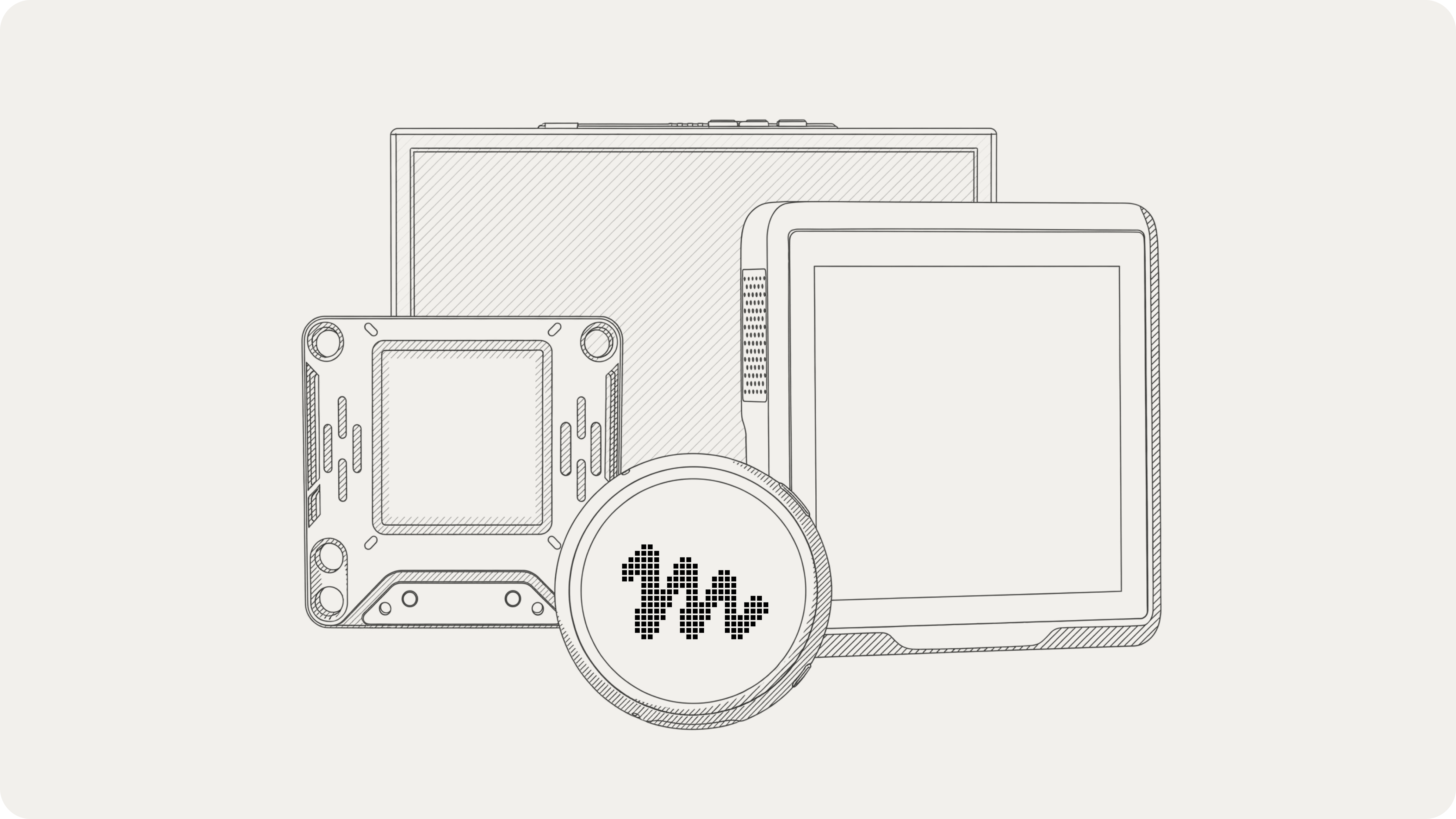
Meta Releases Muse Gadgets SDK: Connecting Muse to Screens, Buttons, and Devices at Home
Using off-the-shelf development boards, Raspberry Pi, or Home Link, bring Muse out of the chat window onto your desk and home network; the three paths differ in purpose, requirements, and permissions.
Many people's impression of large language models is still anchored to chat bubbles on mobile screens or Q&A interfaces on desktop browsers. If you want AI to help turn off the lights in your room, wink at you from a small display on your desk, or quietly show your daily agenda on an e-ink screen before you head out, AI must step outside pure software and touch the physical world.
Meta has open-sourced the device-side SDK and firmware for Muse Gadgets in its official code repository. Gadgets are essentially hardware integration tools for Muse: physical devices handle screen display, button and audio input, or local command execution, while core Muse capabilities such as understanding, dialogue generation, and transcription continue to rely on Muse cloud services. Developers can use off-the-shelf ESP32 development boards or a Raspberry Pi at hand to connect them to Muse as hardware terminals or local control nodes.
01. How Muse bridges from the chat window to real-world devices
To enable AI to interact with devices at home, a local communication channel must be established. Muse Gadgets offers a local relay approach: place a hardware access node within the local area network (LAN), allowing the cloud-based Muse to reach the control interfaces of local network devices through it, or directly interact via the hardware's own screen and buttons.

The entire ecosystem consists of three components:
- On-device firmware and SDK (open source): Meta open-sourced Apache 2.0-licensed code on GitHub, supporting ESP32 microcontrollers and Linux computers.
- Official hardware Home Link (limited giveaway): A compact USB gateway offered exclusively to active subscribers in the United States, serving as a local network communication base station.
- Community Skills: A collection of device control instruction sets written in Markdown, instructing Muse on how to orchestrate home appliances like Philips Hue light bulbs, Sonos speakers, and Apple TV via local interfaces supported by those devices.
This SDK is geared toward developers who enjoy hands-on hardware tinkering. Flashing custom firmware, adding sensors, and tweaking user interfaces are all part of the project's appeal, which also means you will handle compiling, wiring, and debugging yourself; flashing custom firmware may damage development boards or affect warranties.
02. Official hardware Muse Home Link: LAN bridge
Muse Home Link is a compact white device measuring 35 × 42 × 10 mm, supporting USB-C and USB-A connections.
Its firmware is based on the open-source ESP32 Device SDK, making it easy for developers to understand its operating principles and build similar devices on other dev boards; however, Muse Home Link itself runs only official firmware and cannot be reflashed.
Hardware specifications and operating mechanisms
- Core MCU: Espressif ESP32-C5 chip (32-bit RISC-V architecture, clocked at 240 MHz).
- Memory & Storage: 8 MB PSRAM (operating memory) + 8 MB Flash storage.
- Network Support: Wi-Fi 6 (dual-band 2.4 GHz and 5 GHz support) + Bluetooth Low Energy (BLE).
- Interactive Indicator: A single status LED used to indicate pairing and network connectivity.
Setup and usage involve four steps:
- USB power: Plug Home Link into any USB-C or USB-A power port near your router;
- BLE mobile setup: Add the device inside the Muse app on your phone, with the setup flow conducted over Bluetooth Low Energy (BLE);
- Join Wi-Fi: Select the home Wi-Fi network for Home Link to join inside the app;
- Operate via local interfaces and community instructions: Home Link remains connected to your home network, allowing Muse to reach compatible devices on the LAN as well as custom devices you developed that provide local HTTP APIs; community integration examples include Philips Hue, Sonos, Apple TV, Google Nest speakers, and Samsung TVs.
Whether specific devices can be successfully controlled depends on whether the device natively supports local control interfaces and whether the community provides functional skill instructions (Skills). Community skills are authored by community developers and may change or break at any time.
Currently, Muse Home Link is open exclusively to active Muse subscribers in the United States, limited to one unit per subscriber, with shipments expected in October on a first-come, first-served basis. Registering a claim on the official website merely reserves a spot in the queue rather than serving as a formal order; official notifications will be sent when the hardware is ready to ship. If you reside outside the eligible region or wish to customize functionality yourself, Meta recommends using dev boards such as the ESP32-C5 DevKitC-1 to compile firmware using the open-source ESP32 Device SDK to build your own hardware.
03. DIY: What ESP32 and Linux can each do
If you want to build a dedicated Muse hardware device yourself, Meta provides two paths: the ESP32 embedded microcontroller path and the Linux computer path. Combined with the official hardware Home Link, the three solutions each emphasize different purposes, prerequisites, and permission boundaries:
| Path | Primary Purpose | Prerequisites | Modifiable Scope and Permissions |
|---|---|---|---|
| Official Home Link | Home LAN bridge, allowing Muse to reach LAN-compatible devices and local HTTP APIs | Active US Muse subscription queue reservation, USB power, mobile app (BLE + Wi-Fi) | Can only run official firmware, cannot be reflashed; community Skills provide operational instructions for compatible devices |
| DIY ESP32 device | Desktop display gadget, push-to-talk intercom terminal, status light, or LAN tunnel node (depending on specific board configuration) | Compatible ESP32 development board, data cable, computer, ESP-IDF v6.0.1, SDK token, mobile app with Developer Mode enabled | Firmware, pinouts, and UI configurations are modifiable; enabling NVS encryption to protect credentials is recommended when supported by the board |
| Linux device (e.g., Raspberry Pi) | Runs background service, allowing Muse to execute system commands, read/write files, query health metrics, or have scripts proactively message Muse | Raspberry Pi with BLE or Linux computer running a supported OS version, sudo account, SDK token, mobile app with Developer Mode enabled | Open-source service script; Muse strictly inherits the system permissions of the account designated during installation (if it can sudo, Muse can sudo; privileges can be downgraded via --run-as) |
Path A: Use ESP32 to build screens, buttons, and mini devices
ESP32 is a single-chip microcontroller offering low power consumption and modest cost, making it ideal for desktop status displays, push-to-talk intercom terminals, or notification lights.
1. Hardware memory variations: PSRAM and LAN tunneling
Hardware specifications vary across ESP32 boards, and home network tunneling requires sufficient operating memory (PSRAM):
- Boards with PSRAM (e.g., certain ESP32-C5 and ESP32-S3 variants): Externally expanded RAM provides the necessary capacity for home network tunneling; boards supporting this feature can run a Home-Network Tunnel, allowing Muse to reach other devices on the LAN through it. Specific screen, audio, or button interaction capabilities still depend on the board's own hardware setup.
- Boards without PSRAM (e.g., classic ESP32, ESP32-C6, etc.): Due to limited available memory, the LAN tunnel cannot be activated when running the firmware; however, Muse can still connect to and control the device itself (such as driving indicator LEDs, displaying visuals on an onboard screen, etc.).
2. Recording audio does not mean reading replies aloud by default
Some development boards feature built-in microphones and speakers, but the current SDK's default conversational flow is:
- Push-to-Talk: Press a physical hardware button to speak; the board records audio and transmits it to the Muse cloud for transcription into text.
- Muse's native reply is text: The cloud returns a text response. Boards equipped with screens (such as Waveshare 1.75C) display the reply content as on-screen subtitles; text responses for screenless devices (such as the Home Assistant Voice preview edition) are pushed to your mobile app.
- How to make it speak: Although an MP3 decoding library (minimp3) and speaker drivers are integrated into the firmware, no ready-made cloud text-to-speech (TTS) service is included out of the box. If you want it to vocalize answers like a smart speaker, you must integrate a third-party speech synthesis API within the C++ codebase yourself.

3. Hardware pairing and indicator LED behavior
Once firmware flashing completes, the device indicator pulses orange, indicating readiness for setup. Open the Muse app on your phone, enable Developer Mode under "Settings > Devices", and add the device (prefixed with MuseGadget). When the indicator switches to pulsing blue, press the physical BOOT button on the board to confirm pairing; upon a successful connection, the indicator turns solid green.
Every pairing session establishes a brand-new encrypted session. Because these are community DIY devices, the pairing process lacks vendor verification and cannot prevent active man-in-the-middle attacks, meaning setup must be performed within a trusted network environment.
| Indicator State | Physical Meaning | User Action Guidance |
|---|---|---|
| Orange, pulsing | Ready | Enable Developer Mode and add device in mobile app |
| Blue, pulsing | Awaiting button confirmation | Press physical BOOT button on the board to confirm pairing |
| Blue, solid | Connecting | Joining Wi-Fi and establishing connection to Muse |
| Green, solid | Connected | Successfully connected, ready for interaction |
| Yellow, blinking | Reconnecting | Device is attempting to reconnect to network |
| Purple, solid | Unpaired | Device needs to be re-paired in app |
| Red, blinking | Error encountered | Inspect serial logs to troubleshoot the issue |
Critical Security Warning: ESP32 stores your Wi-Fi credentials and pairing token in internal Flash memory (the NVS partition). Without hardware-level NVS encryption enabled, anyone with physical access to your board can extract your home Wi-Fi password using standard tools. The SDK supports eFuse hardware key-based NVS encryption, which is strongly recommended for production use.
Path B: Let Muse operate commands and files on Raspberry Pi
If you have an idle Raspberry Pi (Raspberry Pi 3B+, 4, 5, or Zero 2 W) or a Linux computer equipped with Bluetooth Low Energy (BLE), you can connect it to Muse using the Linux Device SDK. Supported system baselines include Raspberry Pi OS Bullseye or later, Debian 11+, or Ubuntu 22.04+ (both 32-bit and 64-bit supported), and the machine must be connected to the internet. After preparing an account with sudo privileges and an SDK token retrieved from the official website, running the official install script will set up and launch the musegadget service in the system background. Next, enable Developer Mode in the mobile Muse app and add the device; the Bluetooth pairing window remains open for 10 minutes. Once paired, the device persists as a background daemon and maintains its connection across system reboots.
1. What can Muse do on Linux?
After installing the background service, Muse obtains four native command capabilities to directly operate the computer:
system.run: Executes shell terminal commands in the background and retrieves execution outputs along with exit codes.file.read: Reads system files in chunks (64 KB per read).file.write: Writes system files in chunks (64 KB per write), replacing the original file only after writing finishes completely.device.health: Reports system uptime, CPU load, memory utilization, remaining disk storage, and SoC temperature.
This means you can direct Muse to handle tedious operations and maintenance tasks straight from everyday chat: "Help me check why the Raspberry Pi disk is almost full," or "Check every morning at 7 AM whether the backup script ran properly."
2. Two-way communication: Letting physical events wake AI conversations
Not only can you assign tasks to the computer, but scripts on the computer can also proactively ping Muse. Using the built-in CLI tool:
musegadget send-user-msg "车库门已经开了一小时了,请注意检查。"
To have sensors trigger automated alerts, you need to write monitoring scripts yourself (such as inspecting sensor readings or specific system events) and call the command above when triggered. Specifying the --session-id flag allows system notifications to be routed into an isolated sidebar conversation without cluttering the primary chat interface.
3. Running accounts and permission boundaries
The operational privileges Muse obtains match the permissions of the selected Linux running account exactly:
If that account can run sudo, Muse possesses sudo privileges as well. The installer shows the account's sudo status during configuration; to reduce risk, you can specify a restricted standalone system account (such as a user without sudo rights) during installation via --run-as <用户名>, thereby constraining Muse's operations on that machine.
04. What you want to do determines which screen and enclosure to use
Project examples showcase diverse hardware form factors: pocket devices suit push-to-talk speech, while desktop screens excel at displaying status or alerts. When selecting a board, verify its audio, image, and configuration support for that specific model.

- Portable mini gadgets (M5Stack StickS3 / StickC Plus2 / AiPi Lite): Built-in color miniature LCD screen, buttons, and enclosure. Sized like a lighter, the prominent front button is well-suited for a "press-to-talk" walkie-talkie, while the screen can showcase Muse's current thinking state and pixel avatar.
- Desktop clock (Waveshare ESP32-S3-Touch-AMOLED-1.75 / 1.75C): Circular full-color touchscreen with a polished appearance, supporting full UI interactions and push-to-talk intercom, well-suited as a bedside ornament.
- Low-power always-on dashboard (Seeed reTerminal E1001 / E1002): Electronic ink screens are ideal for letting Muse display static content such as morning briefings, memos, or shopping lists. The official site displays a briefing sample on the E1002 color e-ink screen, yet its "Source" link points to a configuration for
reterminal-e1001, and the SDK support list describes the E1001 as "7.5-inch black-and-white e-paper display showing black-and-white images." When planning to replicate a color screen project, verify the exact model and firmware configuration beforehand rather than directly applying the black-and-white configuration. - TV dongle form factor (Muse on your TV): Displayed on the official website as plugged into a TV's HDMI port, envisioned to project Muse content onto larger displays; it remains labeled "Coming soon."

05. After connecting hardware, device operating instructions are still needed
Once the hardware is ready, how do you make it understand your home devices? That is where Community Device Skills come into play.
Skills are not compiled into firmware, but written as "manuals" for the AI
Skill files here are plain Markdown text (SKILL.md), functioning as device operational instructions written for Muse.
Each skill file essentially uses structured natural language to instruct Muse on:
- What the local API interface of a given LAN device (such as a Philips Hue bridge) looks like;
- What HTTP POST payload needs to be sent to turn on a specific light;
- What control constraints the device entails.
You can send the skill repository link to Muse, or locate the corresponding device's SKILL.md text within the directory and paste it directly into the conversation (include referenced shared skills such as Google Cast if applicable). Whether these instructions take effect in practice still hinges on whether the hardware model is compatible, whether the device is on the same network, and whether local pairing and permission setup have been completed.
Final reminders before getting hands-on
- Firmware build environment: Official firmware is built against Espressif ESP-IDF v6.0.1; Meta supports only this specific version, and other versions are not supported.
- All devices require an SDK Token: Whether building an ESP32 or Linux device, you must obtain an SDK token at gadgets.muse.ai prior to pairing; the repository provides an extensive
AGENTS.mdtailored for terminal coding Agents such as Muse Code, allowing an authorized coding assistant to help download toolchains and execute compilation and flashing. - Unofficial skills and safety boundaries: Community skills are not official integrations and may change or break over time. Do not rely on them for safety-critical tasks such as home security, emergency response, or medical needs.
- Open-source licensing and asset terms: The device-side SDK and firmware source code are licensed under Apache 2.0, but the Apache 2.0 grant excludes the Jollybot avatar; additionally, third-party assets such as minimp3 (CC0-1.0) and pixel fonts (BSD-2-Clause), along with ESP-IDF components fetched during compilation, each adhere to their respective upstream open-source licenses.
Muse Gadgets enables off-the-shelf hardware to connect to Muse via on-device SDKs and firmware: devices handle display, input interaction, or LAN message forwarding, while core understanding and generation continue to rest on Muse cloud services. If you want to use it for desktop reminders, begin with screen projects; if you want it to manage a Raspberry Pi, select your running account and permissions first. What you actually need to prepare depends on what you want Muse to do on that machine.
Members can copy or download the full Markdown, and let their AI subscribe and ask.
Found this useful? Leave your email — every new explainer, the moment it's out. Unsubscribe anytime.