
iPhone Duo 官方人机界面指南:设备形态随手势自由切换,但用户的注意力与工作流永不中断
Apple 给首款折叠 iPhone 定的规矩,核心是一件事:开合、翻折、立起,形态怎么变都行,但读到哪、光标在哪、任务做到哪一步,不能断。
苹果发布终于发布了自己的折叠屏手机,iPhone Duo,设备还没上市,苹果已经更新了其人机界面指南,专门讲 iPhone Duo 上的界面该怎么设计。
整份规范的总纲:应用要在两块屏之间无缝自适应,开合之间体验是连续的。核心指导原则三条:
- 连续性优先。合上、半折、展开只是物理动作,不该成为软件体验的断点。人换个形态,功能、元素状态、手头的任务焦点都得接得上。
- 随形自适应,但不按姿态定制。系统会跟着形态调整布局——半折时层叠视图分到两边、分栏自动等宽。但规范同时把话说死了:别为每一种姿态单独写一套布局。变的是系统,不是你的代码分支。
- 自适应不是放大。从外屏到内屏,不是把图标和字号拉大,而是随着可用面积增加重构信息层级:单列舒展成双栏,藏起来的抽屉变成常驻侧栏。
要理解 iPhone Duo 的界面设计规范,首先要看它的物理屏幕发生了什么变化。
在此之前,iPhone 的屏幕长宽比长期维持在 19.5:9 左右,属于典型的「细长型」屏幕。在细长的屏幕上,界面顶部放导航条、底部放标签栏(Tab Bar),中间依然有充裕的垂直高度供用户上下滚动阅读内容。
但 iPhone Duo 的形态彻底打破了这个前提:
- 外屏:5.4 英寸 OLED 屏幕,分辨率为 1398 × 2034 像素。它依然是一块竖屏,但长宽比约为 1.455:1,比其他 iPhone 的 19.5:9 更接近 3:2——相对而言横向更宽、纵向更短。
- 内屏:7.6 英寸可折叠 OLED 屏幕,展开后分辨率为 1878 × 2670 像素,同样偏向方正的大屏比例。
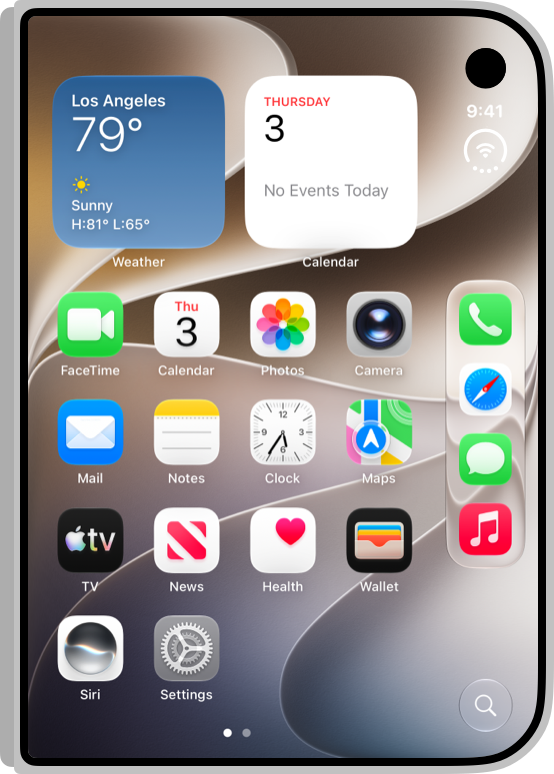
 iPhone Duo 外屏主屏幕:屏幕比例比传统 iPhone 更宽更矮,界面控件的布局重心向侧边靠拢。
 iPhone Duo 展开后的 7.6 英寸内屏主屏幕:同样是主屏幕,图标从外屏的 4 列变成 8 列。
如果在外屏上继续沿用传统的「顶部导航栏 + 底部标签栏」上下夹击的设计,屏幕中间剩下的内容阅读区域就会被严重压缩,每次滚动只能看到寥寥数行。
因此,苹果在 iPhone Duo 规范中给出的核心解法是:把控制条搬到侧边。
在闭合使用外屏时,系统默认把工具栏、标签栏和关键操作控件移动到屏幕侧边的纵向轴上;而在内屏以横屏方向打开时,这些控件同样停留在侧边,以确保用户在展开屏幕、旋转设备时,纵向内容高度不会突兀跳变。规范同时反复强调:这仍然是在为 iPhone 设计,既有的 iOS 模式和最佳实践照样适用。用标准系统组件、本来就支持尺寸调整的应用,几乎不用改就能适应各种姿态。
硬件解构:双屏、开孔与隐形摄像头的排布规则
iPhone Duo 的内外两块屏幕硬件结构不同,这直接决定了系统交互元素的落位(下表在手机上可以左右滑动查看):
| 硬件维度 | 外屏(Outer Display) | 内屏(Inner Display) |
|---|---|---|
| 屏幕规格 | 5.4 英寸,1398 × 2034,460 ppi | 7.6 英寸可折叠,1878 × 2670,430 ppi |
| 前置摄像头 | 屏幕一角,常驻可见,有实时活动时扩展成灵动岛 | 藏在显示层后面,相机启用时才显形 |
| 铰链的位置 | 在外屏的一条侧边上 | 从内屏正中央贯穿而过 |
| 控件放在哪 | 侧边一条竖轴上,分段排列 | 竖屏走传统横栏,横屏走侧边竖轴 |
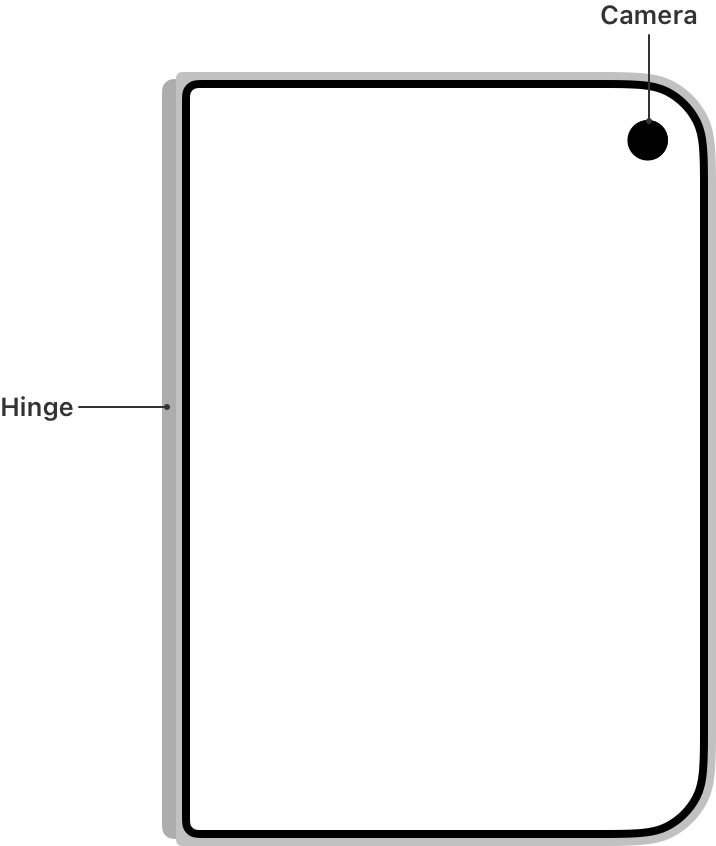
位置关系值得记一下:外屏的铰链在一条侧边,摄像头在对侧的顶角;内屏的折痕从正中穿过,而摄像头不在正中,是在折痕右侧那半块屏的上方。后面讲保留区域时有一张可切换的示意图,这两种形态都能对着看。
在这套硬件基础上,外屏的常驻前置摄像头与侧边控件在垂直方向上严格对齐;而内屏的前置镜头采用了屏下隐藏方案,日常浏览完全隐形,只有当调用相机或进行视频通话时,系统才会让周围的界面元素主动向两侧避让,标示出镜头的工作位置。
垂直控制系统(Vertical Controls):侧边单轨如何运作
以往分散在屏幕顶部和底部的控件,在这里都挪到了侧边——但不是合并成一条,它们仍按原来的分组各自成段。苹果在规范中规定了这根「侧边控制轨」的层级秩序与自适应逻辑。
1. 垂直轴上的控件秩序
在单手握持外屏时,侧边控件严格按照自顶向下的逻辑锚定:
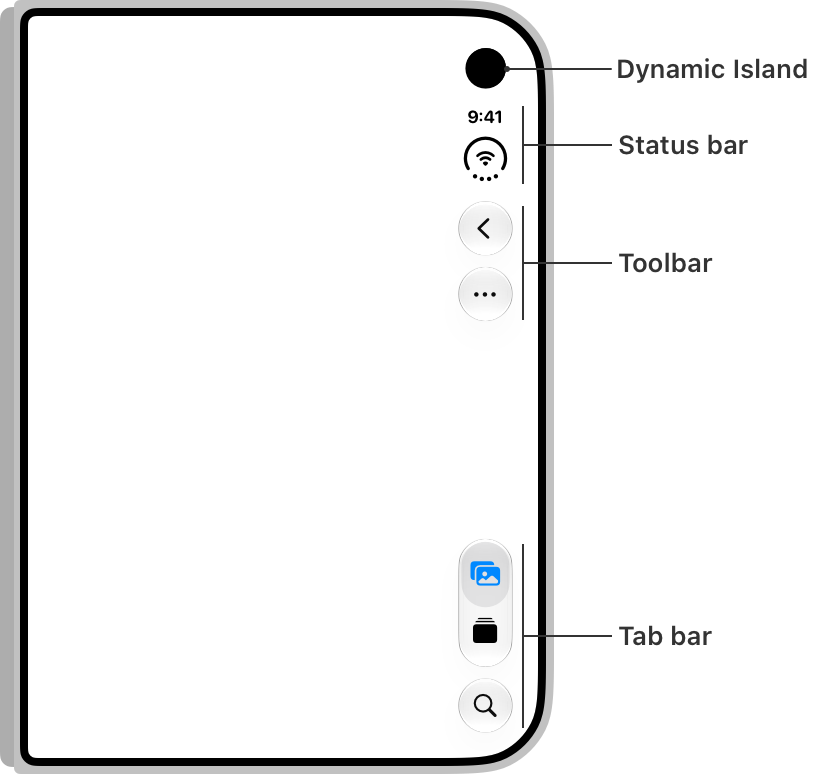
- 灵动岛(Dynamic Island):位置由硬件决定——它就是外屏那颗摄像头开孔的软件形态,有实时活动时从这里展开。侧边控制轨的起点与它对齐。
- 状态栏(Status Bar):显示时间、电池与网络状态。
- 工具与导航栏(Toolbar & Navigation):包括「返回」、「关闭」或「完成」等页面主操作。
- 标签栏(Tab Bar):承载应用的核心模块切换,停靠在底部顺手区。
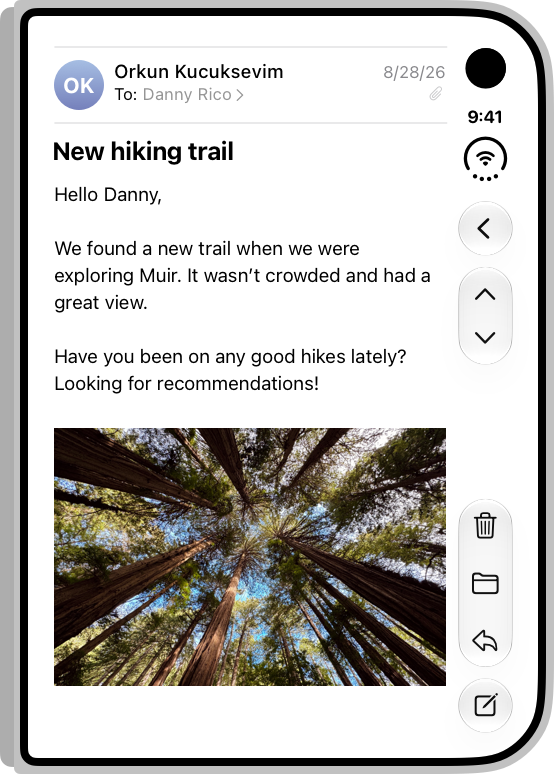
 外屏侧边控制条从上到下的四段排布:灵动岛、状态栏、工具栏与标签栏。
需要注意的是,这套垂直控制条只在外屏以及内屏处于横屏状态时生效;当内屏以竖屏(Portrait)方向握持时,由于垂直高度充足,系统会自动恢复传统 iPhone 用户熟悉的顶部栏和底部横向标签栏。垂直轴上的控件位置是 iPhone Duo 最核心的模式之一,通常不要覆盖默认的栏位放置;同时,因为垂直控件与硬件保持对齐,它们在外屏上与摄像头保持相对固定的位置,在从右到左(RTL)的语言环境下也不会调换到另一侧。
正因为不是每种姿态都把控件放在侧边(内屏竖屏就回到横栏),可用空间也各不相同,规范特别强调控件的相对位置要跨姿态保持一致:人换个姿态,不该重新找按钮在哪。这是「注意力不中断」落到控件层面的具体要求。
2. 避免不对称冲突与多任务分屏
由于控件收纳在一侧,内容可视区域呈现出天然的不对称性。
- 单应用模式下,要靠安全区域(Safe Area Insets)保证可滚动内容不被侧边控件遮挡。
- 在双应用多任务分屏(Split View Multitasking)时,两个应用分居折痕两侧,此时系统规定:左侧应用的控制条靠最左侧排布,右侧应用的控制条靠最右侧排布。两个应用各自贴紧硬件外边缘。规范在这里的提醒是:用安全区域保证控件不盖住内容,而且要把对侧边缘上的控件也算进去——你的应用不知道自己会被放在哪一边,两侧的安全区都得处理。
 两款应用分屏多任务时,控制条分别置于屏幕最左与最右的外侧边缘,操作互不干扰。
3. 操作按钮的优先级与折叠溢出
侧边纵向空间虽然比横向充裕,但功能一多依然会挤。规范给的默认顺序是自下而上:工具项之间比较,排在下面的先被折进省略号溢出菜单(Overflow Menu,它在侧边轨上部的工具栏分组里)。
注意这条说的是工具项之间谁先让位。至于工具栏和标签栏这两条栏本身谁先让位,是另一层规则,下面第 4 条会讲——两处都叫「默认」,管的不是同一件事。
开发者可以通过 API 为操作指定优先级(SwiftUI 中的 ToolbarItemVisibilityPriority,UIKit 中的 UIBarButtonItemVisibilityPriority):
- 高优先级优先保留:如邮件的「写邮件」、备忘录的「新建」,以及带角标这类传达重要状态的项,应当更晚被折叠,让人扫一眼就能看到。
- 少用文字按钮,优先用符号:规范给的机制是——带文字的标签按钮会留在横向栏里,不会移入侧边竖轴。但它只说到这里,没有交代在外屏这种根本没有横向栏的形态下,这些按钮究竟显示在哪、还是干脆不显示。这条建议的分量正来自这个没被交代的部分:能用图标就别用文字按钮。
- 标题和符号都要给:除了本来就只有文字的项,每个工具栏项都同时提供标题和符号,系统会按上下文挑用哪个;即使显示的是符号也要带上标题——溢出菜单和展开形态里用的是它。
- 相关项按组归拢,避免手动留白:使用组件分组(SwiftUI 的
ToolbarItemGroup或 UIKit 的UIBarButtonItemGroup)组织相关工具栏项,系统会自动在项之间及组之间留出间距并自适应可用空间,避免手动添加固定间距。
4. 空间受限时的两种压缩策略
先说清一个前提:侧边控制轨是绑在硬件上的。机身横过来用,控件轨还在硬件的同一条边上(跟外屏摄像头保持相对固定),不会转回屏幕的上下方。代价是这条边的可用长度大幅变短,工具栏和标签栏放不下了。规范为此定义了两种降级策略:
- 导航导向型(默认):工具栏内容优先折叠进
...溢出菜单,完整保留标签栏。适用于以浏览、切换频道为主的场景。 - 任务导向型:标签栏压缩为一个单一的最小化控件,腾出空间展示完整的工具栏按钮。适用于文档编辑、绘图或特定操作流。
两种策略背后有一条底线:压缩的是呈现,不是可用性。界面随可用面积变化时,控件可以被折进溢出菜单、内容可以移位或改尺寸,这些都允许;但不管人怎么拿、怎么看,同样的控件和内容都必须拿得到——不能因为换了个姿态就少了功能。
 导航导向型压缩(图上是横过来的外屏,灵动岛黑点在右下角):工具栏折叠成省略号菜单,标签栏各分项完整保留。
 任务导向型压缩(同样是横过来的外屏):标签栏缩成一个控件,把空间让给完整的工具栏按钮。
5. 局部控制就近原则
并不是所有按钮都该扔到侧边轨上。规范的原则是:控件属于哪块内容区,就跟着那块内容放,别为了统一而挪到侧边——位置本身就在告诉用户这个按钮管的是什么。
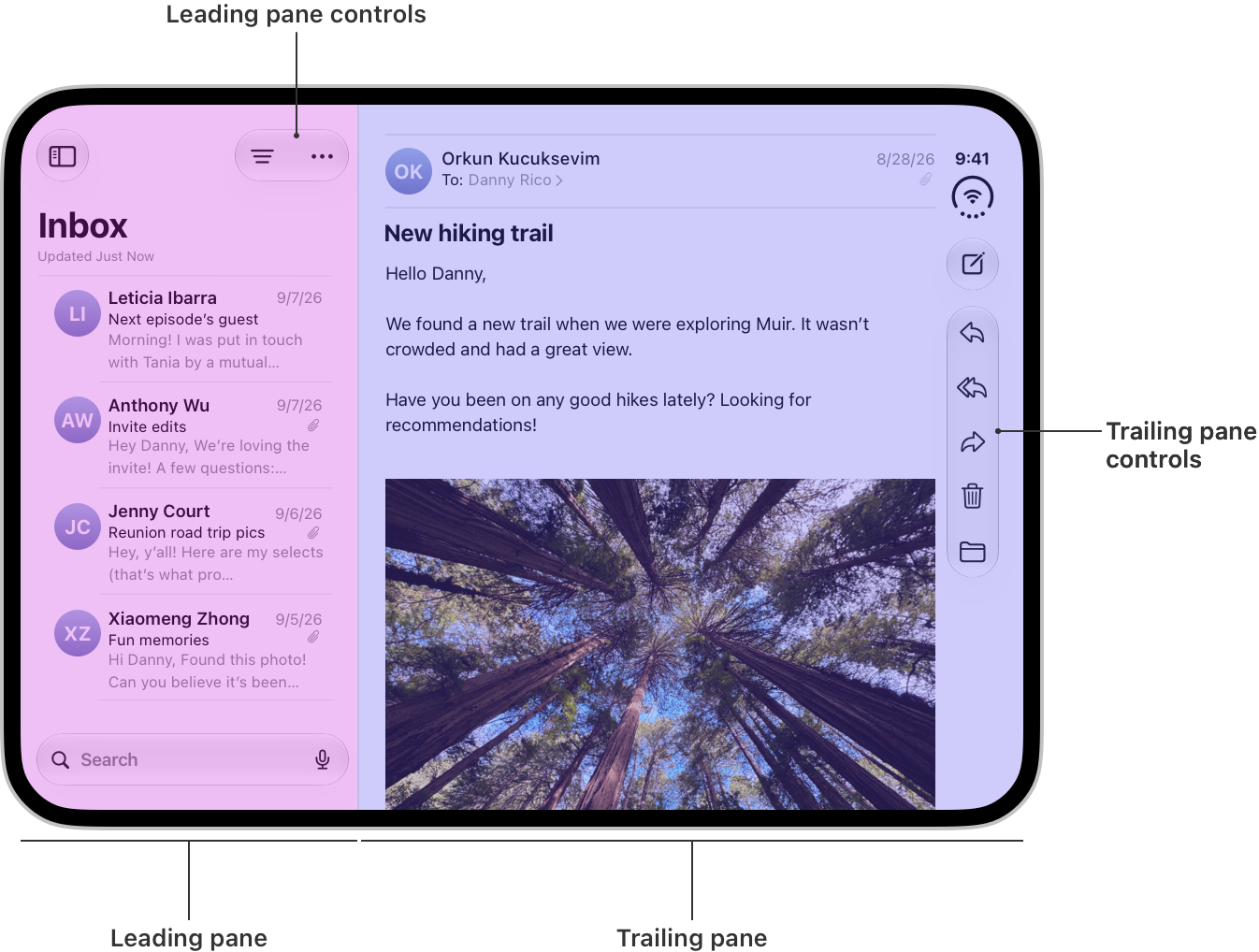
以分栏界面的邮件应用为例,作用于整个邮件列表的操作(如排序、筛选),必须放在左侧列表栏的顶部;只有针对当前正在阅读的那封邮件的具体操作(如回复、归档、删除),才会放置在最右侧的垂直工具条上。
 控制就近原则:影响左侧列表的控件留在列表上方,影响右侧邮件正文的控件才排在最右侧边栏。
保留区域(Reserved Regions):比安全区域更复杂的避让物理学
在以往的 iOS 开发中,界面避让主要依赖安全区域(Safe Area)——避让屏幕圆角、底部横条(Home Indicator)和顶部的刘海或灵动岛。但在 iPhone Duo 上,由于折叠特性的加入,苹果将这一机制拓展成了保留区域(Reserved Regions)。
保留区域代表屏幕上那些「内容不可覆盖」或「组件必须动态避让」的物理与功能区间。系统组件大多会自己让开;自定义组件则要用保留区域 API(reserved region APIs)把内容挪走,让重要元素避开这些位置:
折痕怎么影响界面排布
当用户把 iPhone Duo 展开放在桌面上平铺使用时,中间折痕处只是一块连续的正常显示屏。但一旦用户部分折叠(Partially Folded)设备(如翻开书本角度,或呈笔记本电脑形态摆放),系统就会把中间这道折痕标记成保留区域(组件里叫「折叠区」,是同一块东西),并触发避让机制:
- 弹窗与菜单自动位移:系统的警告框(Alerts)、上下文菜单(Context Menus)和半屏弹窗(Sheets)不会尴尬地卡在折痕中间被劈成两半,而是会自动移开,不压在折痕上。
- 列表分栏对称重构:以系统自带的备忘录(Notes)为例,平铺展开时,左侧笔记列表较窄,右侧笔记内容较宽;但在半折叠状态下,系统分栏视图会自动将左侧栏拓宽到整整 50%,让列表正好占据整块左屏,内容占据整块右屏。
- 网格用偶数列:设计网格(Grid)流式界面时优先用偶数列(2 列、4 列等),让内容折叠时能干净地分到两半。
- 但别趁机大改布局:规范特别提醒,折叠时只移动那些「不动就看不见、点不到」的元素。控件突然消失或大幅跳位会让人难以追踪,小幅调整永远优于推倒重排。
 完全展开:左侧笔记列表窄、右侧正文宽。
 半折叠:左栏自动拓宽到和右栏等宽,各占一块物理半屏。两张官方图的机身外框画法一样,差别只在左右两栏的宽度比例。
全新容器:排布视图(Arrangement Views)的两种模式
如果说保留区域讲的是「系统会替你躲开哪些地方」,排布视图(Arrangement View)讲的则是「你自己的两块视图该怎么摆,才能跟着这些变化走」。为了降低开发者为双屏折叠写布局判断的成本,苹果在 iOS 体系中引入了这种全新的布局容器。
Arrangement View 内部管理两个子视图:主视图(Primary View)与从视图(Secondary View)。它会根据当前是内屏还是外屏、横屏还是竖屏、平铺还是半折叠,自动调度这两个子视图的几何关系。不过,规范通篇没有给出「哪个内容该当 Primary」的抽象划分标准;开发者只能从具体行为反推——比如在层叠排布(Overlay)里,Primary 是压在上面的那一层(所以通常是控制面板、操作卡片这类),Secondary 才是铺底的那一层。
规范将其分为两大类别:
1. 分割排布(Split Arrangement)
分割排布用于需要同时展示两个画面的场景(规范没给产品例子,这里举两个便于理解:左边看视频、右边看评论;上边取景、下边看相册)。
- 水平分割:当容器宽度大于高度时,自动左右排列。
- 垂直分割:当容器高度大于宽度时,自动上下排列。
- 代码直觉与轴向限制:苹果给的对应关系是,SwiftUI 里的水平堆叠(
HStack)或垂直堆叠(VStack)可以直接对应到分割排布,规范建议布局若本来长得像它便可考虑迁移;开发者也可以限制分割排布允许使用的轴向。有一点规范没交代:分割排布里 primary 和 secondary 谁在前、谁在左,规范没有给规则,官方示意图画的是 secondary 在左、primary 在右——如果你按HStack的直觉把第一个子视图当 primary,方向正好相反。真要迁移,这个顺序得自己实测。
 分割排布:从视图与主视图各占一半可用区域。这张图画的是完全展开的状态。
2. 层叠排布(Overlay Arrangement)
层叠排布适用于主内容与浮层面板搭配的场景(同样是便于理解的举例:地图铺底、浮层搜索卡片;视频全屏播放、悬浮控制台)。
- 完全平铺时:从视图充满全屏,较小的主视图作为卡片或浮层堆叠在从视图上方。
- 半折叠摆放时:两个视图自动解开层叠,各自分立占据一块物理半屏——比如上半截立着显示画面,下半截平放在桌面上当控制器。
- 代码直觉与折叠开关:它直接对应 SwiftUI 中的层叠容器(
ZStack)。当不希望从视图出现时,开发者还可以主动将其折叠收起。
 层叠排布:从视图铺满,主视图作为浮层压在上面。这张图画的是完全平铺的状态;半折叠时两者会分开各占一边,图上没有画。
架构红线:排布视图只负责几何摆放,不管导航。规范的说法是:导航容器要放在排布视图外面,不要放进去——SwiftUI 里是
NavigationSplitView/TabView,UIKit 里对应UISplitViewController/UITabBarController。
六种姿态,为什么苹果劝你别逐一适配
铰链让 iPhone Duo 有了很多种拿法和摆法。官方给了六种姿态示意,规范正文点名的是三类:像书本一样半折、平放在桌面、立在边上。
 官方姿态示意图,六格从左到右依次是:合起来竖持(右上角可见外摄开孔)、横向铰链斜撑在桌面、完全展开横向平铺、书本式 V 形半折、完全展开竖向平铺、横向部分折叠立起。图上没有文字标注,规范正文只点了其中三类。
面对如此繁多的姿态,很多开发者和设计师的第一反应是:是不是要写 6 套布局逻辑,监听设备的陀螺仪或铰链角度传感器?
规范的回答很干脆:不要为每一种物理姿态单独设计布局。
还是那把老钥匙:尺寸分类(Size Classes)
苹果给的办法是继续用 iOS 既有的尺寸分类体系。在这套体系里,屏幕空间不按像素绝对值衡量,而是抽象成两类:紧凑(Compact)与常规(Regular)。系统会依据设备类型、窗口配置和多任务状态动态确定尺寸分类;苹果的建议是把外屏当紧凑宽度设计、内屏当常规宽度设计,这两套基础布局就足以覆盖各种姿态下的基本形态。不过这里存在一层客观限制:内屏在竖屏时恢复顶部与底部横栏,横屏时则维持侧边垂直轨,两者是完全不同的控件布局,可系统给内屏宽度的尺寸分类却都只有一个值(Regular)。对于横竖方向切换带来的这套差异,规范称系统会自动处理(只要使用标准组件),但通篇没有交代开发者在需要自定义代码时该用什么具体变量去区分内屏的竖屏与横屏。
开发者只需要打磨好两套基础形态:
- 一套能在紧凑宽度下自如收纳的单列布局;
- 一套能在常规宽度下舒展延伸的多列或分栏布局。
还有一条容易漏:规范要的跨屏一致有三层。功能一致是第一层;元素状态一致是第二层——同一个开关、同一个选中项,换块屏不能变样;第三层最关键,信息层级不变,只在更大的内屏上、且内容确实需要时,多露一层出来。
以自带的系统邮件(Mail)为例:
- 在闭合状态(外屏/紧凑宽度)下,受限于可用面积,列表(主)和正文(从)二选一,用户在同一时间只能看到一层内容。
- 在展开状态(内屏/常规宽度)下,原本递进的两层同时在场:左边常驻列表,右边是正文。层级一点没变,只是多露了一层——不需要在代码里写死「折叠屏内外屏」的分支。
 外屏模式下:单层列表或正文独占屏幕,属于典型的紧凑(Compact)尺寸体验。
 内屏展开下:自动舒展为双分栏视图,左栏列表、右栏详情,属于典型的常规(Regular)尺寸体验。
游戏界面的跨屏处理
「不要为每种姿态特化布局」这条原则,规范给沉浸式游戏留了个口子:可以把方向锁死成横屏或竖屏。但例外有边界——姿态变化时,画面仍然要填满整个屏幕。具体建议是:
- 优先调整长宽比(Aspect Ratio):相比黑边填充(Letterboxing / Pillarboxing),建议优先调整长宽比以自然利用屏幕;若无法避免黑边,可在四周的填充区域(Padding Area)添加美术素材,帮助营造全屏沉浸感。
- 缩放时保持控件一致:在调整和缩放界面时,文字与控件的尺寸应尽量保持一致。
最后两件事:什么时候可以通栏,以及你要改什么
通栏界面与计算器的「4×5」变「5×4」
对于无需常驻控制栏的界面,规范建议在不与灵动岛或状态栏冲突的前提下,考虑占满整个显示宽度(Full Width),这很适合不滚动的沉浸式视觉界面。
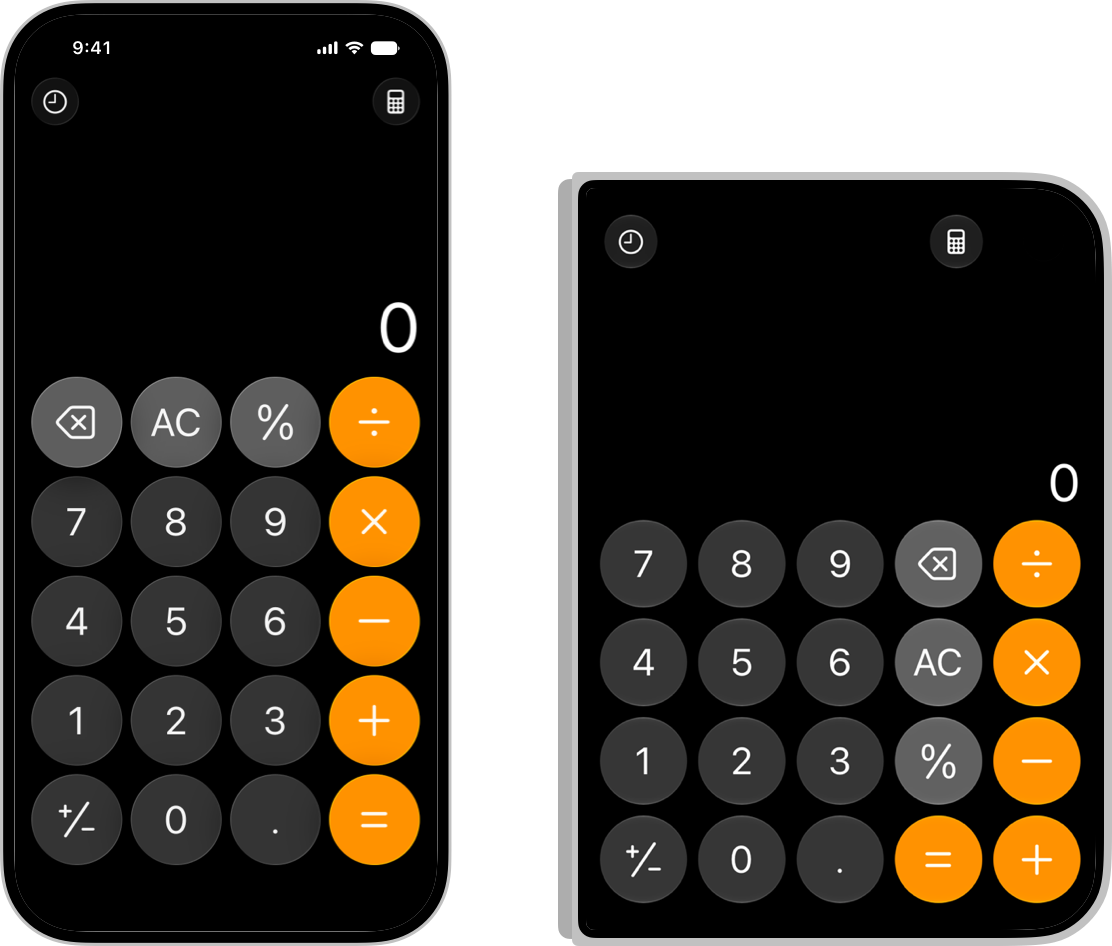
以计算器为例,它在 iPhone Duo 外屏上占满了显示宽度,按键矩阵从 iPhone 16 的 4 列 5 行改成了 5 列 4 行,顶部那两枚圆形工具按钮依然保留——通栏不等于把控件清空。在实际设计中,通栏与内缩也可以结合使用:例如让背景图或页头通栏占满整个显示宽度,而内部的可滚动内容依然保持内缩。
 计算器网格演进:左侧 iPhone 16 采用传统的 4 列 5 行纵向按键,右侧 iPhone Duo 外屏重构为 5 列 4 行,更好契合更宽的物理外屏。
开发者与设计师迁移自查清单
前面说过,用标准系统组件、本来就支持尺寸调整的应用,基本不用大改。下面这份清单针对的是另一类:写死了宽度、自己画布局、自己摆控件的应用。规范划出的落地原则可以归结为五条:
- 清除所有固定宽度(Fixed Widths):凡是写死宽度、或依赖某块具体屏幕的布局代码都要改成自适应,改用安全区域边距(Safe Area Insets)和系统 Layout Margins。
- 少用纯文字按钮:除了本来就只有文字的项,每个工具栏项都同时给出标题和图标(
Label("标题", systemImage: "..."))——系统会在溢出菜单和展开形态里用到那个标题。 - 划分操作归属,不要全堆在侧边:左侧分栏的筛选/新建放在左侧栏顶部,右侧详情的动作才挂在右侧纵向轴上,保持控件与被操作对象的就近亲和性。
- 梳理工具项的优先级(Visibility Priority):找出应用中的 1~2 个核心高频动作(如发帖、搜索、结账),赋予最高可见优先级;其他辅助功能做好随时落入省略号溢出菜单的准备。
- 并列和浮层交给 Arrangement View:界面里现有的并排卡片、浮层控件,把手写的定位和动画换成原生的 Split / Overlay 容器,折痕避让和展开时的位移就归系统管了。
结语:从「把手机做大」到「把界面立起来」
iPhone Duo 的这份 HIG 没有走「把应用视口放大」的折叠屏适配老路。屏幕变宽变矮,控件就立起来;硬件多了一道折痕,就把它抽象成系统级的保留区域;姿态多到数不过来,就仍旧交给尺寸分类去消化。
这三步都指向同一个态度:变的是布局怎么落,不变的是它仍然是一台 iPhone——规范自己也这么说,用标准组件、支持 resize 的应用,基本不用大动。真正要花心思的是那些自己画布局、自己摆控件的地方。这些规则要等设备到了用户手上才谈得上验证——现在能确定的只有 Apple 打算怎么做。
iPhone Duo:从上下夹击到侧边单轨,折叠屏界面的连续性重构
苹果终于发布了自己的折叠屏手机 iPhone Duo,并在上市前更新了人机界面指南(HIG)。整份规范的核心总纲只有一条:应用要在内外屏之间无缝自适应,开合之间体验必须是连续的。
在此之前,iPhone 的屏幕长宽比长期维持在 19.5:9 左右,属于典型的细长型屏幕。在细长屏幕上,顶部导航条和底部标签栏即使同时存在,中间依然有充裕的垂直高度供用户上下滚动阅读内容。但 iPhone Duo 彻底打破了这个前提。
如果在外屏上继续沿用传统的「顶部导航栏 + 底部标签栏」上下夹击的设计,屏幕中间剩下的内容阅读区域就会被严重压缩,每次滚动只能看到寥寥数行。因此,苹果在 iPhone Duo 规范中给出的核心解法是:把控制条搬到侧边。
在闭合使用外屏时,系统默认把工具栏、标签栏和关键操作控件移动到屏幕侧边的纵向轴上;而在内屏以横屏方向打开时,这些控件同样停留在侧边,以确保用户在展开屏幕、旋转设备时,纵向内容高度不会突兀跳变。
机身横向使用或工具项过多时,侧边纵向可用长度变短,系统定义了两种降级压缩策略,恪守一条底线——压缩的是呈现,不是可用性:
保留区域(Reserved Regions):折痕处的物理避让学
传统的 Safe Area 仅需避让圆角与灵动岛,但 iPhone Duo 引入了动态的保留区域。当用户把设备部分折叠(Partially Folded)呈书本或微启形态时,中间这道折痕会被系统标记为保留区域并触发避让:
但在半折叠状态下,系统分栏视图会自动将左侧栏拓宽到整整 50%,让列表正好占据整块左屏,内容占据整块右屏。同时,系统的警告框(Alerts)、快捷菜单(Context Menus)与半屏弹窗(Sheets)会自动位移,坚决不被折痕从正中劈开;流式网格设计则建议优先采用偶数列(2 列或 4 列),确保折叠时内容干净对半切分。
排布视图(Arrangement Views):原生容器接管双屏几何
为了让开发者不必为双屏判断写大量坐标计算,苹果推出了负责调度 Primary View 与 Secondary View 的排布视图,按形态自动切换几何关系:
姿态虽有六种,为何苹果劝你只打磨两套尺寸?
铰链带来了平铺、帐篷、书本半折、斜撑等六种典型物理姿态。规范的告诫非常干脆:别为每一种姿态单独写一套布局分支。
苹果给出的解法依然是成熟的尺寸分类(Size Classes):外屏对应 Compact(紧凑宽度),内屏对应 Regular(常规宽度)。开发者只需做好紧凑单列与常规多栏两套形态,让系统通过多露一层信息层级来实现连续扩展,而不是机械地把 UI 放大。
开发者迁移自查红线清单:
变的是布局怎么落,不变的是它仍然是一台 iPhone——规范自己也这么说,用标准组件、支持 resize 的应用,基本不用大动。把手机做大是硬件的事,把界面立起来才是折叠屏软件体验的真正核心。
Designing for iPhone Duo | Apple Developer Documentation
An app designed for iPhone Duo adapts seamlessly to both displays, providing a continuous experience as the device opens and closes.
iPhone Duo has two displays, each with its own front-facing camera. A hinge in the center lets people open and close the device, and supports a variety of ways to hold and position it. This range of display sizes and poses makes an adaptable layout more important than ever. If your app uses standard system components and you’ve designed it to support resizing, it automatically adapts to the device’s poses with little adjustment required. For developer guidance, see Preparing your app for iPhone Duo.
Although iPhone Duo is a new form factor, keep in mind that you’re still designing for iPhone, and Designing for iOS patterns and best practices still apply.
iPhone Duo has an inner and an outer display. People interact with the outer display when the device is closed, and the system places toolbars and tab bars on the side to maximize the vertical space for content. The controls remain on the side when the device opens in landscape to ensure a consistent experience as people move between displays.
A center hinge supports a range of ways to hold and position the device. The hinge also impacts the space available for your content as the device folds.
The outer front-facing camera is in the corner and is always visible, vertically aligned with controls on the side. The inner camera is behind the display and stays hidden until the camera is active.
People hold iPhone Duo and set it down in a number of ways: partially folded like a book, placed down on a surface, or standing on its edges.

Supporting the device’s various poses doesn’t mean designing a custom layout for each one: instead, use size classes so your app adapts naturally as it changes size. A compact width layout for the outer display and a regular width layout for the inner display give you the fundamentals for every pose. Don’t reinvent your app when it resizes; allow the existing layout to expand based on the available space instead. See Dynamic layouts for guidance.
You can use Device Hub in Xcode to preview your app on iPhone Duo and test how your app appears in its various poses.
Build your app to resize. Because the device has two displays and supports a wide range of poses and Split View multitasking, your app can appear at many different sizes. Use size classes, layout margins, and safe area insets to lay out controls and content. Avoid fixed widths and display-specific dependencies. See Dynamic layouts below and Layout for guidance.
Create a consistent experience across displays. Keep functionality and the state of elements the same between displays. Maintain your app’s information hierarchy, but show an additional level of hierarchy on the larger inner display if it makes sense for your content. Mail, for example, shows either a list of emails (primary) or an email (secondary) when the device is closed. When it’s open, it shows both side by side.
Maintain the same functionality across device poses. Controls may overflow and content may move or change size as the interface adapts to the available area. Provide access to the same controls and content regardless of how someone holds or views the device. For guidance, see Dynamic layouts and Vertical controls.
Follow the system’s vertical layout for toolbars, tab bars, and navigation controls. Because the outer display is wider and shorter than the display on other iPhone devices, the system moves controls to the side to preserve vertical space for content and reflect the asymmetry of the display. On the inner display, controls remain on the side in landscape to preserve a continuous experience at the same vertical height. If you use standard system components, you receive this layout automatically, but you may want to refine it based on the needs of your app. For guidance, see Vertical controls.
Make your game playable in every device pose. You can choose to lock to either portrait or landscape orientation, but be sure to fill the screen as the device pose changes. When resizing, keep text and control sizes as consistent as possible. Prefer changing the aspect ratio over letterboxing or pillarboxing in games; if you can’t avoid letterboxing or pillarboxing, add artwork to the padding area to help the experience feel full screen. See Designing for games for additional guidance.
Designing for iPhone Duo means accounting for a variety of hardware and software configurations. As with all iOS devices, build your layouts with layout margins and safe area insets, and steer clear of fixed widths or anything tied to a specific display.
For guidance, see Layout. For margins and safe areas, see Apple Design Resources. For developer guidance, see safeAreaInsets (SwiftUI) and safeAreaInsets (UIKit).
In addition to standard considerations for safe areas, available space on iPhone Duo is shaped by reserved regions. These represent areas within the display that content avoids covering, or that components adapt to accommodate. These are familiar if your layout adapts to similar areas on other platforms, such as the window controls on iPad.
The reserved regions on iPhone Duo include:
- The outer front-facing camera. This region is always present, and expands into the Dynamic Island for Live Activities. When controls are on the side, the system automatically accounts for it and arranges elements accordingly.
- The inner front-facing camera. This region is only present when the camera is active. When it’s inactive, the camera isn’t visible; when the camera activates, the UI moves aside to indicate the presence of the camera.
- The folding region. This region is conditional based on how a person uses the device. When the device is partially open, the folding region divides the inner display into multiple usable regions, excluding the region at the center as the display folds.
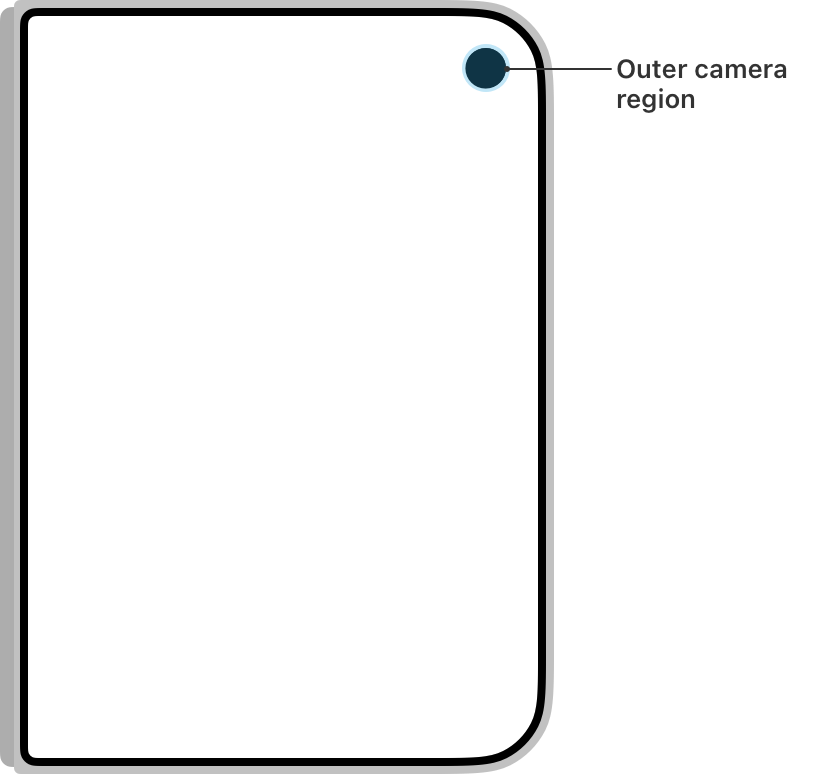
Many system components automatically adapt to reserved regions. Components like alerts, context menus, and sheets automatically move to account for the fold, while larger components like split views adapt their columns’ width and margins to match the symmetry of the inner display. For custom components, ReservedRegion (SwiftUI) and UIView.ReservedRegion (UIKit) provide a way to reposition content away from reserved regions.
Adapt your layout when the device folds. Prefer a layout container that adapts automatically, like the split view in Notes that adjusts the width of each pane to stay clearly visible as the device folds. In a grid-style layout, prefer an even number of columns so content divides cleanly. Use the ReservedRegion API to keep important elements clear of the center if the system doesn’t move them automatically.
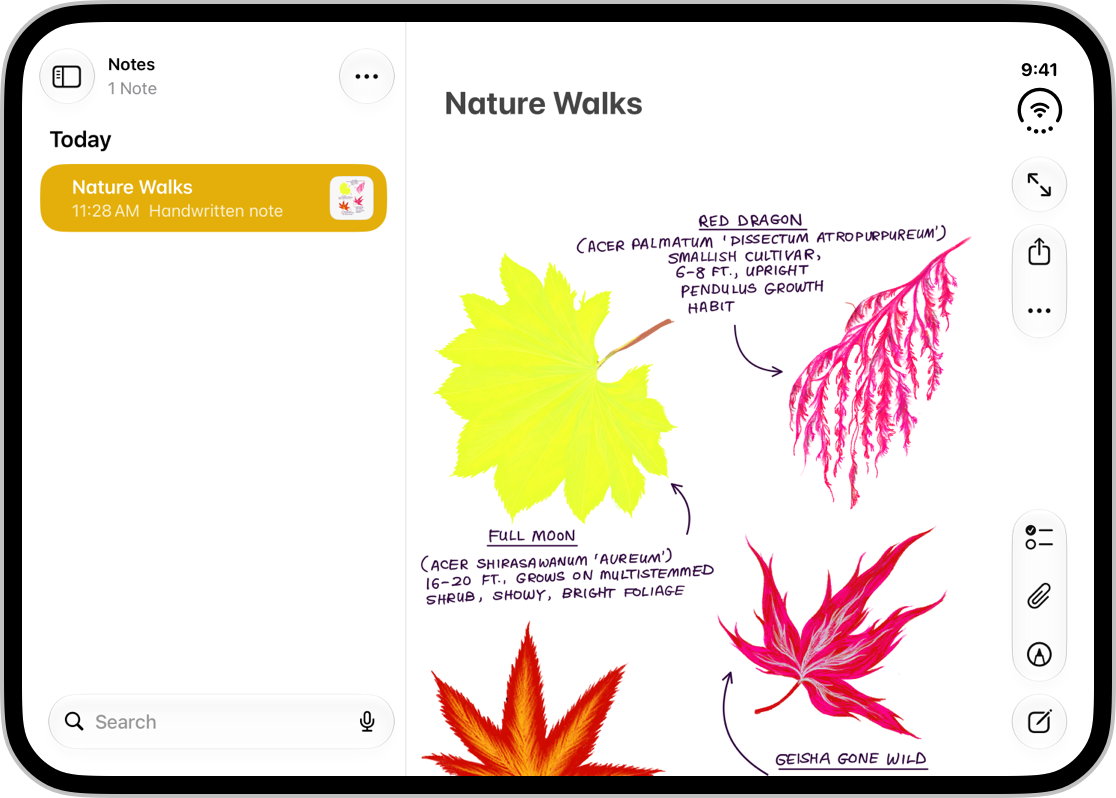
Avoid extreme layout changes as people fold the device. Move only what’s necessary to keep elements visible and easy to tap. Controls that disappear or shift dramatically are harder to find and track, so favor small adjustments over rearrangement.
On iPhone Duo, a split view expands on the inner display and collapses to a single pane on the outer display, the same way it adapts between regular and compact environments on other iPhone devices. When built with standard components, split views adapt to reserved regions automatically, adjusting width and margins to adapt to the fold.
For general guidance, see split views. For developer guidance, see NavigationSplitView (SwiftUI) and UISplitViewController (UIKit).
An arrangement view is a layout container that holds two views inside it — a primary view and a secondary view — and dynamically organizes them based on display size, orientation, and reserved regions.
There are two types of arrangement view: split and overlay.
- A split arrangement divides its area between its primary and secondary views. It splits horizontally when the arrangement is wider than it is tall, and splits vertically when the arrangement is taller than it is wide.
- An overlay arrangement positions the primary and secondary views on top of one another. When the display is partially folded, the views move to occupy each side; otherwise the primary view moves atop the secondary view.
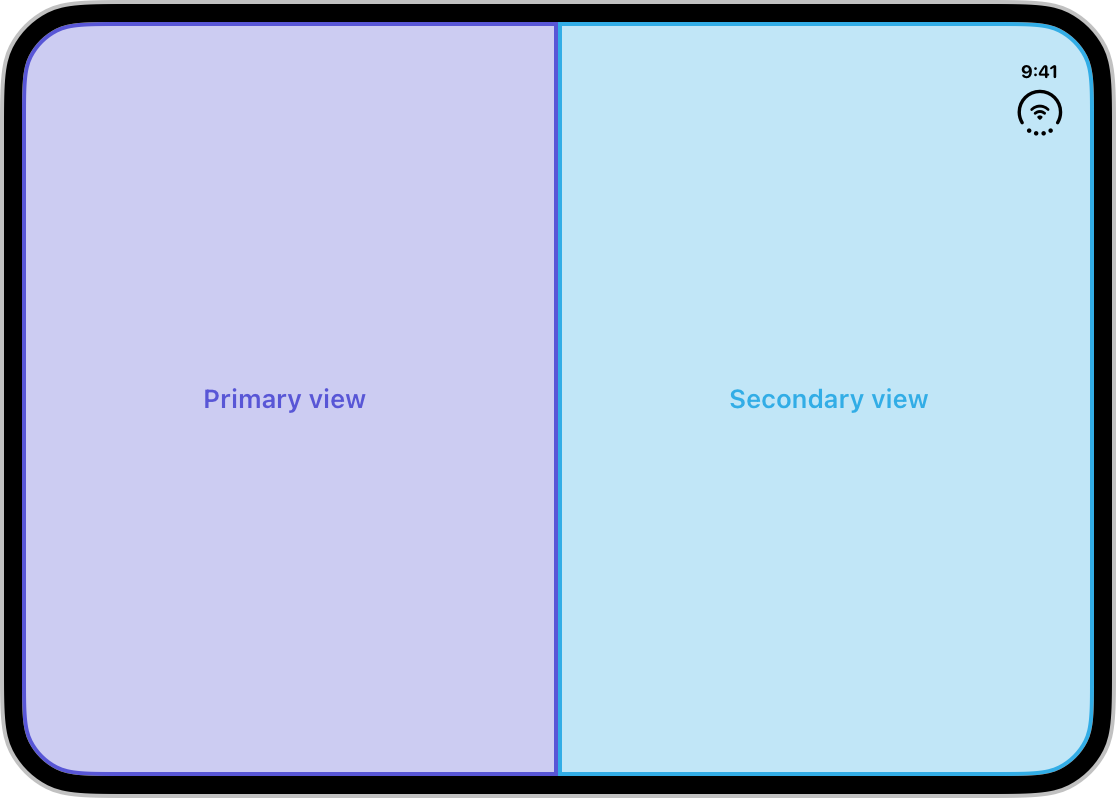
You can limit which axes a split arrangement uses, and collapse the secondary view in an overlay arrangement when you don’t want it to appear.
For developer guidance, see ArrangementView (SwiftUI) and UIArrangementViewController (UIKit).
Consider an arrangement view when your layout already resembles one. A layout that places two views side by side or one above the other, such as an HStack or VStack, translates directly to a split arrangement. A layout that layers one view over another, such as a ZStack, translates to an overlay arrangement.
Keep navigation outside of arrangement views. An arrangement view lays out content but doesn’t handle navigation, so place navigation containers like navigation split views and tab views around it rather than within it.
On iPhone Duo, toolbars, tab bars, and navigation controls that are typically at the top and bottom of the display move to the side, preserving vertical space for content and keeping controls within easy reach. The exception is the inner display in portrait, which has enough vertical space to keep standard horizontal bars.
Controls on the side include both system and app elements: the Dynamic Island, the status bar, the toolbar (including navigation buttons), and the tab bar.
When two apps share the inner display with Split View multitasking, each one places controls along its outer edge, so the left app has controls on the left.
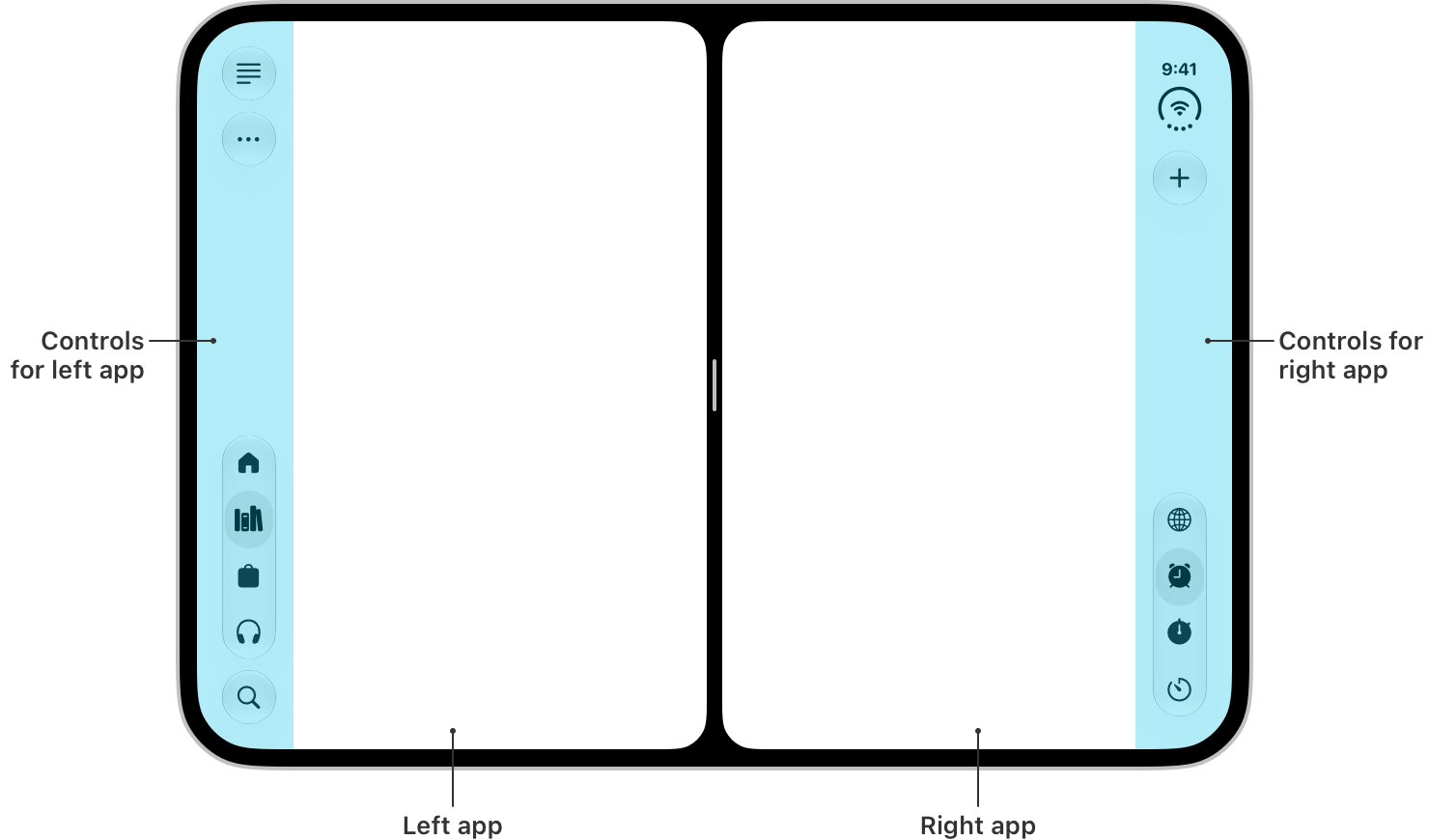
Because controls on the vertical axis stay aligned with the hardware, they hold the same position relative to the camera on the outer display, and stay on the same side in right-to-left languages.
Account for asymmetry in your layouts. Because controls sit along one edge, the space for content is asymmetrical. Use safe areas to make sure controls don’t cover your content, including controls on the opposite edge, like when two apps share the inner display with Split View multitasking.
Keep controls consistent across device poses. Because not every pose places controls vertically on the side, and there isn’t always the same amount of space available, it’s important to keep controls’ relative positions as similar as possible so people don’t have to relearn where actions live as they change between poses.
Follow the standard placement order for toolbar items. Reserve the top of the vertical axis for primary navigation controls, like Back or Close, followed by prominent actions, like Done. This preserves familiar navigation patterns while keeping important actions within reach. Keep remaining toolbar items in their original groupings; the system provides a vertical space between items from the top and bottom bars to keep them distinct.
Prioritize frequently used toolbar items to keep them easily available. Items overflow from bottom to top by default. Assign each item a visibility priority to change that order, starting with whole groups and then individual items within a group if you need finer control. For developer guidance, see ToolbarItemVisibilityPriority (SwiftUI) or UIBarButtonItemVisibilityPriority (UIKit).
Preserve frequently used actions first, like Compose in Mail or New Note in Notes, and keep controls that convey important status, like items with badges, visible longer so people can see them at a glance.
In general, don’t override the default bar placement. The position of controls on the vertical axis is one of the core patterns of iPhone Duo. Keeping controls in familiar positions helps people get to know how your app works right away, and reinforces the unified platform experience.
Consider using the full display width for interfaces where bars aren’t necessary. Some layouts can span the full display, which works well for visual, immersive interfaces that don’t scroll, as long as nothing conflicts with the Dynamic Island or the status bar. Calculator, for example, occupies the full width of the display. You can also combine both approaches, letting a background image or header span the full width while scrollable content stays inset.
Group related toolbar items instead of spacing them manually. Groups you create with ToolbarItemGroup (SwiftUI) or UIBarButtonItemGroup (UIKit) provide space between items and other groups automatically, and adapt as the available space changes, so avoid adding fixed spacing yourself. For guidance, see Toolbars.
Locate controls near the content they affect. When controls belong to a content area other than the one along the trailing edge, keep them with that area rather than moving them to the side. Proximity makes the relationship between controls and content clear. For example, controls that affect the list of emails in Mail stay above the leading pane to indicate that they apply to the list, rather than the contents of an individual email.
Provide both a title and a symbol for each toolbar item that isn’t text-only. Giving both lets the system pick the right representation for the context. Include a title even when an item shows a symbol, because the system uses the title in overflow menus and expanded forms. For developer guidance, see Label (SwiftUI) and UIBarButtonItem (UIKit).
Keep text-based buttons to a minimum. Labels that include text stay in a horizontal bar, so prefer a symbol wherever one works.
When space is limited, preserve either the toolbar or tab bar based on the experience that the view provides. In navigation-focused experiences, move toolbar items into the overflow menu so the tab bar and primary destinations remain accessible. This is the default bar compression behavior.
In task-oriented experiences, minimize the tab bar to preserve the toolbar actions that are central to completing the task. This mirrors the minimized tab bar behavior present on other iPhone devices. For developer guidance, see ToolbarVerticalCompressionBehavior (SwiftUI) and UIVerticalBarCompressionBehavior (UIKit).
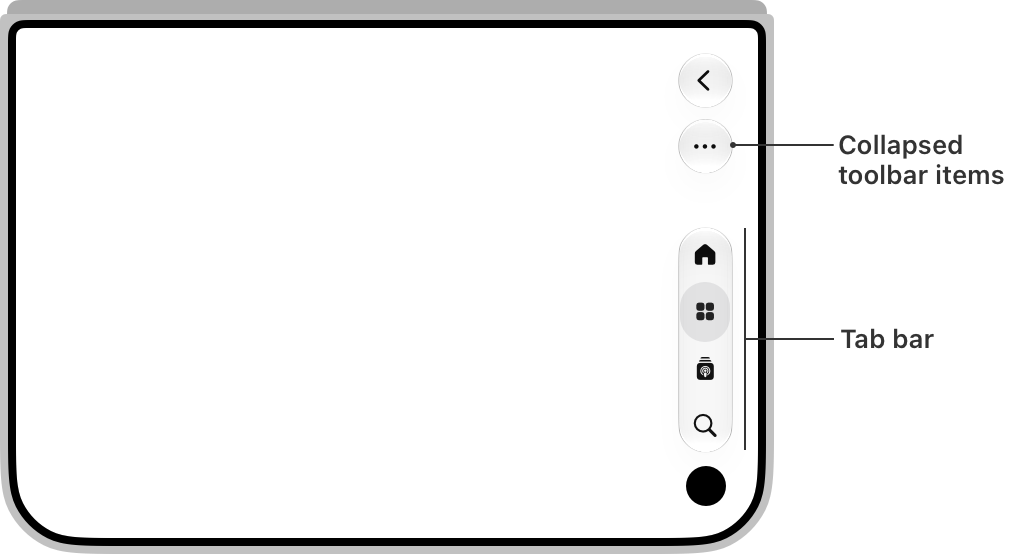
Use the system overflow menu. If your app has its own overflow menu, move those actions into the system menu so people find everything in one place. Reserve the ellipsis symbol for overflow, and give other menus a distinct symbol. For developer guidance, see ToolbarOverflowMenu (SwiftUI) and additionalOverflowItems (UIKit).
ReservedRegion — SwiftUI
UIView.ReservedRegion — UIKit
ArrangementView — SwiftUI
UIArrangementViewController — UIKit
| Date | Changes |
|---|---|
| September 9, 2026 | New page. Introduces the fundamental concepts of designing for iPhone Duo, including device poses, dynamic layouts across dual displays, and toolbars and tab bars on the vertical axis. |