
Claude Code 云端会话上手指南:连接仓库、提交任务、检查与合并
从浏览器里的第一个小任务开始,逐步配置环境、复制验证指令、审查改动;再按需使用并行任务、本地接回和自动化。
平常在个人电脑的终端里运行 Claude Code 时,整个工作流程与手头的这台笔记本电脑深度绑定:如果针对同一个代码仓库同时开两个会话,本地文件容易互相改乱,测试服务还会因争抢同一个网络端口(例如都要占用 3000 端口)而报错;会话与本机的 SSH 密钥、云平台登录凭据同处一个环境;电脑休眠时任务无法继续推进,断网也会阻断需要调用模型或远程服务的步骤。
Claude Code 的云端会话(Cloud Sessions)将任务迁移到云端运行:你提交一项任务,系统会在云端临时启动一台全新的独立虚拟机(即 VM,在云端划分出的虚拟计算机,各任务之间互不干扰),把代码仓库克隆到一个专属的新分支上全自动工作。到达停止点时,它会推送包含改动的远程分支,你可以将这组改动转为 Pull Request(简称 PR,即代码拉取请求,供团队审查合并代码)。
这套能力已包含在 Pro、Max、Team 以及拥有 Premium 或 Chat + Claude Code 席位的 Enterprise 付费订阅中,无需额外支付云算力费用,任务直接计入当前账户的使用额度。
快速决策:哪些任务交由云端?哪些适合留在本地?
云端会话并不会完全替代本地终端,理解两者的能力边界,有助于在日常开发中合理分流任务:
| 比较维度 | 本地终端会话 | 云端独立会话 |
|---|---|---|
| 运行宿主 | 本地笔记本或台式机 | 临时划分的独立云端虚拟机 |
| 电脑休眠断网 | 休眠时停止推进,断网影响联网步骤 | 云端持续运行,随时跨设备查看 |
| 多任务并行 | 需手动配置 Worktree 与端口 | 每任务独占机器与分支,天然隔离 |
| 权限可触达范围 | 本机文件、SSH 密钥、个人配置 | 仓库、设定的网络、启用的连接器与自身分支凭证 |
| 交互查看入口 | 本机终端,或手机远程控制 | 网页、手机 App、桌面版、终端、Slack |
| 操作审批模式 | 任意模式,包括逐条命令手动确认 | Auto、Accept edits 或 Plan |
| 产出交付形式 | 直接修改本地工作区未提交文件 | 生成远程独立分支,一键创建 PR |
| 算力与消耗 | 消耗本机 CPU 与电池 | 无额外算力费,并行按比例消耗套餐用量 |
这些情况建议留在本地运行
- 私有数据与特定网络:任务必须读取仅保存在本地 Docker 中的测试数据库,或者必须挂载公司特定内网 VPN 才能连通的服务;
- 物理硬件依赖:需要调用本机物理 GPU 算力、外接硬件开发板,或依赖本地运行的移动端模拟器;
- 前端高频视觉调试:需要修改一行样式就在本地浏览器看到即时视觉反馈的交互微调;
- 严格合规限制:所在企业开启了“零数据留存”策略(Zero Data Retention, ZDR,开启该策略时云端会话功能会被自动禁用)。
如果任务需要利用本地环境但人想离开工位,可使用远程控制(Remote Control,计算仍在个人电脑运行,仅通过手机或浏览器发指令与看进度);若企业属于 Team 或 Enterprise 订阅,还可考虑自托管环境(Self-hosted Environments,面向商业版开放的 Beta 功能,将会话运行在企业自建的基础设施上)。若无上述限制,直接交给云端处理能显著释放个人电脑资源。
第一步:在浏览器中打通 GitHub 仓库连接
在云端拉取私有代码,核心前提是理清两套独立的 GitHub 权限:
- 使用 GitHub 账号登录 Claude:向系统认证“你是哪位用户”,仅具备拉取公开开源仓库的基础身份凭证;
- 安装 Claude GitHub App:向 Claude 显式授权它“有权读写哪些具体的私有仓库”,并打通后续自动修复与事件通知。
四种连接方式都能读取公开仓库,私有仓库与自动联动的差别如下:
| 连接方式 | 个人私库 | 组织私库 | 自动联动 |
|---|---|---|---|
| 仅 GitHub 登录 | 不可读 | 不可读 | 不支持 |
| 加装个人 App | 可读 | 不可读 | 个人仓库 |
| 加装组织 App | 个人账号另装 | 可读 | 组织仓库 |
/web-setup |
按 Token 权限 | 按 Token 权限 | 仍需 App |
此处自动联动指 Auto-fix、GitHub 事件触发和 Projects;普通定时 Routine 不以安装 App 为统一前提。
路径 A:浏览器图形化连接(初次使用主线推荐)
全流程只需使用现代浏览器即可完成,本地不需要安装 Node.js、Git 或任何命令行工具。
前置账号与权限要求:
- 可用账号与席位:云端会话必须使用带有付费订阅的
claude.ai账号(支持 Pro、Max、Team,以及分配了 Premium 或 Chat + Claude Code 席位的 Enterprise);通过 Anthropic Console 申请的独立 API Key,或第三方云服务商(如 AWS Bedrock、Google Cloud Vertex AI)均不支持云端会话。 - 企业管理员开关:若属于 Team 或 Enterprise 企业订阅,必须由组织所有者(Owner)预先在管理后台开启两项功能:在
claude.ai/admin-settings/connectors开启 GitHub 连接器(GitHub Connector),并在claude.ai/admin-settings/claude-code开启云端会话(Cloud sessions)权限;若 GitHub 连接器未开启,页面可能提示“GitHub access is required for Claude Code cloud sessions”。
浏览器连接四步流程:
- 登录 Claude 账号:在浏览器打开 claude.ai/code,登录上述具备有效付费订阅的
claude.ai账号。若尚未关联 GitHub,页面会自动引导进入连接流程(也可直接访问官方连接页 claude.ai/connect-github)。 - 连接 GitHub 个人身份:点击界面中央的 Connect to GitHub 按钮,系统会跳转至 GitHub 官方授权页面,确认个人基础身份登录:

- 安装 Claude GitHub App:登录完成后,页面会引导安装 Claude GitHub App。选择将 App 安装至你的个人账号或目标组织,并在仓库访问权限中选择 All repositories(所有仓库)或 Only select repositories(仅选定仓库):

- 确认连接成功信号:授权完成后,页面将自动跳回 claude.ai/code。连接成功的明确可观察信号为:
- 输入框旁的仓库选择器中,已能正确检索并选择到授权的私有代码仓库;
- 输入框上方的环境选择器中,默认的 Default 环境已处于可选状态。
浏览器连接常见受阻排查
如果授权后页面未正常跳回,或仓库列表显示为空,可对照以下官方排查点处理:

- 痛点 1:私有仓库在下拉列表中完全看不见
排查与解法:App 没有安装在该仓库所属的账号/企业下,或者安装时遗漏了该仓库。前往 GitHub 的个人/组织 Settings > Applications > Installed GitHub Apps,找到 Claude 并把对应仓库加入授权白名单。 - 痛点 2:提示“必须是组织管理员(Owner)才能关联”
排查与解法:组织开启了成员资格保护或权限审核机制。需要组织所有者(Owner)进入组织的 GitHub App 设置批准权限申请,并在管理后台为已安装的 App 启用“IP allow list inheritance(IP 白名单继承)”,或在 SAML 单点登录设置中主动授予 Claude 访问权。在 Team 或 Enterprise 订阅下,Owner 还需先在claude.ai/admin-settings/connectors中将 GitHub 连接器开关打开。 - 痛点 3:授权成功后,组织旗下的代码库突然全部消失
排查与解法:企业启用了 SAML 单点登录(SSO),在 GitHub 授权弹窗的“Single sign-on to your organizations”列表步骤中不慎跳过了。进入 GitHub 个人设置的 Applications > Authorized OAuth Apps,找到 Claude,在所在组织名称旁补点 Authorize,重新登录即可恢复。 - 痛点 4:会话统一报错“Authentication Error”
排查与解法:企业在 Claude 控制台配置了企业 IP 访问白名单,需联系管理员将 Anthropic 云端基础设施的服务 IP 列入白名单豁免列表。
附:CLI 本地首次安装(选读,仅供习惯使用终端的开发者参考)
如果你打算使用本地命令行工具同步凭据或发起任务,需先在系统终端中完成官方安装(仅使用网页端的读者可直接跳过本节):
- macOS、Linux 与 WSL:
curl -fsSL https://claude.ai/install.sh | bash - Windows PowerShell:
irm https://claude.ai/install.ps1 | iex
安装完成后,打开一个新的终端窗口并运行 claude --version。若成功输出版本号,说明安装成功且 PATH 环境变量已生效。
Shell 环境提示:Windows 用户必须在 PowerShell 窗口中运行;若提示 'irm' is not recognized 说明误用了旧版 CMD。
路径 B:终端同步已有 gh 凭证(适用于熟悉 CLI 的开发者)
如果你本地已安装并配置了 GitHub 官方命令行工具 gh,也可以通过终端快速同步凭证。请注意区分系统终端命令与 Claude 交互会话内置斜杠命令:
- 在系统终端中先检查并确保已登录 GitHub:
gh auth login - 在系统终端输入
claude启动 Claude Code 交互会话:claude - 在 Claude Code 交互提示符下,确认登录凭据:
- 若尚未登录,输入斜杠命令登录:
/login - 输入
/status查看状态,确认 Login method 明确显示为claude.ai订阅账户(使用 API Key 登录不支持云端功能)。
- 若尚未登录,输入斜杠命令登录:
- 在 Claude Code 交互提示符内输入凭据同步命令(Team/Enterprise 需由 Owner 预先在管理后台开启 Quick setup 开关):
/web-setup - 显式确认凭证上传:Claude Code 会调用
gh auth token读取本地 Token,并在终端弹出明确的提示向你请求确认(询问是否将该 Token 上传并绑定至你的 Claude 账户,此过程有明确交互,绝非静默执行)。 - 确认同意后,Token 被加密传输并绑定至你的云端账户,终端输出
Connected as <你的GitHub用户名>并自动在浏览器中打开 claude.ai/code。 - 工作流权限缺失排查:若终端出现权限警告提示缺少
workflowscope,需先回到系统终端运行:补全权限后,必须重新进入 Claude Code 再次执行gh auth refresh -s workflow/web-setup重新上传 Token,权限变更才会生效。 - 凭据解绑影响说明:若后续在
claude.ai/customize/connectors移除 GitHub 连接,仅会删除 Anthropic 云端保存的凭证,绝不会自动注销或使本地电脑上的gh登录态失效;若需彻底作废该 Token,需在 GitHub 个人设置的 Applications > Authorized OAuth Apps 中注销 GitHub CLI 授权。
路径 C:无远程仓库时的一键打包快传(Bundle)
对于尚未推送到 GitHub 的本地新工程,或未安装 App 的仓库,在本地终端执行:
claude --cloud "任务描述"
系统会自动将本地代码打包(Bundle)上传至云端虚拟机。若远程已有仓库但希望强制以本地打包模式运行,可在 Bash/Zsh 中显式声明变量:
CCR_FORCE_BUNDLE=1 claude --cloud "任务描述"
打包前先检查这几项:
- 本地必须是一个包含至少一次 Git commit 的有效 Git 仓库;
- 压缩包体积上限为 100MB。超出时会降级为仅打包当前分支或单次压缩快照,若依然超限则拒绝上传;
- 未跟踪文件(Untracked files)绝不会被打包,在执行前必须使用
git add将所需文件加入暂存区; - 平台敏感文件差异:在 macOS、Linux 和 WSL 环境下,Claude Code 会自动剔除敏感文件(包括
.env、*.tfvars、id_rsa、*.pem以及由 Git LFS 管理的文件)的未提交改动,并在终端提示Left on this machine:,云端仅保留其已提交历史版本;而在 Windows 原生终端下,已跟踪文件的未提交改动会原样上传; - 以此模式启动的云端会话,若后续绑定的账户不具备该远程仓库的写入权限,则无法将改动推回 GitHub,且不支持直接将分支推送到 GitLab 或 Bitbucket。
第二步:配置云端环境与项目规约文件
Default 已预装 Node.js、Python、Go、Rust、Git、Docker 等常用工具,并使用 Trusted 网络访问。首次使用可直接选 Default,跳到第三步提交任务。项目需要额外工具、依赖或验证命令时,再按下面的步骤配置 Setup 脚本、SessionStart 钩子与 CLAUDE.md。
1. 查找环境选择器与创建 Default 环境
在 claude.ai/code 界面中,输入框上方整行显示着当前绑定的运行环境(默认显示带云朵图标的 Default 按钮):

- Pro 与 Max 订阅:在初次进入时,系统会自动为你创建好名为 Default 的默认环境;
- Team 与 Enterprise 订阅:若管理员未开通快速配置,初次进入会弹出“Create your first cloud environment”窗口,直接保持默认的 Default 名称与 Trusted 网络访问,点击 Create & finish 即可完成创建。
若项目需要特殊系统工具、环境变量或特定网络访问,点击该图标,在弹出列表中选择 Cloud,点击 Add cloud environment 新建环境,或悬浮在已有环境右侧点击齿轮图标进行编辑:

2. 环境配置的关键属性与保存验证

在新建或编辑环境时,按以下实际参数填写并收尾:
- 环境名称(Name):填写便于辨认的名称,例如
tidepool-env。 - 网络访问级别(Network access):
Trusted(默认推荐):放行常用包管理器(npm、PyPI、RubyGems、crates.io 等)、GitHub 域名以及主流云服务 SDK。None(最严格网络隔离):拦截会话网络的所有常规出站请求。但请注意:虚拟机与 Anthropic API 之间的模型调度通信,以及往自身工作分支推送 Git 代码的通道仍然保持放行,因此None并不等同于物理离线。Custom:支持逐行填写域名白名单(支持通配符如*.internal.example.com),修改后约 1 分钟即可同步生效给当前会话。Full:全面开放外网访问。
- 环境变量(Environment Variables):采用
.env纯文本格式填写,例如添加LOG_LEVEL=debug。请注意:所有有权使用该环境的协作者均可查看到这些明文变量,切勿把私有密钥直接粘贴在此。 - 接口凭据托管(API Credentials,Pro 与 Max 专属):如需调用第三方私有接口,在保存环境后重新打开编辑弹窗,可在下方的 API credentials 区域点击 Add credential,由系统在云端代理层动态向指定域名注入请求头(例如 Bearer Token)。密钥留存于虚拟机外部,虚拟机内的终端、环境变量和代码均不可窥探。
- 保存与生效检查:新建环境点击 Create environment,修改已有环境点击 Save changes。保存后,在主界面输入框上方检查云朵图标右侧的名称,确认已切换为新建的环境名。
3. 系统级 Setup 脚本与项目级 SessionStart 钩子分工
环境配置的核心在于厘清“虚拟机的操作系统层”与“仓库的代码依赖层”:
| 对比维度 | 虚拟机 Setup 脚本 | 仓库 SessionStart 钩子 |
|---|---|---|
| 配置位置 | 网页端环境编辑弹窗的 Setup script 框 | 本地仓库根目录下 .claude/settings.json |
| 运行时机 | 以 root 在启动 Claude Code 前执行 | 在 Claude Code 启动或恢复会话时执行 |
| 适用场景 | 安装 Linux 系统工具(如 apt 安装依赖库) | 项目依赖安装(npm install)、启动后台服务 |
| 缓存与耗时限制 | 尽量在约 5 分钟内结束以获得文件快照缓存 | 启动或恢复时运行,命令钩子默认 600 秒超时 |
| 生效环境范围 | 仅在云端虚拟机中生效 | 本地与云端通用(可通过环境变量判断) |
步骤 A:编写虚拟机 Setup 脚本(按需安装系统级软件)
若项目依赖系统级 CLI 工具(如 shellcheck),在环境配置弹窗的 Setup script 框中输入纯 Bash 脚本(直接保存在云端环境中,非本地文件)。加上 set -e,让安装失败时立即退出,退出码必须为 0。脚本顺利完成且耗时约 5 分钟以内时,系统会将准备好的文件状态保存为快照缓存,之后启动新会话将从已安装工具的文件快照启动;修改脚本、允许访问的主机或约七天到期时会重建缓存:
#!/bin/bash
set -e

# 按需安装项目编译所需的 Linux 系统工具(此处以安装 shellcheck 为例,非通用必须)
apt-get update
apt-get install -y shellcheck
虚拟机的磁盘快照仅缓存文件,绝不会保存正在运行的内存进程。因此像
service postgresql start或service redis-server start等后台数据库服务,即使写在 Setup 脚本中,启动新会话时仍处于停止状态,必须交由会话钩子或由 Agent 自行启动。
步骤 B:编写项目级 SessionStart 钩子(以 Node.js 项目为例)
项目代码级依赖(如 npm install)应固化在本地仓库配置中。在仓库根目录创建或编辑 .claude/settings.json。
合并规则:若仓库原本已存在
.claude/settings.json,切勿直接整文件或整 key 覆盖!若已有配置中已包含"hooks"键,应在已有"hooks"对象内部,将SessionStart数组项追加合并进去,或与其他 hook 事件合并,避免丢失团队已有的权限规则或其他配置。
{
  "hooks": {
    "SessionStart": [
      {
        "matcher": "startup|resume",
        "hooks": [
          {
            "type": "command",
            "command": "bash \"$CLAUDE_PROJECT_DIR\"/scripts/install_pkgs.sh"
          }
        ]
      }
    ]
  }
}
随后在本地仓库中创建配套脚本 scripts/install_pkgs.sh。下面的脚本适用于 Node.js 项目。为了避免每次启动本地会话都重复装包,它通过判断 CLAUDE_CODE_REMOTE 环境变量来识别云端容器,并加上 set -e 避免错误被掩盖:
#!/bin/bash
set -e

# 如果不是云端虚拟机环境,直接正常退出,不影响本地开发
if [ "$CLAUDE_CODE_REMOTE" != "true" ]; then
  exit 0
fi

# 进入项目根目录,安装 Node 项目依赖
cd "$CLAUDE_PROJECT_DIR"
npm install
步骤 C:固化项目规约到 CLAUDE.md
因为开发者个人电脑目录下的 ~/.claude 配置绝不会上传至云端,团队希望在云端沿用的项目指令需要写进仓库。在项目根目录下创建并提交 CLAUDE.md。
命令核对提醒:文中的
npm start、npm test与npm run lint均为 Node.js 工程示例。在写入前必须先检查本地package.json中的scripts字段:若项目没有配置 lint 脚本,务必将 lint 对应行删除;若开发服务器并非监听 3000 端口,应根据实际端口如实调整,切勿假设所有项目都预置了 lint 或监听 3000 端口。
# 项目开发与验证规约

## 常用命令
- 依赖安装:`npm install`
- 启动服务:`npm start`(请核对 package.json,根据实际端口调整)
- 运行测试:`npm test`(请核对 package.json 真实测试命令)
- 代码检查:`npm run lint`(若 package.json 无此 script 请删除)

## 验收与提交流程
1. 修复代码时,必须先排查根本原因,禁止直接修改测试断言规避报错。
2. 每次完成逻辑修改后,必须运行相关自动化测试命令,确认全套测试通过。
3. 提交信息规范:采用语义化前缀,如 `fix:`、`feat:`、`docs:`、`refactor:`。
步骤 D:提交本地三文件并验证生效信号
上述三个文件均为本地仓库文件(.claude/settings.json、scripts/install_pkgs.sh、CLAUDE.md)。在本地终端将其提交并推送至远程仓库:
git add .claude/settings.json scripts/install_pkgs.sh CLAUDE.md
git commit -m "build: 配置云端环境安装钩子与项目规范"
git push
可观察的验证信号:
- 运行
git status确认没有未提交修改,并确认分支已同步远端; - 随后在 claude.ai/code 发起一个简单的云端新会话,在会话初始化日志或准备步骤中,可观察到 SessionStart 钩子被触发,且
npm install执行成功;再让 Agent 按CLAUDE.md运行测试并报告实际输出。
第三步:提交任务,写清修改范围与验证方法
1. 在网页提交第一个任务
- 打开浏览器访问 claude.ai/code,登录已开通权限的账户;
- 点击输入框旁的仓库选择器(Select repo 按钮),挑选被授权的目标代码仓库;在仓库名称旁点击分支选择器(Branch),确定基于哪个分支开工(默认为 default 分支,可切换至特定 feature 分支);
- 检查输入框旁的权限审批模式(Permission Mode 下拉框):
- Auto:由分类器审查 Agent 的操作;是否出现取决于组织设置与所选模型;
- Accept edits:改动文件并推分支全程无需逐步确认,全自动推进;
- Plan:仅分析并产出规划方案,方案待你点击批准后才会实际改动文件。
- (注:云端会话不提供逐条命令确认的 Manual 模式与完全放开的 Bypass 模式。)
- 输入任务指令,敲击回车发送。发送完毕后,你可以直接关闭浏览器或熄灭手机屏幕,虚拟机在后台保持运转。
首次可以先提交一个小任务,熟悉“提交→看结果→看 Diff”的流程:
检查 README 的安装和测试说明是否与仓库当前代码一致。
先读取 package.json 和相关脚本,再运行其中实际存在的安装、测试命令。
只修正文档中的不一致,不改业务代码。
报告检查的项目、实际命令及输出、无法验证的部分。
完成后 commit 并 push 到本会话工作分支,供我检查 Diff。
你也可以利用带参数的 URL 预填新会话(所有参数值必须经过标准 URL 编码,避免中文或特殊字符解析异常),方便收藏或与工单系统对接:
https://claude.ai/code?prompt=Fix%20flaky%20auth%20tests&repositories=acme-labs%2Ftidepool&environment=Default
2. 终端通过 claude --cloud 发起新任务的完整操作
如果你更喜欢在终端发起任务,可以通过 CLI 直接派发云端会话:
- 进入项目目录:在系统终端执行
cd /path/to/your-repo进入工程根目录; - 检查远端与工作区状态:执行
git status确认当前工作区干净,运行git remote -v确认已关联正确的 GitHub 远程仓库; - 本地提交必须先推送:因为云端虚拟机是通过 GitHub 远端直接克隆当前分支代码,本地未推送(unpushed)的 commit 绝不会进入云端!因此派发前必须先执行
git push(若为无远程仓库的本地新项目,则需使用前文介绍的路径 C 打包模式); - 发起云端任务:在终端执行:
claude --cloud "任务描述与可执行验证命令" - 获取专属 Web 入口:命令发出后,CLI 会在终端展示虚拟机启动清单(克隆代码、运行 Setup 脚本等)。准备就绪后,终端会打印出该任务专属的网页会话地址(如
https://claude.ai/code/session_01ABC...),你可以随时点击进入浏览器或打开手机 Claude App 追踪进度。
3. 可复制的任务模板
在云端下发任务时,把任务目标和完成条件一并交代:讲明背景现象、划定修改边界,并指明用来检验完成度的可执行验证命令。
示例替换提醒:模板中的
auth.spec.ts是示例文件名,请务必根据项目的实际目标文件与症状进行替换;初次尝试云端会话时,也可以选用“更新 README 部署说明并校验链接”等风险极低的小任务,切勿直接照抄模板中的业务文件名。
可直接复制并替换以下可执行工单模板:
【任务目标】
修复身份认证模块测试(示例文件:auth.spec.ts)中偶发失败的不稳定测试(Flaky test)。

【技术要求与排查指引】
1. 先检查 package.json 中现有的 test scripts 以及目标测试文件与实现代码;切勿预先假定根本原因一定是并发竞态,需结合代码真实逻辑分析。
2. 严禁通过篡改测试断言或删除用例来掩盖报错;严格限定修改范围,严禁改动与本问题无关的业务文件。
3. 保持现有对外接口与函数入参出参向后兼容。

【循环复验要求】
在云端 Bash 终端中运行以下统计循环命令进行复验(请将 npm test 替换为 package.json 中实际的测试命令):
fails=0; for i in $(seq 1 30); do npm test >/dev/null 2>&1 || fails=$((fails+1)); done; echo "runs=30 fails=$fails"
要求在连续 30 次运行中失败次数必须为 0。若仍有失败,如实汇报失败原因与未通过项;30 次零失败表明该验证周期内未复现问题,但切勿将其夸大宣称为“彻底根除所有隐患”。

【交付标准】
- 报告实际排查出的问题原因、修改的文件列表。
- 汇报已运行的复验命令及终端输出结果(runs=30 fails=0 或具体未通过项)。
- 自动完成 git commit 并推送至 claude/ 工作分支。
4. 会话过程中的异步干预与追踪
- 随时追加指令:会话在云端执行期间,你随时可以在网页输入框追加补充说明,新消息会自动在队列中排队;若发现打错指令,还可在队列中撤回。
- 终端远程追加:在登录了同一账号的系统终端中,使用
-p追加消息。会话 ID 可从专属网址的session_...部分或终端输出取得:SESSION_ID="在这里粘贴实际会话 ID" claude -p "请把分支针对 main 变基,解决冲突后再次运行项目测试" --cloud "$SESSION_ID"
第四步:检查改动与测试,再处理并行分支
会话结束后,先检查它实际改了什么、跑了什么测试,再决定是否合并。完成提示表示这场任务停止了,测试结果要在记录中单独核对。
打开 Diff 检查,并把意见发回会话
在 claude.ai/code 网页端,按照以下五个步骤进行审查与交互微调:
- 通读会话总结,核对命令与未过项:
- 不要只看会话状态是否显示完成。先通读 Agent 在会话末尾生成的文字总结,核查它为了解决问题实际执行了哪些 Bash 命令;
- 重点检查总结中是否坦诚报告了某些未通过的测试项(例如在后文的实验中,日志任务虽完成了自身代码编写,但明确指出了套件中仍存在缓存测试偶发失败)。
- 点击增删指示器打开 Diff 视图:
- 界面上方会显示当前分支代码的增删统计(例如
+42 -18)。点击该指示器,即可打开 Diff 代码对比视图; - 左侧为被修改的文件列表,右侧为主代码对比窗口。在面板顶部点击 Compare against 可以切换基准分支(默认比对当前工作分支的切出基准,亦可切换为 main 分支)。
- 界面上方会显示当前分支代码的增删统计(例如
- 逐文件核实修改范围:
- 逐个点击文件,核对每一处改动是否严格落在工单允许的业务范围之内;
- 检查 Agent 是否随意篡改了公共接口定义,或修改了无关的配置与测试断言。
- 写行内评论,再随消息发送:
- 在 Diff 界面中,鼠标点击任意具体代码行,直接输入审查反馈(例如:
在 src/cache.js:35,此处捕获异常后需显式将 map 中的 pending Promise 删掉,避免脏条目常驻缓存),敲击 Enter 确认; - 关键交互机制:敲击 Enter 后,该评论仅仅是暂存在本地队列中,尚未发送给 Agent!你必须回到下方的对话输入框,输入一条主消息(例如:
已在 Diff 视图中对缓存清理提出行内建议,请据此调整代码并重新执行验证)并点击发送,暂存的所有行内评论才会连同主消息一次性打包递交给 Agent。
- 在 Diff 界面中,鼠标点击任意具体代码行,直接输入审查反馈(例如:
- 触发 Agent 重新验证:
- Agent 收到评论后会再次修改代码并在云端重新运行测试命令,完成后再次推送分支供你二次审查。
并行实验分析:为什么“不能只看 Done”?
为了展现云端多机隔离协作的价值与实际边界,Addy Osmani 基于一个教学虚构项目 tidepool(一个使用 Node.js 编写的模拟潮汐预测接口 API 案例)并行跑出了真实会话。
这四场会话在云端真实运行;文中的演示界面是在本地重放会话记录。以下耗时包含示例仓库重建,体现的是这次小型实验的表现。
在实测中,作者在 16 秒内先后分发了三个任务会话:
- 偶发测试修复:修复测试套件约四分之一概率挂掉的问题;
- 接口文档重写:修正与代码实现脱节的历史接口文档;
- 结构化日志重构:把字符串拼接日志重构为 JSON 结构化输出。
由于示例工程通过提示词中的文件在各机器中重构仓库,准备环节耗费了各自总运行时长的三分之一到略多于一半(正式接入 GitHub 仓库时此步为标准 clone 耗时)。三台机器各自持续耗时为 61 秒、65 秒与 72 秒;以第一场任务发起为时间起点,全部在第 87 秒 时结束。

1. 任务一:偶发测试修复与缓存竞态重写
Agent 深入代码后,发现缓存模块 TtlCache.get 存在竞态条件(Race Condition):
- 旧代码缺陷机理:在初始空缓存(Cold Cache)状态下,第一个请求到达并触发异步加载;但在该次加载完成之前,第二个相同 Key 的并发请求到达。由于旧实现只有在异步加载彻底完成拿到结果后才向缓存字典写入条目,导致第二个并发请求无法命中正在进行中的加载,再次触发了重复的数据加载,进而引发时序混乱导致测试用例约四分之一概率失败;
- 代码修复实现:Agent 将其重写为在请求发起的第一时间,直接把处于 pending 状态的 Promise 对象存入缓存字典;后来的并发读取直接等待该共享 Promise 返回,避免重复加载;同时增加失败清理逻辑,一旦加载抛出异常,立即将该条目从缓存中清除。
改完后,Agent 在云端 Bash 终端中执行了真实的循环统计测试命令:
fails=0
for i in $(seq 1 40); do
  npm test >/dev/null 2>&1 || fails=$((fails+1))
done
echo "runs=40 fails=$fails"
(注:命令在云端 Bash 中执行;npm test 需按实际 package.json 测试入口替换。命令将单次测试输出重定向至空设备,并在失败时累加计数器)
终端输出显示 runs=40 fails=0,连续 40 次运行零失败通过。这场会话没有在修改前先复现旧失败;40 次零失败是修复后的重复验证结果。
同一个键,第二个请求什么时候来?
概念示意:初始缓存为空,两次加载都成功,结果仍在有效期内。
旧代码 · 完成后才放缓存
- 请求 A:缓存没有结果,开始加载。
- 请求 B:缓存仍是空的,再开一次加载。
同一个键触发了两次加载。
修复后 · 先放进行中的 Promise
- 请求 A:把进行中的加载存入缓存。
- 请求 B:找到这次加载,等待同一份结果。
两个请求共用一次加载。
出错的窗口在“已经开始加载,还没有加载完”之间;修复让后来的请求也能看到进行中的工作。

2. 任务二:接口文档更新与实测验证
负责文档的虚拟机在后台启动了 API 服务进程,并使用 curl 针对所有接口进行了逐一实测,核对出旧文档存在的 5 处严重脱节:
- 文档列出了
/stations不会返回的lat、lon字段; - 文档记录的
days参数实际早被代码忽略,真实过滤参数为from与hours(默认 24 小时); - 把公制高度“米”误写成了“英尺”;
- 遗漏了
/next-high端点; - 未记录 400 与 404 错误响应。
Agent 还测出:当 from 或 hours 参数格式错误时,服务端会静默返回 HTTP 200 与空列表 []。Agent 没有随意篡改超出任务范围的业务逻辑,而是将该特性作为“注意事项”如实补充进文档。

3. 任务三:结构化日志与环境隔离的代价
第三台机器将日志改为包含 method、path、status、duration_ms 的 JSON 输出,并为日志模块补写了 5 个单元测试。然而,当它提交代码时,测试套件中依然留有 1 个失败报错;随后 Agent 将缓存模块测试连续重跑了 8 次,其中 5 次失败,并准确定位到了与第一台机器完全相同的缓存竞态。
然而,由于每台云端虚拟机的环境完全独立隔离,它根本无法得知第一台机器正在并行修复该缓存缺陷;同时受限于自身任务边界,它并未越权修改缓存代码,只能在提交报告中如实陈述测试套件仍未完全通过。

并行会话互不感知彼此的代码改动。在给云端分派任务时,应尽量按照文件或模块边界拆解任务,并在逐个合并分支后,重新跑一次全局集成测试进行整体验证。
第五步:合并分支、接回本地与长期自动化
从 Diff 视图创建 PR 与 GitHub 合并验证闭环
审查完代码改动并确认测试无误后,即可在云端发起合并流程:
- 在 Diff 视图顶部点击 Create PR:
在网页端 Diff 面板右上角点击 Create PR 按钮。系统提供三种分支拉取请求形式供你选择:
- Full PR(正式拉取请求):直接在 GitHub 上创建正式 PR,进入仓库设定的检查与评审流程;
- Draft PR(草稿拉取请求):创建供团队先行审阅的草稿 PR,准备好后再标记为可评审;
- GitHub 撰写页(GitHub Compose):跳转到 GitHub 官方创建页面,系统会自动预填由 Claude 根据实际代码改动生成的标题与详细说明,供你手动调整后再提交。
- 重要认知:创建 PR 并不等于代码已被合并:
在 Claude 界面点击 Create PR 仅代表将
claude/分支推送至 GitHub 并建立了拉取请求。代码合并必须在 GitHub 仓库中完成:- 前往 GitHub 该 PR 页面,核对持续集成(CI)自动化检查结果与团队成员的 Review 评审意见;
- 按照团队设定的分支保护规则(Branch protection rules),在满足所有检查后点击 Merge pull request。
- 合并后目标分支的本地最终复验:
代码在 GitHub 合并至目标主分支(如 main)后,切回本地电脑终端,拉取最新的主分支代码,并执行实际的测试命令(如
npm test)做最终的上线前确认。
Team 和 Enterprise 用户还可将会话可见性设为 Team,让同事查看改动过程;云端提交的 Claude-Session 附注会链接回会话记录。
场景 1:并行扫清积压的琐碎待办(Backlog)
日常开发中堆积的接口微调、边界测试修补等小任务,可连发数个会话同时开工,互不抢占本地端口与工作区。若使用 Pro 或 Max 的 Projects 公开测试版,Projects 每日最多启动 200 个新线程,它产生的工作同样消耗订阅用量;还可以建立一个主协调会话,统一调度派发并追踪这几个会话的进展状态。
场景 2:长时间构建与反复验证(Flaky Tests)
面对需要循环执行上百次的大型集成测试或偶发性排查,交由云端执行。虚拟机的前台执行命令默认在 2 分钟 后超时(可通过环境变量 BASH_DEFAULT_TIMEOUT_MS 和 BASH_MAX_TIMEOUT_MS 调整,以毫秒计,最长 10 分钟),超时后会自动移入后台继续运行最长 30 分钟。
场景 3:Plan -> Cloud -> Teleport 闭环交接
面对架构重构或大规模迁移,推荐在本地与云端之间交接协作:
# 1. 在本地终端启动规划模式推敲方案
claude --permission-mode plan

# 讨论敲定后,将方案保存为 docs/migration-plan.md,commit 并 push 到远程仓库

# 2. 将重活派发给云端执行,释放本地电脑干别的
claude --cloud "严格执行 docs/migration-plan.md 中列出的迁移方案"

# 3. 云端搞定后,在本地终端拉取分支接回现场
claude --teleport            # 打开云端会话选择器,选择刚完成的任务
- 接回入口:
- 在网页端会话菜单选择 Open in > Terminal 复制恢复命令;
- 在系统终端直接执行
claude --teleport打开交互式选择器(无需猜测或手动输入session-id),也可指定claude --teleport <session-id>恢复; - 在本地 Claude 终端内输入
/teleport或/tp打开选择器菜单(也可在/tasks列表中按t接入);
- Teleport 运行前提:本地工作区必须保持干净(无未提交修改,若有会提示 stash)、本地必须处于同一个仓库的检出目录(不可为 fork 仓库)、远程分支必须已完成推送,且终端登录的必须是同一个
claude.ai账号; - 关键机制:Teleport 会在本地检出分支并加载云端对话历史;但接回本地后产生的新改动仅属于本地副本,不会自动回传同步至云端网页。若接回本地后仍想从手机端继续跟进引导,可在本地 Claude 会话内启动
/remote-control。
场景 4:手机端跟进与复杂代码诊断
打开手机端 Claude App 的 Code 标签页,随时可查阅云端任务状态并回复确认提问。
手机会话还适合在离岗时进行深度代码分析。作者在实测中,在手机界面中要求第四个会话诊断 tidepool 的潮汐预测算法及时间窗口边界漏洞。Agent 现场运行代码推演,找出了两个隐蔽 Bug:
- 首尾极值漏算:算法循环在提取极大极小值时,索引只遍历了中间段(
i=1至length-2),导致只要涨潮高点刚好落在时间窗口的最开头(例如高点落在 02:12Z,窗口恰好从 02:12Z 开始;把窗口起点提前一个采样步到 02:06Z,便能识别它),程序就会直接忽略该高潮点; - 平顶取首导致的 3 分钟漂移:潮汐高度按毫米取整后,相邻等高采样点会形成平顶平台。当前算法直接抓取平台首个采样点而非中心,导致时间窗口起点只要移动 3 分钟,同一高潮点的报告时间就会从 02:12 漂移到 02:15;若窗口从平台中部截断还会漏判极值。

Agent 进一步列出数据中相邻等高采样点的分布情况:
- Gull Harbor 站点:90/116
- Half Moon Bay 站点:73/116
- Port Ellis 站点:39/116

上述三个数是相邻等高采样点的计数,并非预测准确率。修复建议是在时间窗口两侧各补一个采样点参与计算,再将结果筛选回原窗口范围;这次诊断只运行代码推演,未修改业务源文件。
场景 5:PR 自动化巡检与自动修复(Auto-fix)
仓库安装 Claude GitHub App 后,可在网页端会话的 CI 状态栏上直接开启 Auto-fix 开关,或在 PR 分支启动 Claude Code 后输入内部命令 /autofix-pr(属于 Claude 交互命令而非系统 shell 命令,CLI 会借助 gh 检测 PR 并启动云端监听),也可在手机 App 或新建会话中直接指示监控 PR。
当 CI 构建报错或同事在 PR 提出评审批注时,Claude 会自动拉取上下文排查并采取行动:
- 确定性修复:当修改意图明确且具备把握时,直接推送修复 commit 并在会话中说明改动原因;
- 模糊与架构意见:若评审批注存在多重解释可能或涉及重要架构决策,Claude 会先向你提问确认,不擅自改动;
- 评论标识与自动化影响:Claude 在 GitHub 评审讨论串中的回复会以你绑定的 GitHub 账号名义发出,但会明确带有 Claude Code 标识;如果团队使用了 Atlantis 等依据评论触发部署的自动化工具,这些回复可能触发相应流程,开启前需评估权限影响;
- 合并冲突处理:当目标分支更新产生合并冲突时,Claude 不会自动收到 GitHub 通知,需在会话中主动向其发送
rebase指令指示其拉取最新代码并解决冲突。
场景 6:定时与事件驱动的例行巡检(Routines)
例行任务(Routines,处于研究预览阶段)可将提示词、代码仓库、连接器(Connectors)和运行环境打包在一起,由触发器驱动自主运行。
完整配置步骤
- 新建任务:访问 claude.ai/code/routines,点击 New routine(也可在本地 Claude Code 会话内使用
/schedule创建); - 命名与输入指令:设置任务名称(Name),选择执行模型(Model),并在提示词(Prompt)中写清自包含的任务目标与完成标准;
- 选择仓库(Repositories):添加一个或多个 GitHub 仓库,任务会在默认分支检出并在以
claude/为前缀的新分支上提交代码; - 选择环境(Environment):配置网络访问级别(如默认的 Trusted 白名单)、环境变量与初始化 setup script;
- 配置初始触发器(Trigger):
- 定时(Schedule):可选按小时、每天、工作日或每周循环运行,也可指定一次性未来时间点。支持的最短间隔为每小时一次;定时触发无需在仓库安装 GitHub App;
- 事件(GitHub event):在 PR 打开或发布 release 时触发。只有 GitHub event 触发才必须安装 Claude GitHub App;
- 精简连接器(Connectors):默认表单会自动勾选所有已连接的 MCP 连接器。Routine 会自主执行 shell 命令和连接器调用,通常不等待人工批准,部分 Artifact 操作除外,因此应去掉无关连接器,收窄写权限与外部调用风险;
- 保存与立即测试:点击 Create 保存任务;随后可在详情页点击 Run now 立即触发测试;
- 打开会话核验结果:在运行列表中点击进入对应的云端会话,查看执行的具体命令、输出日志与生成分支。需特别注意:运行列表显示绿色仅代表基础设施启动与退出无错误,不能代替提示词设定的业务目标成功,必须打开会话确认实际执行结果。
可复制的巡检 Prompt 示例
检查仓库主分支最近合并的提交,执行单元测试和代码风格检查。如果发现测试失败或配置错误,分析根因并编写修复代码;运行测试确认完全通过后,推送到 claude/ 分支并输出修改摘要。
配置 API 外部触发
保存 Routine 后,可为其开启专用 HTTP 接口,接入外部告警或发布流水线:
- 打开 claude.ai/code/routines 点击进入该任务,在名称旁的菜单中选择 Edit;
- 滚动到触发器区域,点击 Add another trigger 并选择 API;
- 复制平台生成的专属 Webhook URL,点击 Generate token 生成鉴权令牌(Token 仅在弹窗中展示一次,关闭后无法再次查看,必须立即复制并存入密钥管理系统);
- 复制平台提供的示例
curl调用命令。外部调用需使用POST方法并在请求头携带Authorization: Bearer <token>,请求体可传递 JSON 附带动态运行上下文(如告警详情或错误日志):ROUTINE_URL="粘贴平台显示的专用 URL" # 在调用系统的 Secret 中配置 ROUTINE_TOKEN,勿将真实令牌写入代码仓库 curl -X POST "$ROUTINE_URL" \ -H "Authorization: Bearer $ROUTINE_TOKEN" \ -H "anthropic-beta: experimental-cc-routine-2026-04-01" \ -H "anthropic-version: 2023-06-01" \ -H "Content-Type: application/json" \ -d '{"text": "监控报警触发,附带排查上下文"}' - 调用成功后,接口会返回包含
claude_code_session_id与claude_code_session_url的会话 URL,点击该链接即可在浏览器中实时跟进执行。
用量与独立限额
Routines 运行直接计入订阅套餐的日常用量,可在 claude.ai/settings/usage 查看实时消耗;在此之外,定时运行、手动触发与 API 触发还分别设有独立的每小时频次限额保护,触发频次还要受这些限额约束,详见官方用量与限制。
场景 7:沙箱审查不可信第三方代码
处理未经审核的开源 PR 或包含未知安装脚本的第三方依赖时,直接扔到云端跑:
- 虚拟机是一次性独立沙箱,不含宿主机的 SSH 密钥或本地个人凭证;
- 可将网络访问级别限制为
Trusted或None。即使在None级别下,Claude 与 Anthropic API 的交互以及向分支推送代码依然放行,因此不可将其视作完全无法外发数据的物理隔离。
核心机制:安全边界、生命周期与用量规格

- 资源配置规格:Anthropic 托管的每台虚拟机均为 Ubuntu 24.04 镜像(x86_64 架构),配备大约 4 个虚拟核心 vCPU、16GB 内存与 30GB 硬盘空间。
- 凭证代理隔离:开发者真实的 GitHub 授权 Token 保存在虚拟机外部的 GitHub Proxy 层;虚拟机内的 Claude 仅持有一份短效、低权限的临时凭证,其推送权限严格受限于自身工作分支(该凭据在 VM 内部仍可依授权读取相关仓库,但禁止随意推送至其他保护分支或删除分支)。
- 配置随行机制:仓库内的
CLAUDE.md、.claude/settings.json、.claude/rules/、.claude/skills/与.mcp.json会随 Git 仓库进入云端虚拟机(单仓库会话自动加载);但开发者本地~/.claude用户全局私有配置始终留在本地电脑。 - 虚拟机暂停(Pause)与回收(Reclaim)及数据生命周期:
- 暂停(Pause):当会话无操作数分钟后,虚拟机会自动暂停并完整保存磁盘文件;一旦你发送新消息,同一台虚拟机会恢复运行;
- 回收(Reclaim)与会话保留:长时间无交互的闲置虚拟机会被系统彻底回收释放,但虚拟机回收不会删除聊天历史记录。完整会话记录由 Anthropic 保存,保留时长取决于用户的订阅套餐与模型改进设置;删除会话会移除相应数据。日后重新打开会话时,系统会重新划拨一台新的虚拟机并恢复对话历史,但原有运行中的后台进程和未提交的代码改动无法在原机器上保留,长周期任务让 Agent 及时 commit 并 push,需要保存的成果以远程分支为准。
- 用量额度与并发消耗:云端会话没有额外的机器租赁账单,完全复用现有套餐限额;若并发执行 5 个任务,套餐额度消耗速度大约是单个会话的 5 倍。面向既有个人 Pro 与 Max 订阅用户,官方提供了限时的云端会话专项体验赠额(Pro 为 $100,Max 为 $250),可在 claude.ai/code/claim-credit 申领页或在 Claude Code 会话内输入
/claim-credit领取。该赠额仅限云端会话使用,不适用于 Projects 和 Routines,耗尽或过期后自动恢复常规套餐额度,详情参见 促销额度条款。 - 模型训练政策:Team 和 Enterprise 商业订阅默认不会把你的代码或提示词用于基础模型训练,除非组织管理员主动开启(org opt-in);个人 Pro 和 Max 订阅则取决于个人在隐私控制面板中的“模型改进(Model Improvement)”开关设置。
跑通第一个云端任务
先分清:这条指令在哪里输入?
claude.ai/code:输入自然语言任务,选择仓库、分支与权限模式。只走网页路线,无需本机安装 CLI。claude --cloud "任务说明" 派发;claude --teleport 接回。通过远端克隆时,先推送本地 commit。claude,再输入 /web-setup 同步 gh 凭证,或 /autofix-pr 监听 PR。斜杠命令不是 shell 命令。照这五步,跑通一次
连接 GitHub,授权目标仓库
打开 claude.ai/code,登录付费订阅账户;点击 Connect to GitHub,再把 Claude GitHub App 安装到目标仓库所属的个人账号或组织,并勾选该仓库。
GitHub 身份登录与私库访问授权是两回事。Team/Enterprise 还需管理员打开 GitHub 连接器与 Cloud sessions;组织授权未批准或 SSO 未授权时,先补齐权限。
选仓库、基准分支和 Default
在输入框旁选 Select repo / Branch;输入框上方的环境按钮保持 Default。Pro/Max 自动创建;Team/Enterprise 若弹出首次创建窗口,保留 Default 与 Trusted,再点 Create & finish。
首次先跑通小任务。需要额外工具时再写网页 Setup script;项目装包放仓库 SessionStart;测试规约放 CLAUDE.md。已有 hooks 要合并,实际 npm 命令先查 package.json。
写目标、范围、验证方法,再发送
检查权限模式:Accept edits 可自动修改并推分支;Plan 先出方案、批准后再改;Auto 是否可选取决于模型与组织设置。
把下面提示词放进网页输入框,按 Enter。Node.js 项目可直接试;其他项目换成自己的配置文件和真实测试入口。
检查 README 的安装和测试说明是否与仓库当前代码一致。
先读取 package.json 和相关脚本,再运行其中实际存在的安装、测试命令。
只修正文档中的不一致,不改业务代码。
报告检查的项目、实际命令及输出、无法验证的部分。
完成后 commit 并 push 到本会话工作分支,供我检查 Diff。
看总结、Diff 和真实测试结果
先看跑了什么命令、有没有未过项。点击增删统计(如 +42 −18)打开 Diff,逐文件核对修改范围;用 Compare against 选择要对比的基准。
发现问题:点代码行写批注,Enter 只暂存;再回对话框发送一条主消息,批注才一起送达。要求修正并重跑验证,随后再看新 Diff 和输出。
提 PR,或把任务接回本地
PR 路线:Diff 顶部点 Create PR,可选正式/草稿/去 GitHub 撰写;再到 GitHub 核对 CI 与评审,满足规则后合并。拉取合并后的目标分支,重新跑实际测试。
接回路线:在同一仓库的本机终端运行 claude --teleport 并选会话。需同一 claude.ai 账号、同一仓库(非 fork)、干净工作区或已 stash、远端分支已推送。
开工前保留这三条边界
依赖本地,就留本地:本地 Docker 私库、公司 VPN、本机 GPU/开发板/模拟器、频繁视觉微调,适合本地;零数据留存(ZDR)会禁用云端会话。
None 不是物理离线:它拦截常规外网请求,模型 API 和自身工作分支推送仍放行。Default 的 Trusted 放行常用开发服务。
成果以远端分支为准:长期闲置 VM 会回收,及时 commit/push;会话记录按套餐与模型改进设置保留,删除会话会移除相应数据。
跑通主流程后,再选自动化
Auto-fix
需 Claude GitHub App。网页 CI 栏开 Auto-fix,或在 PR 分支的 Claude 会话里输 /autofix-pr。
明确问题可直接追加修复;模糊或架构意见先询问。合并冲突不自动通知,要主动要求 rebase。
Routines
研究预览。在 claude.ai/code/routines 点 New routine,填名称、模型、提示词、仓库、环境和触发器。
定时最短每小时一次,无需 App;GitHub 事件需 App。默认勾选所有连接器,去掉无关项;通常自主运行不逐步等批准。
点 Create → Run now,进入会话核对输出与分支。运行列表绿色只说明启动/退出无错,还需验证任务目标。
Claude Code in the cloud: a field guide to cloud sessions
Cloud sessions run Claude Code on a fresh VM for each task. Four real sessions, seven workflows that suit them, and how to connect GitHub without getting stuck.
You probably run Claude Code in a terminal on your own laptop. That session depends on the laptop in three ways:
- It shares your working tree, so two sessions on one repository can edit the same files and fight over the same port.
- It runs with your credentials.
- It stops when your computer sleeps or the Wi-Fi drops.
A cloud session runs Claude Code on a machine of its own. Each task gets a fresh virtual machine with your repository cloned onto a new branch and your environment's setup already done.
You can start one from claude.ai/code, the Claude mobile app, the Desktop app, your terminal, and Slack. You can then follow it from the browser, the mobile app, and Desktop. When the work is done, it sits on a branch you can turn into a pull request.
Cloud sessions come with your Pro, Max, Team, or Enterprise plan at no additional cost: there's no separate charge for the cloud machine, and sessions draw on the same usage limits as the rest of Claude Code. Depending on your plan, an organization owner may need to turn on cloud sessions first.
Bonus credit for cloud sessions. Existing individual Pro and Max subscribers can claim a one-time bonus credit for cloud sessions, on top of their plan limits: $100 on Pro and $250 on Max. Claim it by October 7 at claude.ai/code/claim-credit or with /claim-credit in Claude Code. The credit expires on November 4. After it's used or expires, your plan's regular usage applies. It isn't eligible for Projects or Routines. See the Promotional Credit Offer Terms.
For this guide I ran four real cloud sessions against a small sample repository. Their transcripts, diffs, and timings appear throughout. The repository and the user in the screenshots are made up. The work, the output, and the numbers come from those sessions.
One of the main advantages of cloud sessions is that you can run several tasks at once without them getting in each other's way. Here are three I started within 16 seconds of each other, each on its own machine. On my laptop, I'd have run these one after another, or spent my time keeping them out of each other's way.
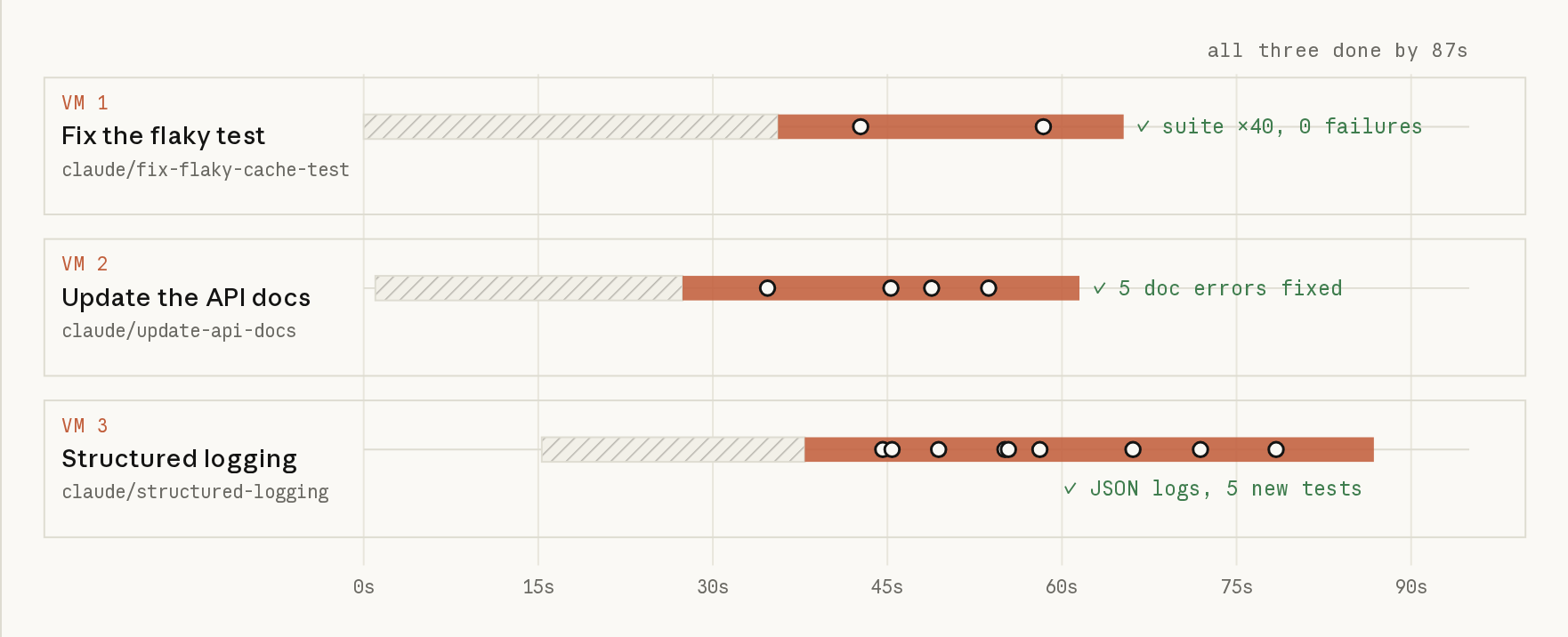
THREE TASKS, ONE REPOSITORY, THREE MACHINES
The sample repository is tidepool, a small Node API that predicts tides for three fictional harbors. It had three ordinary problems: one test failed about one run in four, the API docs described parameters the code no longer read, and the logger built its lines by concatenating strings.
I started three cloud sessions within 16 seconds of each other, one per problem. I started them programmatically, and because tidepool isn't on GitHub, each session first recreated the repository from files in its prompt. With a real repository you'd skip that step, and from a terminal each session is one claude --cloud command. Shortened, the three prompts were:
CODEShell
claude --cloud "npm test fails maybe one run in four. Find the flaky test, fix the root cause in the code (not the test), and prove it by running the suite at least 30 times in a row."
claude --cloud "docs/API.md is out of date with src/server.js. Rewrite it so every endpoint, parameter, default and response shape matches the code. Start the server and run each curl example to check it."
claude --cloud "Make src/logger.js emit one JSON object per line, keep LOG_LEVEL, and log method, path, status and duration_ms as fields. Add a test for the logger."
The sessions ran for 61, 65 and 72 seconds, and all three were done 87 seconds after the first one started. Recreating the repository took roughly a third to just over half of each run. Here are the results.
- The flaky test. Claude found a race in
TtlCache.get. The cache stored a value only after the loader finished, so a secondgetfor the same key during a load called the loader again. Claude changed the cache to store the in-flight promise, dropped the entry when a load fails, and rannpm test40 times in a row with zero failures. - The docs. Claude started the server, ran a curl against every endpoint, and found five ways the old doc was wrong. It listed fields the API never returns, documented a
daysparameter the code ignores, gave heights in feet when they are metres, skipped the/next-highendpoint, and left out the error responses. It also found that a malformedfrom=value returns an empty list with a 200, and documented that as a caveat instead of changing server code it wasn't asked to touch. - The logger. Claude wrote the JSON logger, moved the request log to structured fields, and added five tests. Its commit went in with one failing test, so Claude reran the cache test eight times, saw it fail in five of them, and traced the failure to the same race the first session was fixing. It proposed the same fix, left the cache alone because that was outside its task, and said in its summary that the suite wasn't clean.
The logger result shows why cloud sessions suit parallel work. Each session had its own copy of the repository, its own processes and its own branch. The docs session and the logger session each started the API server to test against it, and neither affected the other. On a single laptop, two agents working in one checkout would edit the same files, and would collide on a port unless each picked its own.
Because of that isolation, the logger session had no access to the cache fix the first session was making. Split parallel tasks along file boundaries, merge the branches in a sensible order, and expect a session to report problems that another session is already fixing.
UNDER THE HOOD OF A CLAUDE CODE CLOUD SESSION
A cloud session is a Claude Code session running on Anthropic-managed infrastructure, or on your organization's own machines with a self-hosted environment. The figure shows the parts. The four takeaways after it are the ones that change how you work.
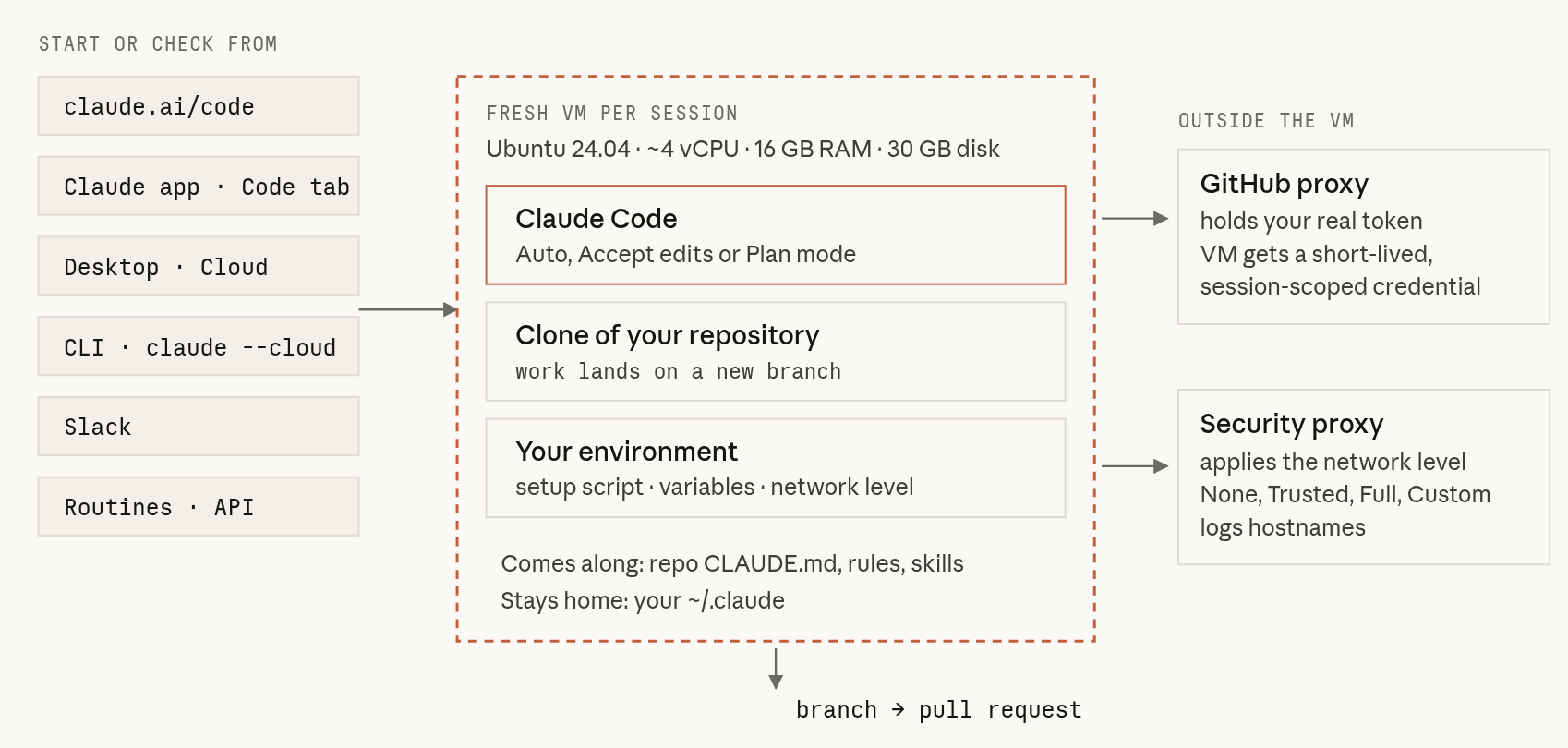
- Every task gets its own machine. A fresh VM with your repository cloned onto a new branch, so sessions can't touch each other's files or ports. See what's installed.
- Your GitHub token never enters the VM. A proxy holds it, and the session gets a short-lived credential that can push only to its own working branch. See the GitHub proxy.
- The repository's Claude config comes along. Your personal one doesn't.
CLAUDE.md, rules, skills, agents, and commands travel with the repo, and your~/.claudestays on your laptop. See settings in cloud sessions. - Idle VMs get reclaimed. Reopen the session and you get a fresh VM with the conversation restored, so commit work you care about. See environment expiry.
For specs, permission modes, and network levels, see the cloud environments docs.
LOCAL OR CLOUD?
Cloud sessions don't replace local ones, and most people use both. The table shows where they differ, and the paragraphs after it say when each one fits.
| Local session | Cloud session | |
|---|---|---|
| Runs on | Your machine | A fresh VM for each task |
| Laptop asleep or offline | The session stops | The session keeps going |
| Several tasks on one repo | Separate worktrees, ports and care | One VM and one branch per task |
| What the agent can reach | Anything your user account can, including SSH keys, cloud CLIs and ~/.claude | The repository, the network level you set, the connectors you enable, and a session-scoped GitHub credential |
| Start or follow from | That machine, or your phone through remote control | Browser, phone, Desktop, terminal, Slack, an API call or a schedule |
| Approvals | Any mode, including per-command | Auto, Accept edits or Plan |
| Ends with | Changes in your working tree | A branch, and a pull request when you want one |
| Compute | Your machine | No separate compute charge; uses your plan's limits |
Stay local when the task needs something only your machine has. That covers a database with real local data, a service you reach over VPN, a GPU, a phone simulator, or hardware on your desk. Stay local too for tight visual loops where you want to see each change in your own browser within seconds, and when your organization runs with Zero Data Retention, which turns cloud sessions off.
Two features sit between the options. Remote control keeps the session on your machine and lets you steer it from your phone or browser. Self-hosted environments, in beta for Team and Enterprise, run cloud sessions on your organization's own infrastructure, so they can reach private networks.
If none of that applies, the task is a good candidate for the cloud. The next section covers the workflows where that pays off most.
SEVEN WORKFLOWS THAT SUIT CLOUD SESSIONS
These workflows put the differences in the table to work: a separate machine for each task, sessions that keep running while you're away, and a branch at the end for you to review.
1. Clear a backlog in parallel
Let's say you have five small, unrelated fixes. Locally, you'd do them one after another, or set up five worktrees and keep their ports and installs apart. In the cloud, you'd start five sessions and review five branches.
CODEShell
claude --cloud "Fix the flaky test in auth.spec.ts"
claude --cloud "Update the API documentation"
claude --cloud "Refactor the logger to use structured output"
claude --cloud clones your GitHub remote at your current branch, so push your local commits first. While the VM starts, the CLI shows a live checklist of setup steps and queues anything you type.
Write each task as a self-contained ticket that states what's wrong, what done looks like, and how to prove it. The flaky-test prompt named its proof: running the suite at least 30 times in a row. The session ran it 40 times.
When the tasks belong to one larger effort, a project (public beta for Pro and Max) runs a coordinator conversation that starts and tracks the cloud sessions for you. It then groups them by state: working, waiting on you, and ready for review.
2. Let it prove the fix
A flaky test is the clearest case of work that needs repeated proof: you have to run the suite again and again, and you don't want that loop tying up the machine you're working on. In the cloud, Claude patched the cache and ran the whole suite 40 times in one command.
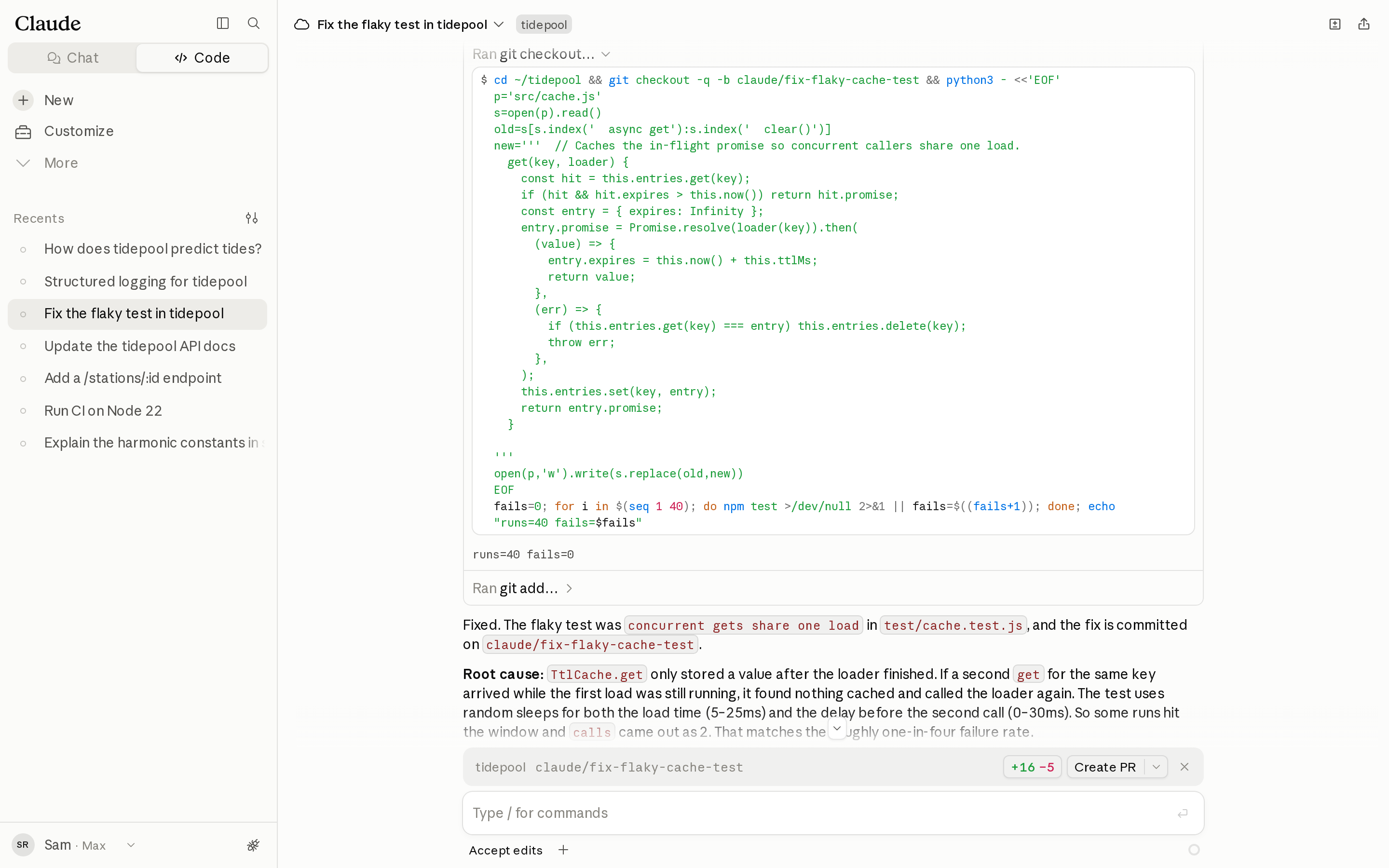
The VM has no compute charge and its CPU isn't yours, so ask for thorough proof. Run the suite 200 times, bisect a regression across 50 commits, run the slow integration tier, or start the app and hit it with curl the way the docs session did.
Each of Claude's turns still counts toward your plan, but a long test run inside one command costs little. Foreground commands time out after 2 minutes by default (10 at most) and then keep running in the background for up to 30 more. You can raise the defaults with BASH_DEFAULT_TIMEOUT_MS and BASH_MAX_TIMEOUT_MS in the environment's variables.
3. Plan at your desk, build in the cloud, finish in your terminal
For a larger change, agree on the approach first where back-and-forth is cheap. Start Claude in plan mode, work out the plan together, commit the plan, and push it.
CODEShell
claude --permission-mode plan
# ...agree on the plan, save it to docs/migration-plan.md, commit and push...
claude --cloud "Execute the migration plan in docs/migration-plan.md"
While the cloud session builds, your terminal is free for other work. When it's done, pull the session down to finish it by hand.
CODEShell
claude --teleport            # pick a cloud session
claude --teleport <session-id>
Teleport checks that you're in the same repository, fetches the session's branch, checks it out, and loads the whole conversation into your terminal. You need a clean working tree (it offers to stash), and the branch has to be pushed. From inside Claude Code, /teleport (or /tp) opens the same picker, and /tasks then t works too. The Desktop app goes the other way, and its Open in menu sends a local session to the cloud.
4. Check in from your phone
The Code tab in the Claude app connects to the same sessions. From your phone you can start a task, follow it, steer it, answer a question Claude asked, or tell Claude to watch a pull request.
A phone suits questions you'd otherwise forget by the time you reach a keyboard. I gave a fourth session the kind of question you'd type on one: how does tidepool predict tides, and how could it go wrong at the edges of a time window? It ran code to check its answer and found a real bug. The loop never examines the first or last sample, so the API misses a high tide that falls exactly at the start of the window.
5. Hand CI failures and review comments to Claude
With the Claude GitHub App installed on a repository, a cloud session can watch a pull request and act on what happens to it. From the CI bar in a session at claude.ai/code, turn on Auto-fix. You can also run /autofix-pr on the PR branch in your terminal, ask the mobile app to watch the PR, or paste the PR URL into a session.
Claude pushes clear fixes for failing checks and review comments, and explains what it changed. It asks you about anything ambiguous or architectural. Replies on review threads post under your GitHub username, labeled as Claude Code. Claude doesn't get notified about merge conflicts with the base branch, so ask it to rebase. Its comments can also trigger comment-driven automation such as Atlantis.
6. Start work without starting it yourself
A routine (research preview) is several saved resources designed to accomplish a task, such as a prompt, repositories, connectors, and an environment. Each run is a cloud session, started by a trigger. Triggers can be a schedule (hourly at most often), an HTTP call to the routine's own endpoint, or a GitHub event such as a pull request opening or a release. Create one at claude.ai/code/routines, in the Desktop app, or with /schedule in the CLI. Routines run without approval prompts, and by default they push to claude/-prefixed branches.
Two smaller tools help here. You can queue a follow-up into a running session from any machine where you're logged in, including a CI job.
CODEShell
claude -p "The integration tier is green now; rebase on main and push" --cloud <session-id>You can also bookmark a prefilled session. A URL such as claude.ai/code?prompt=Triage+the+newest+issues&repositories=acme-labs/tidepool opens claude.ai/code with the prompt and repository already filled in.
7. Run code you don't fully trust
A contributor's pull request, a new dependency's install script, or a repository you cloned five minutes ago can all run code you haven't read. On your laptop, that code runs next to your SSH keys, your cloud CLI sessions and your browser profile. In a cloud session it runs in a disposable VM with none of those, a session-scoped GitHub credential, and a network you can narrow.
Set the environment's network access to None for the strictest run, or keep Trusted, which allows package registries, GitHub and the major cloud SDK hosts. Even at None, Claude Code still sends requests to the Anthropic API, so data can leave the VM that way, and the session can still push to its own branch. All outbound traffic passes through a proxy that logs hostnames.
CONNECTING GITHUB WITHOUT GETTING STUCK
If your first cloud session goes wrong, GitHub is the most likely reason. Most problems come from cloud sessions needing two separate GitHub permissions.
- Signing in with GitHub tells Claude who you are.
- Installing the Claude GitHub App on an account or organization sets which private repositories Claude can see there.
Public repositories work with the first alone. Private repositories need the second, on whichever account or organization owns them. If you connected GitHub and a private repository is missing, the App usually isn't installed on the account or organization that owns it.
| What you've connected | Public repos | Your private repos | An org's private repos | Auto-fix, GitHub triggers, projects |
|---|---|---|---|---|
| Signed in with GitHub only | Yes | No | No | No |
| + App on your personal account | Yes | Yes | No | Your repos |
| + App on the organization (owner approves) | Yes | Only if also on your account | Yes | Org repos |
/web-setup (your gh token) | Yes | Yes | Whatever your token can reach | No, needs the App |
Path A: connect in the browser (recommended)
Connect your GitHub account at claude.ai/connect-github, then install the Claude GitHub App on the account or organization that owns your repository. For an organization, an owner usually has to approve the install. The quickstart walks through each step.
If GitHub doesn't send you back to claude.ai/code, the connect page at claude.ai/connect-github can show a short checklist for the usual causes. One of them is the single sign-on step, which hides an organization's repositories if you skip it.
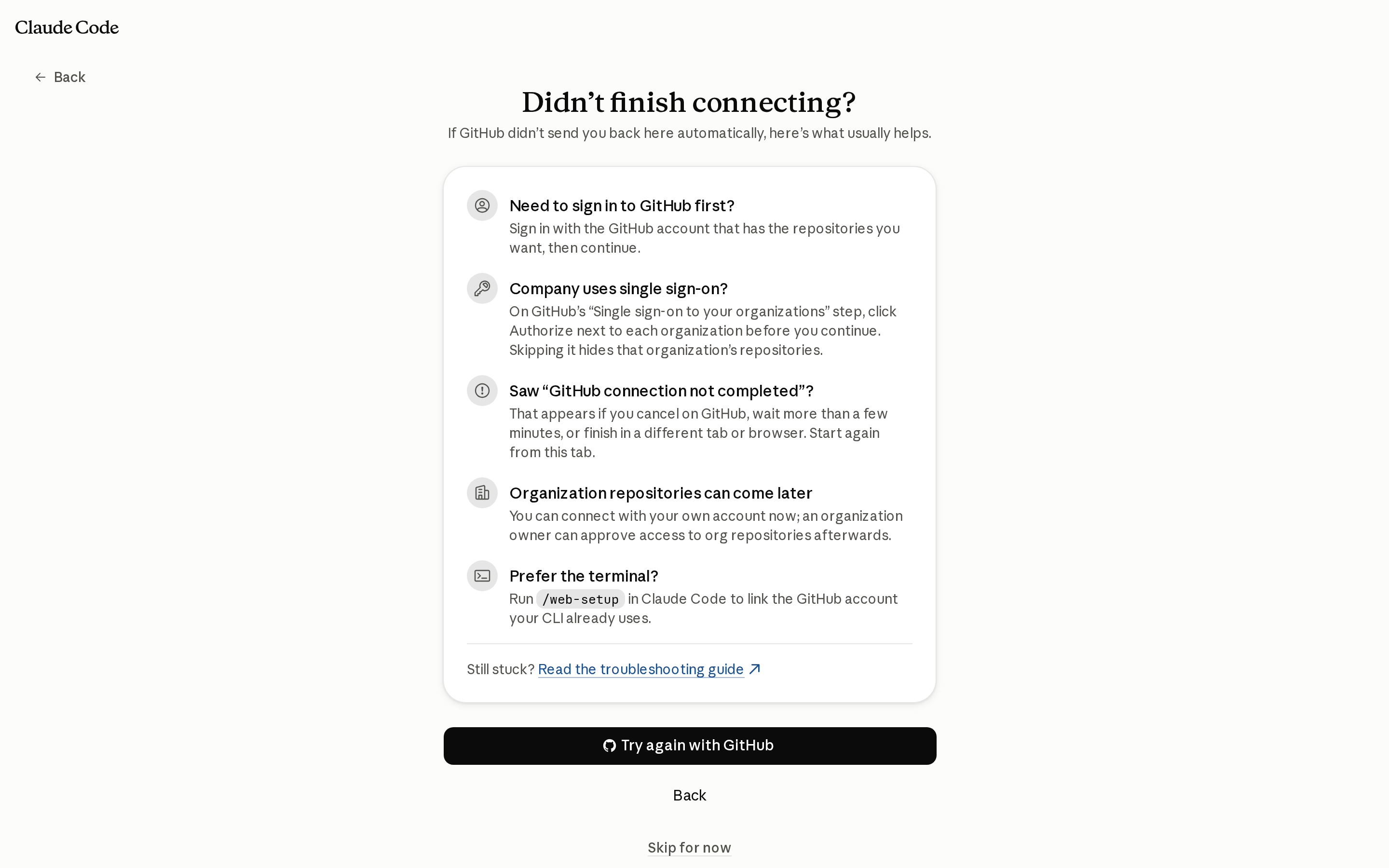
Auto-fix, GitHub-triggered routines and projects also depend on the App, so install it even if you connect another way.
Path B: connect from your terminal with /web-setup
If you already use the gh CLI, run /web-setup inside Claude Code to send your gh token to your Claude account. Sessions can then reach any repository that token can, with or without the App. See Connect from your terminal for the walkthrough. On Team and Enterprise plans, an owner has to turn on Quick setup first.
Path C: skip GitHub for a one-off
Run claude --cloud in a repository that has no GitHub remote, or one where the App isn't installed, and Claude Code uploads a bundle of your repository instead of cloning it. The session can push back only if your GitHub connection has push access to that repository. The docs list what the bundle includes and leaves out.
If you run Team or Enterprise
An owner has a short checklist: turn on the GitHub connector at claude.ai/admin-settings/connectors, allow cloud sessions in the Claude Code admin settings, install the Claude GitHub App on the organization's repositories (or approve members' requests), and decide whether to turn on Quick setup. Organizations with IP allowlists or GitHub Enterprise Server have an extra step. See the docs on IP allowlists and GitHub Enterprise Server.
When it still doesn't work
| What you see | Why | Fix |
|---|---|---|
| A private repository is missing from the picker | The App isn't installed on the account or organization that owns it, or its repository access excludes it | Install the App there, or add the repository to the App's Repository access in your GitHub settings |
| An error saying you must be an owner of the organization to link it | The organization blocked a membership check, usually because of a pending App permission request, an IP allow list, or SAML single sign-on | An owner accepts the pending permission request in the organization's GitHub App settings, turns on IP allow list inheritance for installed GitHub Apps, or (under SAML) grants Claude access to the organization |
| An organization's repositories are missing right after you connect | The organization uses SAML single sign-on, and its authorization step was skipped | On GitHub's "Single sign-on to your organizations" step, click Authorize next to each organization before you continue. If you already skipped it, authorize Claude for that organization in your GitHub settings, then reconnect |
| Every cloud session fails with an authentication error | Your Claude organization uses IP allowlisting | Ask support to exempt Anthropic-hosted services |
For anything else, see troubleshooting in the docs, including no repositories appearing after you connect GitHub. To disconnect GitHub entirely, use claude.ai/customize/connectors.
GIVE SESSIONS WHAT THEY NEED TO CHECK THEIR OWN WORK
A session that can run your tests checks its own work before it hands the work back. Without that, you review changes nobody has run. Most of the value in this guide's demos came from Claude running things: the suite 40 times, the server and its curls, the tide calculation at the window's edge. Ten minutes of environment setup gives Claude a way to run those checks.
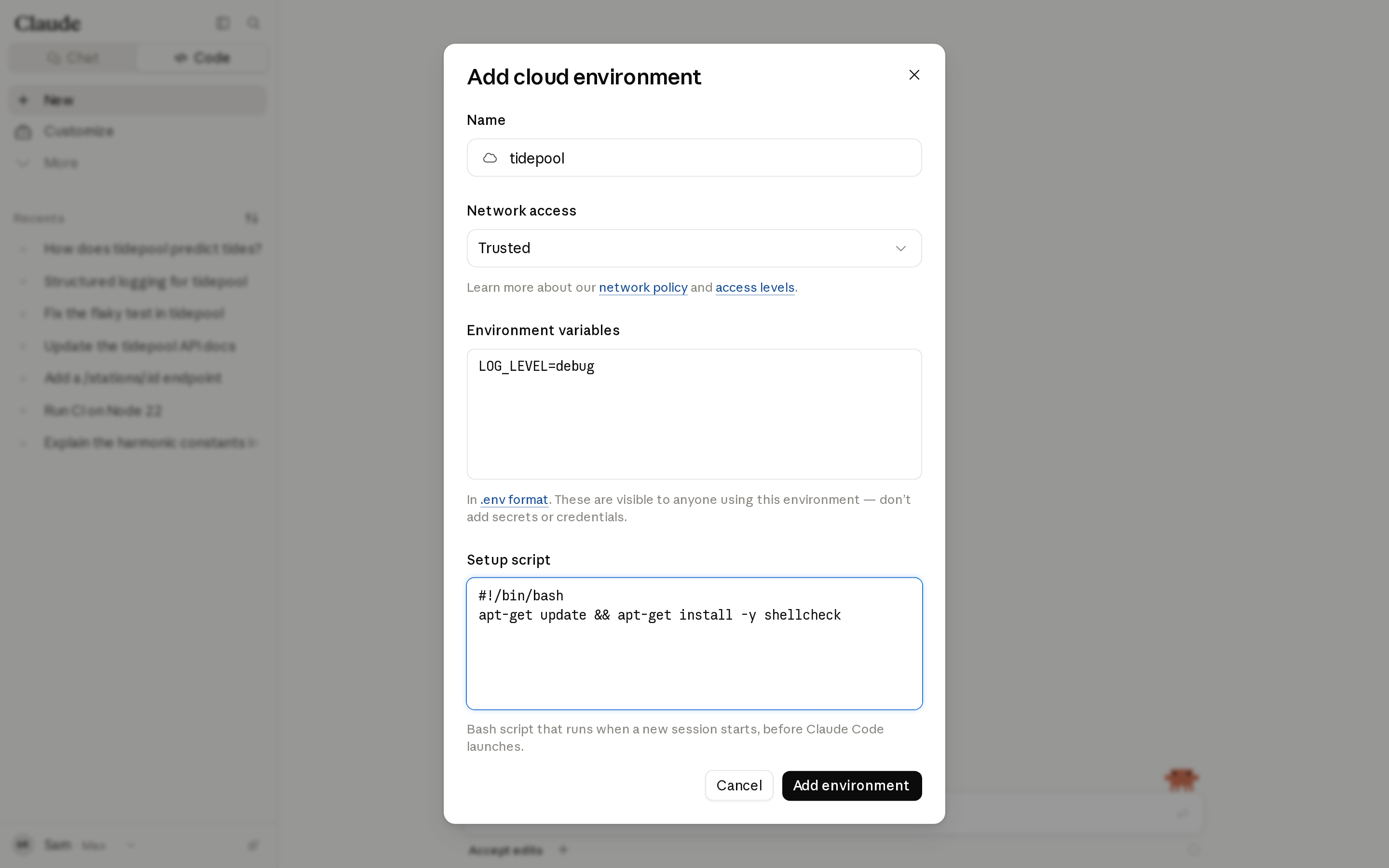
- Start with the Default environment. It uses Trusted network access, no variables and no setup script, which is enough for most JavaScript, Python, Go and Rust repositories.
- Use a setup script for the machine. It runs as root before Claude Code starts, so
apt installworks. It must exit 0 or the session won't start, and it should finish within about five minutes so the environment gets cached. After that, new sessions start from a snapshot with your tools on disk. The cache rebuilds when you change the script or the allowed hosts, and about every seven days. - Use a SessionStart hook for the project. Put
npm installand similar steps in a hook in the repository's.claude/settings.json, so they run the same way locally and in the cloud. CheckCLAUDE_CODE_REMOTEif a step should run only in the cloud. Repository hooks load in single-repository sessions. - Start services per session. The cache stores files. Processes that were running don't survive it. Ask Claude to run
service postgresql start, or do it in a SessionStart hook. - Pick the narrowest network level that works. Trusted covers the common registries. Use Custom to add a private registry, and Full only when the task needs the open internet. Changes reach running sessions within about a minute.
- Keep secrets out of shared variables. Environment variables are visible to anyone who uses the environment. On Pro and Max, an environment's API credentials attach a key to requests for the hosts you name, outside the VM, so the key never sits in a variable.
- Put the commands in CLAUDE.md. Your personal
~/.claudedoesn't reach the cloud VM. If Claude needs to know how to run the integration tests, the repository has to say so.
HABITS THAT PAY OFF
- One task, one session. Small, separate sessions are easier to review and cheaper to throw away.
- Ask for evidence. Name the command that proves the task is done, and read Claude's summary before the diff.
- Push before
claude --cloud. The VM clones from GitHub, so unpushed commits don't reach it. - Commit as you go on long tasks. Idle VMs can be reclaimed.
- Review in the diff view. Inline comments are batched into your next message, and Create PR can open a full PR, a draft, or GitHub's compose page.
- Steer while Claude works. Messages you send while Claude works queue up, and you can take a queued one back.
- Share the session. On Team and Enterprise, set a session's visibility to Team so a reviewer can read how the change was made. Commits from cloud sessions carry a
Claude-Sessiontrailer that links back to the transcript. - Watch your limits. Parallel sessions draw on your plan limits in parallel, so five sessions use them about five times as fast as one. Routines have their own hourly caps, and projects can start up to 200 new threads a day.
COMMON QUESTIONS
Who can use cloud sessions? Pro, Max, and Team plans, and Enterprise users with a premium seat or a Chat + Claude Code seat, signed in with a claude.ai account. They aren't available with a Console API key or a third-party provider. See the cloud sessions docs.
Where does my data go? Anthropic stores the session transcript, and how long it's kept depends on your plan and model-improvement setting. VMs are reclaimed after inactivity, and deleting a session removes its data. See data usage and security.
Will Claude train on my cloud sessions data? Cloud sessions follow the same policy as the rest of Claude Code. On Team, Enterprise, and the API, Anthropic doesn't train models on your code or prompts unless your organization opts in. On Free, Pro, and Max, it depends on your model-improvement setting. See data usage.
Will it handle my large repository? The VM has about 4 vCPUs, 16 GB of RAM, and 30 GB of disk. Put heavy installs in a setup script so they run once and land in the cached snapshot.
What about GitLab or Bitbucket? claude --cloud can upload a bundle from any git repository, but the session can't push back to those hosts. GitHub Enterprise Server is supported on Team and Enterprise. See the platform restrictions.
What happens when parallel branches conflict? The sessions don't know about each other. Merge one branch, then send the next session a follow-up such as claude -p "rebase on main and fix any conflicts" --cloud <session-id>.
Will I lose my local tools? User-level config doesn't travel, so move what the team needs into the repository: commit skills and commands under .claude/, add project-scoped MCP servers to .mcp.json, and document test commands in CLAUDE.md. Settings in cloud sessions lists what each session reads.
START IN FIVE MINUTES
Setup takes about five minutes. After that, you can hand off a task, close your laptop, and come back to a branch that's ready for review.
- Open claude.ai/code, or run
/loginin Claude Code with your claude.ai account. - Connect GitHub and install the Claude GitHub App where your repository lives.
- Pick the repository and the Default environment.
- Give Claude one task from your backlog, with a command that proves it's done.
- Close the tab. Check in from your phone later, then review the diff and create the pull request at claude.ai/code.