小商家怎样用 AI 做视频广告:从产品图到能讲清卖点的素材
Higgsfield 用一罐虚构柠檬汽水,演示人物讲解、产品动态镜头和配套广告图。看懂工具怎样工作,也看懂生成后还需要完成什么。
很多独立小商家和个体创作者想做短视频广告,常常卡在第一步:请不起专业摄制团队、租不起影棚,自己拿手机拍又很难拍出商业质感。
Higgsfield 发布的官方指南提供了一个低门槛思路:用一张清晰的产品图或一个商品链接作为输入,借助 AI 工具直接生成带有 AI 人物讲解或商业运镜的短视频广告。
但这并不意味着按一下按钮就能坐等订单。如何把控 AI 生成的内容、如何避免“一眼假”的穿帮、怎么让无声刷视频的用户产生购买冲动?本文把这份指南的核心机制、实操路径与关键避坑逻辑拆开讲透。
先看清楚:哪些工作由工具完成
制作小微商业 AI 视频广告需提前备好四项基础:清晰产品图或链接、目标受众、单一核心卖点及投放渠道与行动号召(CTA)。高质量短视频需兼顾静音播放,确保文字与画面自明。
平台提供 Marketing Studio(利用产品资料生成视频和图片素材)与配套静态图制作工具 Ads Studio(基于品牌套件生成一致风格图片)。Higgsfield 在指南中介绍,其创作套件有 35+ 模型与工具,Marketing Studio 提供 1,500+ 模板,分为 Product Shots、Ads、Marketplace、Posters、UGC Videos 和 Motion 六类。做人物介绍视频时,从 UGC Videos 进入;模板覆盖不到的需求,再用提示词描述。
核心制作路线分为:
- UGC 模板:导入产品,在模板支持时配置 9:16 竖版与 15 秒时长,设置 Hook、一个好处与 CTA,由 AI 人物展示;
- 提示词运镜:上传清晰的产品参考图,描述镜头运动与光影,生成产品动态;
- 静态图配套:导入并核对品牌资料,生成配套静态广告。
输入链接直接解析时,工具仅能读取网页中能够取得的商品名、描述、配图和品牌信息,并不能替代人工确立品牌策略。如果抓取信息存在缺失或理解偏差,生成结果就会出现偏颇,因此导入后仍须逐项核对并手动修正。
上线前需核对:AI 声明、素材授权、外观前后一致性、文字防遮挡与易读性、产品主张准确性、声音口型、版位尺寸及链接有效性。
开工前准备清单(复制即用)
在正式进入工具生成前,提前填好以下清单,能省去制作中临时决策的成本:
- 素材:[清晰商品白底图/实拍图或商品页面链接]
- 受众需要:[目标买家特征及其需要解决的具体痛点]
- 一个真实卖点:[单条广告仅聚焦的单一核心好处与当前促销信息]
- 支持依据:[佐证核心好处的客观依据或资质证明,不可杜撰]
- 版位:[计划投放渠道与对应画幅,如 9:16 竖屏或 16:9 横屏]
- 下一步:[引导用户点击的明确行动指示,如前往店铺或领券选购]
让观众看懂一个好处,再告诉他下一步去哪
许多商家初次尝试视频广告时容易犯一个错误:恨不得在 10 秒钟内把“百年工艺、纯天然、买一赠一、包邮到家”全说完。在快节奏的信息流中,这种信息轰炸往往导致用户直接划走。
一个在信息流中能跑通的小商业视频广告,结构极其克制:
- 抓手(Hook):给用户留下来的理由。例如汽水开罐时喷涌的气泡、水珠顺着冰凉罐身滑下的瞬间。
- 产品与利益(Benefit):明确告诉用户这是什么、能解决什么痛点。一则广告只讲一个核心好处。
- 行动号召(CTA):明确指示下一步去哪。例如“前往店铺选购”;服务商家也可以引导预约或到店。
这条叙事线还要满足三个条件:产品能认出来、卖点有依据、格式适合投放位置。汽水画面再热闹,也要让人看清罐身和标签,知道卖的是什么。若声称“用真柠檬制作”,应有能够核实的成分信息支持;画面里出现柠檬,或包装印着“REAL LEMON”,都不能代替依据。本例品牌是虚构的,参考图上的配方和营养文字只是包装设计,不能当作真实商品的检测证据。
默认在“静音”状态下构思画面
观众可能在地铁、办公室等场合关着声音浏览。如果广告必须依赖讲解才能听懂,静音的观众就会漏掉核心信息。你的画面和清晰可读的字幕,必须在完全不发声时也能完整传达核心好处。
人物讲解和产品镜头,分别解决什么问题
原文以一个虚构品牌 Squeeze Club(330ml 柠檬味苏打水)为例,展示了两种主流的制作方式。

路径一:让 AI 人物介绍产品
UGC 通常指用户制作的内容。这里的 UGC 模板模仿用户自拍视频的人物讲解风格,使用 AI 人物,不表示它是真实用户拍摄的评价。适合需要人物帮助讲清使用场景的商品。在 Marketing Studio 中进入 UGC Videos,选择有人物展示产品的模板。原文这条模板路线不需要写提示词:先检查出镜人物,再核对模板提供的脚本或广告信息选项。上传清晰商品图;只有模板支持时才粘贴商品链接。可用的格式、时长、台词选项,以及声音和口型能力都取决于模板或模型;生成前先纠正导入的商品信息。
- 脚本要点:
- Hook:“准备好来次清爽小憩了吗?”
- Benefit:“Squeeze Club 带来随身便携的清爽柠檬气泡。”
- CTA:“即刻选购 Squeeze Club。”
- 合规与伦理边界:若出镜人物由 AI 生成,切勿把台词写成“真实顾客的亲身体验”(例如“我喝了三个月感觉身体变好了”)。AI 人物没有这些亲身经历,画面再逼真也不能让这段证言变成真实。
确认信息后,按这个顺序完成:
- 在 Generate 按钮上看清本次点数消耗,再开始生成。
- 对照参考图检查外形、颜色和标签;再看开场、好处和行动提示是否传达清楚,台词是否准确、字幕是否可读,声音和口型是否清楚。
- 有问题就调整模板提供的可用设置,或换一个模板,再生成并复核;满意后下载。
需要时,可在视频编辑器里再补 Logo、优惠信息或行动提示。
路径二:用提示词描述产品镜头
适合展示商品本身的材质、工业设计或感官细节。上传一张清晰、光线均匀的产品参考图(如上面的白底拼图),然后用文字提示词描述镜头轨迹与环境。
时长建议与演示文件的区别
原文指南示范在模板支持时选择 15 秒竖版(9:16) 格式;而上述嵌入的实际演示视频文件实测时长为 10.05 秒(1080×1920 分辨率)。实际时长按所选模板和版位要求确认,并给画面上的行动提示留下足够的阅读时间。
教学提示词示例,非原文逐字稿,也不是嵌入视频的已知生成提示词:
Vertical 9:16 product commercial. Slowly orbit a yellow-green soda can on a sunlit table. Show crisp condensation droplets on its metal surface and a splash of sparkling water in the background. Keep the can shape, brand label and colors consistent with the uploaded reference.
中文意思:竖版 9:16 产品广告。镜头缓慢环绕阳光下桌面上的黄绿汽水罐,展示金属表面水珠和背景的气泡水飞溅;罐型、品牌标签和颜色保持与上传参考图一致。
它把主体、运动和光线分开描述,比只写“高级、电影感”更方便定位问题。保持标签一致是生成要求,实际结果仍要逐镜头检查。生成前确认设置和点数费用;生成后除了外观和标签,还要核对运镜是否符合要求、构图是否突出产品,再下载选中的版本。动态画面还需加上一个主要好处、适用的优惠信息和行动提示,才能成为信息完整的广告。
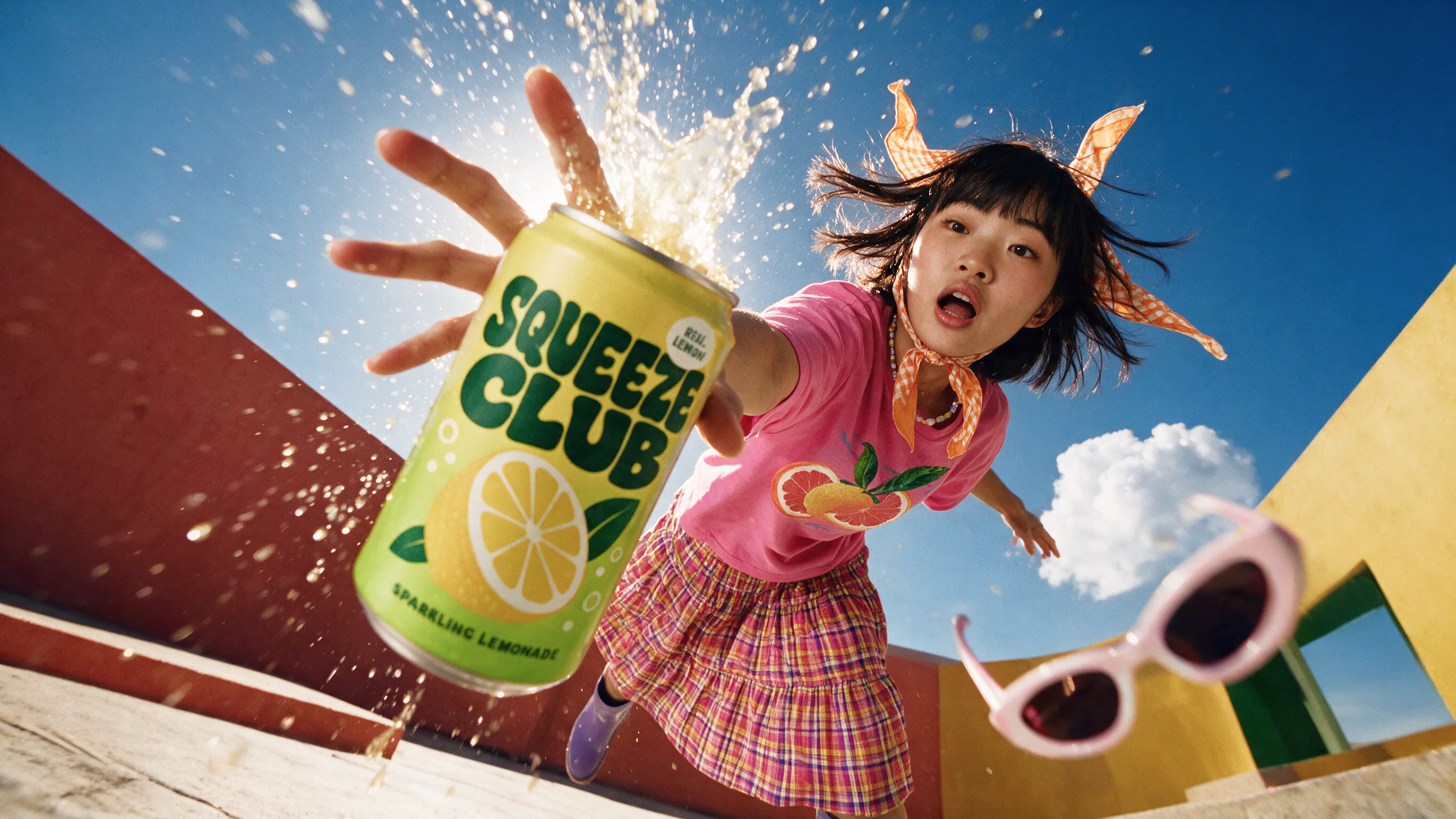
“产品镜头”也可以有人物参与。原文视频就包含人物展示、墨镜遮挡前景和液体飞溅;它没有提供这段视频的完整生成提示词,上面的环绕镜头示例并非复现它的已知方法。
AI 虚拟主持手持产品开场,用“准备好来次清爽小憩了吗?”等直接反问抓住划屏用户注意力。
展示即开即饮的便携感与产品能够证实的好处,画面配合字幕强调关键卖点,避免堆砌过多无关特性。
画面上显示清晰的行动提示(如“即刻选购 Squeeze Club”),并与后置点击链接完全对应。
用同一套品牌信息,把静态广告也做出来
若需要在投放视频的同时搭配同系列静态图片广告,可使用 Ads Studio 制作匹配素材:
- 接入品牌资产:输入网站 URL 点击“Create my brand”由系统读取;若暂无网站或页面无法解析,可直接手动创建品牌套件。
- 核对品牌核心规范:系统读取后,务必仔细核对 Logo 图标、主副配色、字体、文案语气、目标受众与核心卖点,对解析偏差或缺漏项手动修正与补全。
- 选定商品与生成张数:从导入的商品目录中勾选目标产品;若目录未收录,需手动上传商品图文。教程中选择 3 张作为演示数量,商家可按需设定。
- 核查点数并启动生成:点击生成前,务必核对界面标明的总点数消耗,确认在预算内再开始渲染。系统将基于品牌套件与商品信息排版出图。
- 成片复核与下载导出:成图后需逐张检查商品外观是否形变、文案是否准确真实、整体排版是否契合品牌调性,确认无误后再下载使用。
在手机上复核:外观、信息和点击都要对
画面清晰,也可能出现细节编造与形变。在把视频投放至广告账户前,建议直接在手机屏幕上全屏过一遍以下检查:
- 包装文字与形状稳定性:慢放或暂停检查每个镜头里的商品,Logo 字母有没有少一个横杠?圆罐会不会在旋转时突然变扁?
- 安全区避让(UI Safe Zone):社交平台界面周围密布着点赞、评论、作者名和底部的购物链接卡片。如果你的核心卖点字幕或 Logo 贴在屏幕顶端或右下角,可能被平台控件遮挡。
- 点数消耗与成本预期:AI 生成的费用取决于所选模板或模型、时长和分辨率。不要盲目追求超长视频,每次生成前检查显示的点数费用,把失败重做和不同版本的费用一起计入制作成本。
- 声音与口型的人工复核:虽然系统支持配音生成,但必须插上耳机、调大手机扬声器亲自听审一遍。检查是否有生硬的机械断句,以及人物开合口型是否与发音节奏严重错位。
- 平台规则与 AI 披露要求:同时核对投放平台和目标地区的要求;需要时披露素材由 AI 生成或经过显著的 AI 编辑。不能只查看平台规则,也不能只检查完全由 AI 生成的素材。
- 真实性与依据核对:仔细核对视频中声称的功效好处、演示效果、具体价格及促销折扣,确保所有表述均有真实凭证支持,不暗示产品无法达到的效果。
- 素材使用权确认:核验上传的照片、品牌商标、背景音乐、人声配音及出镜真人均已获得适用的使用许可,并筛查画面中是否误带第三方标识或版权素材。
- 目的链接有效性:在手机上亲自点击测试落地页链接,确保能顺畅跳转至对应的商品详情页或购买页面,避免死链或跳转错误。
- 文字真的读得完:用手机检查字号、文字与背景的对比度,以及每行停留时间。静音播放时,不暂停也应能读懂主要好处和行动提示。
- 版位和规格对应:原文以 9:16 竖屏用于 Reels、TikTok、Shorts,16:9 横屏用于 YouTube 和网站为例。具体投放仍要确认所选版位要求的画幅与时长,并避开界面控件;15 秒是教程的条件性设置示例,不是所有广告的统一要求。
Squeeze Club 是虚构教学产品,教程没有提供真实投放的转化率。你可以用这套流程准备不同广告版本,再分别记录制作花费和投放表现;画面有质感,并不能直接说明观众会购买。
小商家怎样用 AI 做视频广告:从产品图到能讲清卖点的素材
想做商品短视频,又缺少摄制团队?先备好一个真实卖点,再选人物讲解或产品镜头。
制作路径速查 · 生成后仍须复核 · 可与正文对照使用
Higgsfield 的指南展示了把产品图或商品资料变成广告素材的方法。画面质感只是制作结果;卖点是否真实、观众是否看懂、投放是否有效,要分别判断。
先把六项资料填清楚
- 产品资料
- 清晰、光线均匀的商品图;白底不是必要条件。链接仅在模板支持时使用。
- 目标买家
- 谁会买,想解决什么需要?
- 一个真实好处
- 单条广告聚焦一个卖点,优惠信息适用时再加。
- 支持依据
- 成分、资质或可核实资料;柠檬画面、包装字样都不能代替证据。
- 投放版位
- 确认平台、画幅与时长要求。
- 下一步
- 明确引导去店铺、领券、预约或到店。
两条路线都沿用这条叙事线;关掉声音也要读得懂。
按表达需要选路线,再汇合复核
需要讲清使用场景
- Marketing Studio → UGC Videos,选有人物展示产品的模板,检查人物与脚本选项。
- 上传商品图,或模板支持的商品链接;核对、纠正导入资料。
- 填写 Hook、Benefit、CTA,确认模板提供的设置。
无需写提示词。台词、声音、口型、画幅和时长能力取决于模板或模型。AI 人物模仿自拍视频风格,不能冒充真实顾客的亲身体验。
需要展示材质与运动
- 上传清晰参考图。
- 描述主体、镜头运动、光线与环境;要求外形、标签和颜色一致。
- 确认设置,生成动态;再补一个好处、适用优惠与 CTA。
一致性是生成要求,仍要逐镜头检查。产品镜头也可以包含人物。
这是教学改写,非原视频的已知生成提示词。
生成前:看清 Generate 显示的点数;模板或模型、时长、分辨率影响费用,失败重做与多版本也计入成本。
生成后:对照参考图查外形、标签、颜色;核对开场、卖点、CTA、字幕、声音和口型。产品镜头另查运镜与构图。
有问题:调整可用设置或换模板,再生成、再复核;满意后下载。需要时用编辑器补 Logo、优惠或行动提示。
下载后,拿手机按播放顺序检查
- 先静音完整播放。产品、一个好处、下一步都看得懂;字号、对比度和停留时间够用,文字、Logo 避开平台控件。
- 再慢放、暂停、开声音。查外观与包装字稳定性、运镜与构图,再听台词、看口型。
- 最后点目的链接。确认进入正确的商品或预约页面,并核对所选版位画幅、时长。
投放前核实功效、价格、优惠依据与素材使用权;照片、商标、音乐、人声、真人均需适用授权。按平台和目标地区要求,披露 AI 生成或显著 AI 编辑。
可选配套:同一套品牌信息做静态图
Ads Studio:网站 URL → Create my brand;无网站或解析失败时手动创建品牌套件。
核对 Logo、配色、字体、语气、受众与卖点 → 选商品与张数(目录缺失则上传)→ 看总点数再生成 → 查商品、文案与品牌一致性 → 下载。教程中的 3 张只是演示数量。
How to Make Video Ads for Your Small Business With AI
Learn how to make video ads for your small business with AI: what a good ad includes, what to prepare, step-by-step workflows, and a pre-publish checklist.
To make a video ad for a small business with AI, you need clear product photos or a link, a defined audience, one main message, and a placement plan. An AI video platform can turn those materials into an ad, such as a person presenting the product. Supporting static ads can promote the same product across the campaign. This guide uses Higgsfield Marketing Studio to create the video ads, with Ads Studio as an optional way to create static ads for the same campaign.
What Makes a Good Small Business Video Ad?
A good small business ad does one job quickly: it shows what you sell, says who it's for, and tells viewers what to do next. Plan for people who watch without sound, so the picture and the on-screen text carry the message on their own. Focus each ad on one product, one main benefit, and a clear next step.
| Element | What It Should Do | Example |
|---|---|---|
| Hook | Give viewers a reason to keep watching | A chilled soda can opens with a fizz, sending droplets into the sunlight |
| Product | Make it clear what you sell | A close-up of the Squeeze Club can with its label visible |
| Benefit | Explain how the product helps the buyer | Sparkling lemon refreshment in a grab-and-go can |
| Proof | Support the benefit with genuine evidence | Verified ingredient information supporting the “made with real lemons” claim |
| Format | Suit the intended placement | Vertical 9:16 for Reels, TikTok, and Shorts, or horizontal 16:9 for YouTube and your website |
| Call to action | Tell viewers what to do next | “Shop Squeeze Club” |
What Do You Need Before You Start?
Gather these four things first. Each one removes a decision you would otherwise make in the middle of generating.
- Product materials: Gather clear product photos or a link to the product page.
- Target audience: Define who the ad is for and which need your product addresses.
- Main message: Choose one benefit to highlight and include any relevant price or promotion.
- Placement and call to action: Decide where the ad will run and what viewers should do next, such as shop, book, or visit your store.
How to Create Your Ads on Higgsfield: Step-by-Step
Higgsfield is an AI-native creative suite with 35+ models and tools. For ads, start with Marketing Studio, which turns a product link or photos into ad-ready video and image assets.
It reads available product and brand information from the page, including the product name, description, images, and other brand signals, then applies them to the selected template. Choose one from 1,500+ templates across six categories: Product Shots, Ads, Marketplace, Posters, UGC Videos, and Motion. For anything a template doesn't cover, describe the ad in a prompt.
The examples below use one made-up product: a 330 ml can of sparkling lemonade from a fictional brand called Squeeze Club. The first example builds a UGC ad from a template, the second builds a product video from a prompt, and the third uses Ads Studio for matching static ads. Available settings vary by template and model.
Example 1: UGC Ads
Step 1: Choose a UGC template. Open Marketing Studio, go to UGC Videos, and select a template with a person presenting a product.
Step 2: Add your product and set the format. Upload a clear photo of the can or paste the product page link if the template supports it. Check any imported product details and correct mistakes. Then choose vertical 9:16 and a 15-second duration where available.
Step 3: Review the presenter and ad message. No prompt is required. Check the script or message options available in the template. Keep the ad focused on one main benefit, open with a clear hook, and end with a call to action such as "Shop Squeeze Club." Verify that any product claims are accurate before generating. For example:
- Hook: "Ready for a fizzy break?"
- Benefit: "Squeeze Club brings sparkling lemon refreshment in a grab-and-go can."
- Call to action: "Shop Squeeze Club."
If the presenter is AI-generated, do not write the script as though they are a real customer describing personal experience with the product. If the ad relies on dialogue, add captions or on-screen text so the message still works without sound.
Step 4: Generate the video. Check the credit cost shown on the Generate button, then start the generation.
Step 5: Review and download. Compare the can's shape, color, and label with your reference. Check that the hook, benefit, and call to action come through, that the spoken claims are accurate, that the captions or on-screen text are readable, and that the audio and lip sync are clear. If anything is off, adjust the available settings or choose another template before generating again.
Optional: Add graphics in a video editor, such as your logo, an offer, or a call to action.
Example 2: A Product Video from a Prompt
Step 1: Upload a product reference. Use a clear, well-lit photo of the same can, with its shape, color, and label visible.
Step 2: Set the video format. Choose vertical 9:16 and a 15-second duration where supported.
Step 3: Describe the movement. Specify the camera movement, setting, and lighting.
Step 4: Generate the video. Check the settings and credit cost, then start the generation.
Step 5: Add the ad message and CTA. Turn the generated product shot into the finished ad by adding one main benefit, any relevant offer, and a clear CTA such as "Shop Squeeze Club." Keep the copy short enough to read comfortably on a phone.
Step 6: Review and download. Check the camera movement, framing, and product details. Make sure the can keeps its shape and the label remains consistent throughout the clip, then download the version you want to use.
Ads Studio: Create Matching Image Ads
Example 3: Static Ads for the Same Product (Optional)
Step 1: Set up your brand. Paste your website URL and click Create my brand, or create the brand kit manually if you do not have a website.
Step 2: Review the brand kit. Check the logo, colors, fonts, tone of voice, audience, and selling points. Correct or add any missing information.
Step 3: Select your product and quantity. Choose the soda from the imported catalog, or add it manually if it is missing. Select three ads.
Step 4: Check the cost and generate. Review the total credit cost, then start the generation. Ads Studio creates the copy and designs using your product information and brand kit.
Step 5: Review and download. Check the can’s appearance, the accuracy of the copy, and the brand styling. Download the ads you want to use alongside the videos.
What to Check Before You Publish Your Ad
Run through this list on a phone before the ad goes live:
- AI disclosure is correct: Check the rules for the advertising platform and regions you are targeting. Where required, label or disclose that the creative was AI-generated or significantly AI-edited.
- Rights are cleared: Make sure you have permission to use any uploaded images, logos, music, voices, or real people shown in the ad. Review generated assets for third-party trademarks or copyrighted material before publishing.
- Product looks right: Compare the shape, color, label, and logo with the real item in every shot.
- Text is readable on a phone: Check the size, the contrast, and how long each line stays on screen.
- Product claims are accurate: Check every benefit, demonstration, statistic, price, discount, and spoken claim against information you can support. Make sure generated copy or visuals do not imply results the product cannot deliver.
- Audio is clear: Listen on a phone speaker and with headphones, and check that spoken lines match the lips.
- Format fits the placement: Confirm the aspect ratio and length, and keep text away from the edges where the app's buttons and captions appear.
- The link works: Make sure it opens the correct product or landing page.